
START HERE
Your first project
From an empty account to a verdict for every language. This tutorial walks through one project from start to finish: sign in, create the project, upload the files, run the analysis, read the result, make your first decisions and find it again later.
Plan on about fifteen minutes, most of it waiting for the analysis. You need the original document and at least one translation of it, all of the same file type. If you only want to try EasyQLab on a file without keeping anything, jump to Quick analysis.
Sign in
EasyQLab runs in the browser: there is nothing to install. Open app.easyqlab.com.
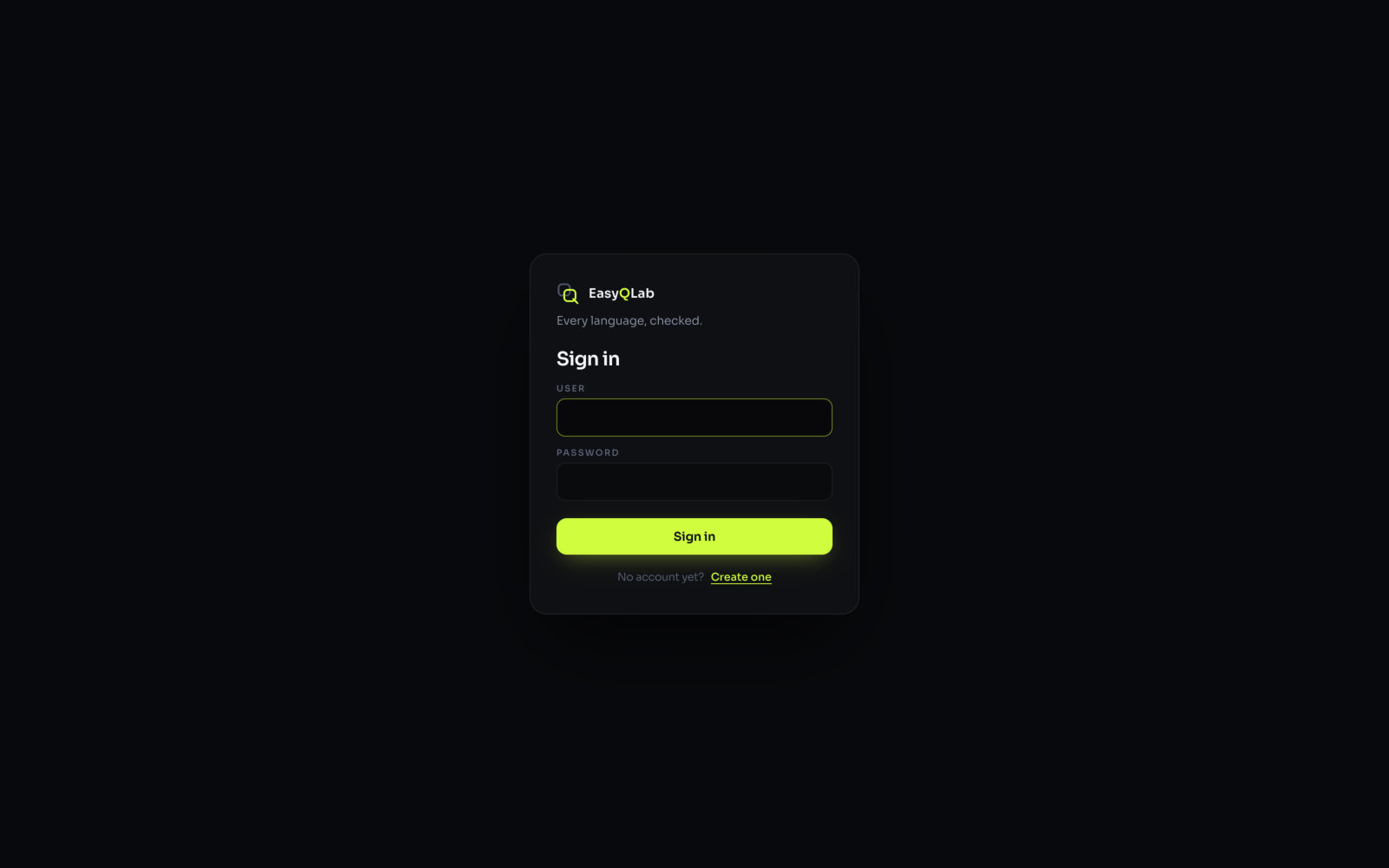
- Type your User and Password, then click Sign in. If either is wrong, the screen says "User or password is not correct."
- No account yet? Click Create one, fill in the form and click Create account. It needs a real email address: you get a message to confirm it ("Account created. Check your email to confirm it.").
What you'll see: the Dashboard, with the menu on the left: Dashboard, Projects and Quick analysis at the top, Billing and Settings at the bottom.
Interface language and theme
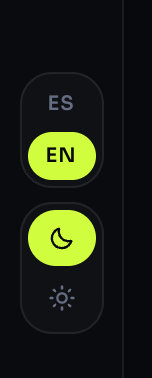
- Click ES or EN to show the interface in Spanish or English. It changes the screen right away, without running anything again.
- Click the moon or the sun to switch between dark and light. Your choice is kept in this browser.
Create the project
A project is a folder for one job. It keeps the files, every analysis you run on them (each one numbered) and every decision you make while reviewing.
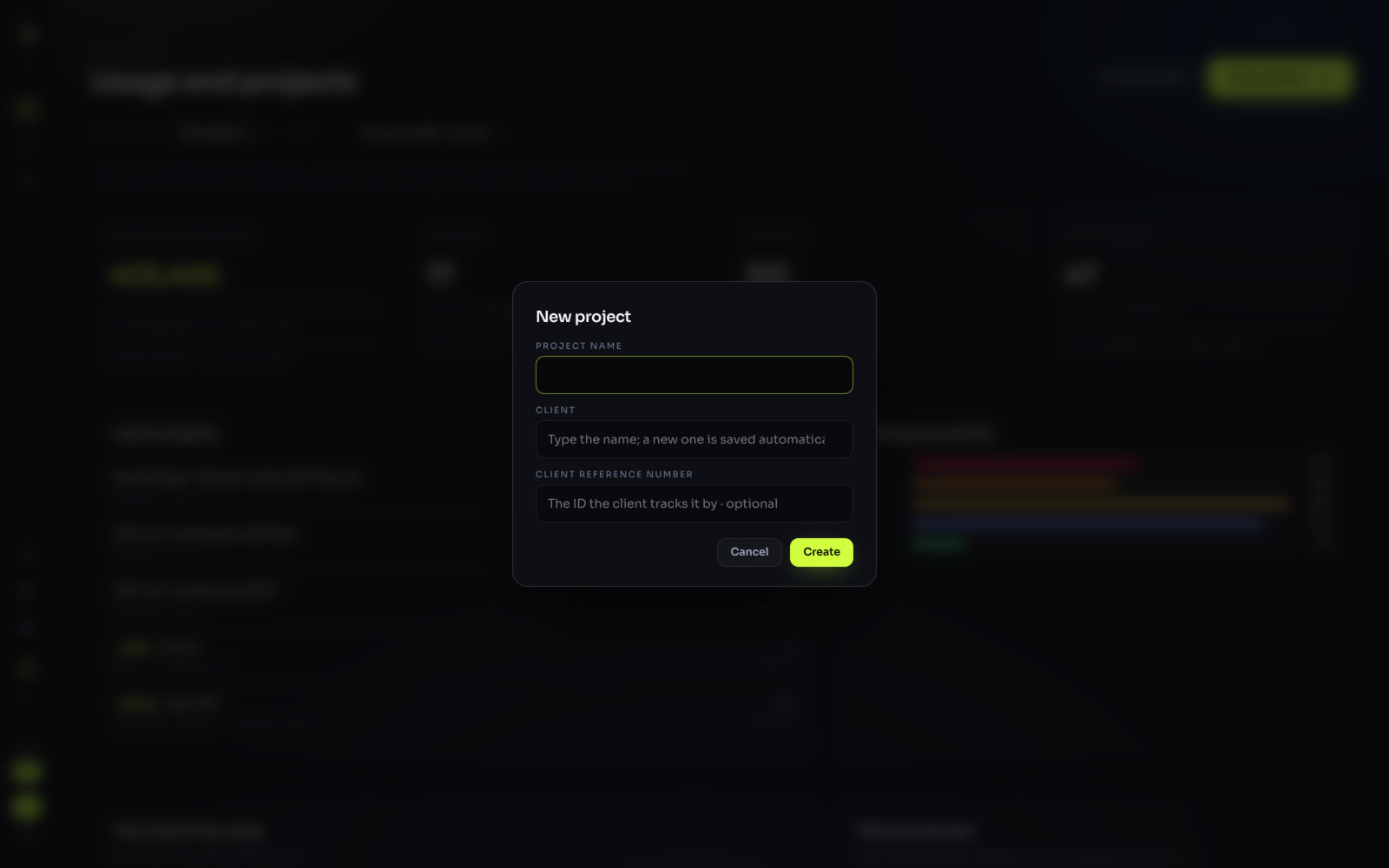
- Click New project on the Dashboard, or + New project on Projects.
- Fill in Project name. For example "153292 Member guide".
- Type the Client. Pick an existing client or type a new name: "a new one is saved automatically".
- Add the Client reference number if you have one. It's optional: "The ID the client tracks it by". You can search projects by it later, and it usually is the fastest way to find one.
- Click Create.
What you'll see: the project's analysis screen, with the project's name, client and reference at the top.
The review profile
Next to the project's name you see Review profile. A profile is the set of rules the files are measured with: which checks run, their severities, the font substitutions you allow and the traffic-light thresholds. The default one is fine for a first project.
If you keep a profile per client, pick it here before you click Analyse: the analysis records the profile it ran with, and changing the profile later doesn't alter a saved run. How to build one is in Review profiles.
Upload the files
The analysis screen has two areas: Source on the left for the original, and Translations on the right for the translated files.
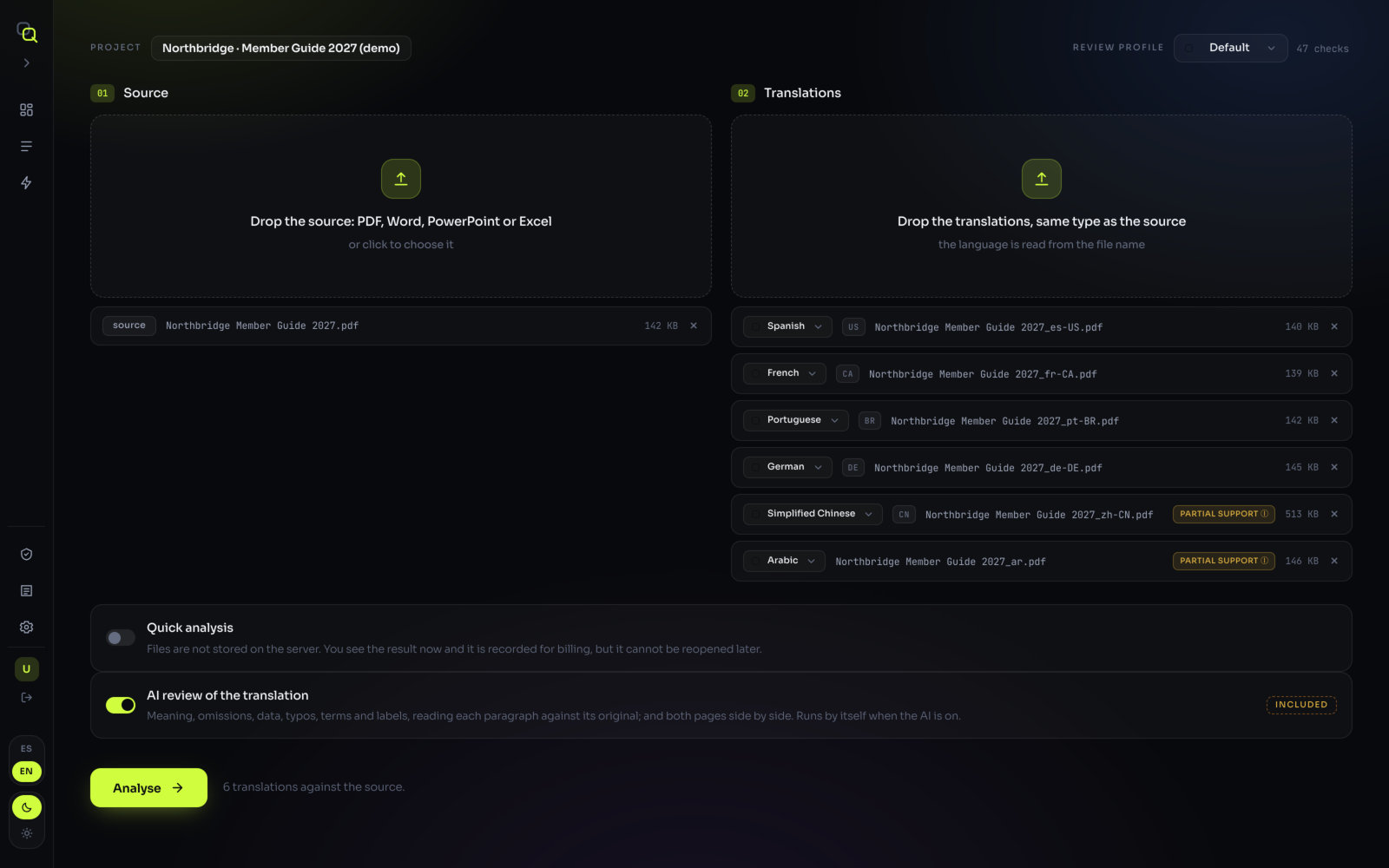
- Drop the original in Source ("Drop the source: PDF, Word, PowerPoint or Excel"), or click the area to choose it.
- Drop the translations in Translations ("Drop the translations, same type as the source"). You can drop them all at once. One file per language.
- Check the language next to each translation. EasyQLab reads it from the file name. If a file shows language missing, choose it in Pick the language….
- Leave AI review of the translation on, unless you only want layout QA this time (see below).
What you'll see: under the button, a line such as "6 translations against the source." When something is missing, it says what: "Load the source and at least one translation."
Name the files so the language is read
Put the language code or the language's English name at the end of the file name, after an underscore, a hyphen or a space. Words like final, draft, v2 or print are skipped.
| File name | Read as |
|---|---|
MemberGuide_spa-US.pdf | Spanish (US shown next to it) |
MemberGuide_fre-CA_final.pdf | French (CA) |
MemberGuide_por-BR.pdf | Portuguese (BR) |
MemberGuide_ar.pdf | Arabic |
MemberGuide Korean.pdf | Korean |
MemberGuide_zh-TW.pdf | Traditional Chinese |
The AI review of the translation switch
The switch sits next to Analyse. It decides whether the findings of the translation review — meaning, omissions, changed figures, typos, terms — are shown and counted.
- On (the default): those findings show on screen and count in the language cards, the traffic light and the summary.
- Off: they are neither shown nor counted. The AI reads the translation either way and it costs the same, so you can turn them back on later from the results with Show translation review (N).
The choice is saved with the project. When to turn it off is in What you can do.
Run it
- Click Analyse. The button is enabled once there is a source and at least one translation.
- Watch the progress. Each language has its own line: queued, comparing…, then analysis complete. With three languages or more there is also a step "cross-checking the languages".
- Wait for the AI reading. The top line then reads, for example, "Reading with the AI · page 3 of 16 · about 2 min left".
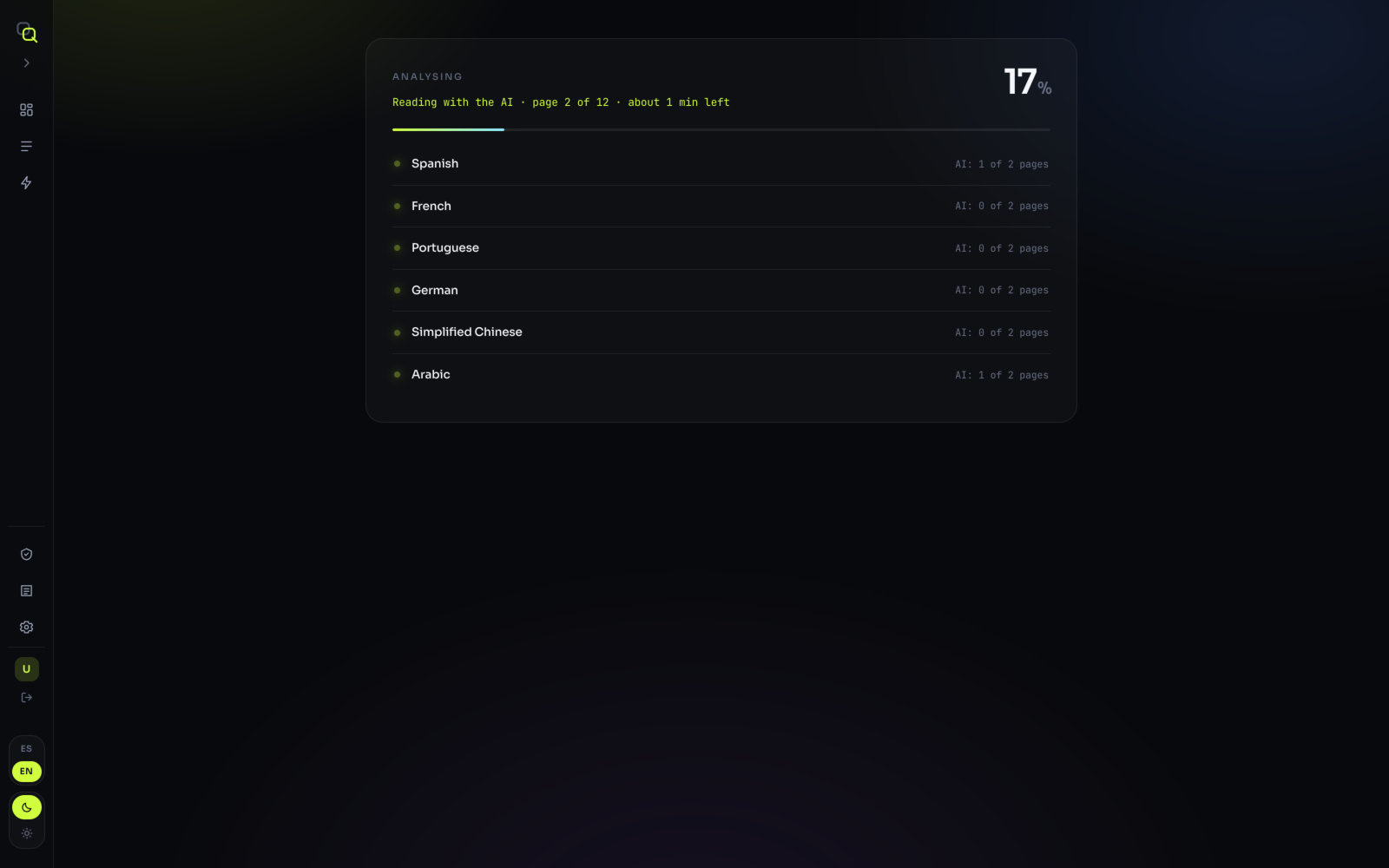
How long it takes. With the AI reading, about 40 seconds per page, with the languages running in parallel. Two pages in eight languages take about two minutes; a 60-page document in one language, about seven.
Can I close the tab? Once the AI reading has started, yes: "The server carries on by itself: close the tab and it will all be there when you come back." In Projects, the project shows "analysing · N pages left" until it's done. While the languages are still being compared, leaving the screen cuts the analysis; EasyQLab asks first: "An analysis is running. If you go on, it is cut and not saved. Cut it?"
If one language fails (a damaged file, say), the others still finish. The header then says the project is incomplete; see How the project gets its verdict and Troubleshooting.
Read the result
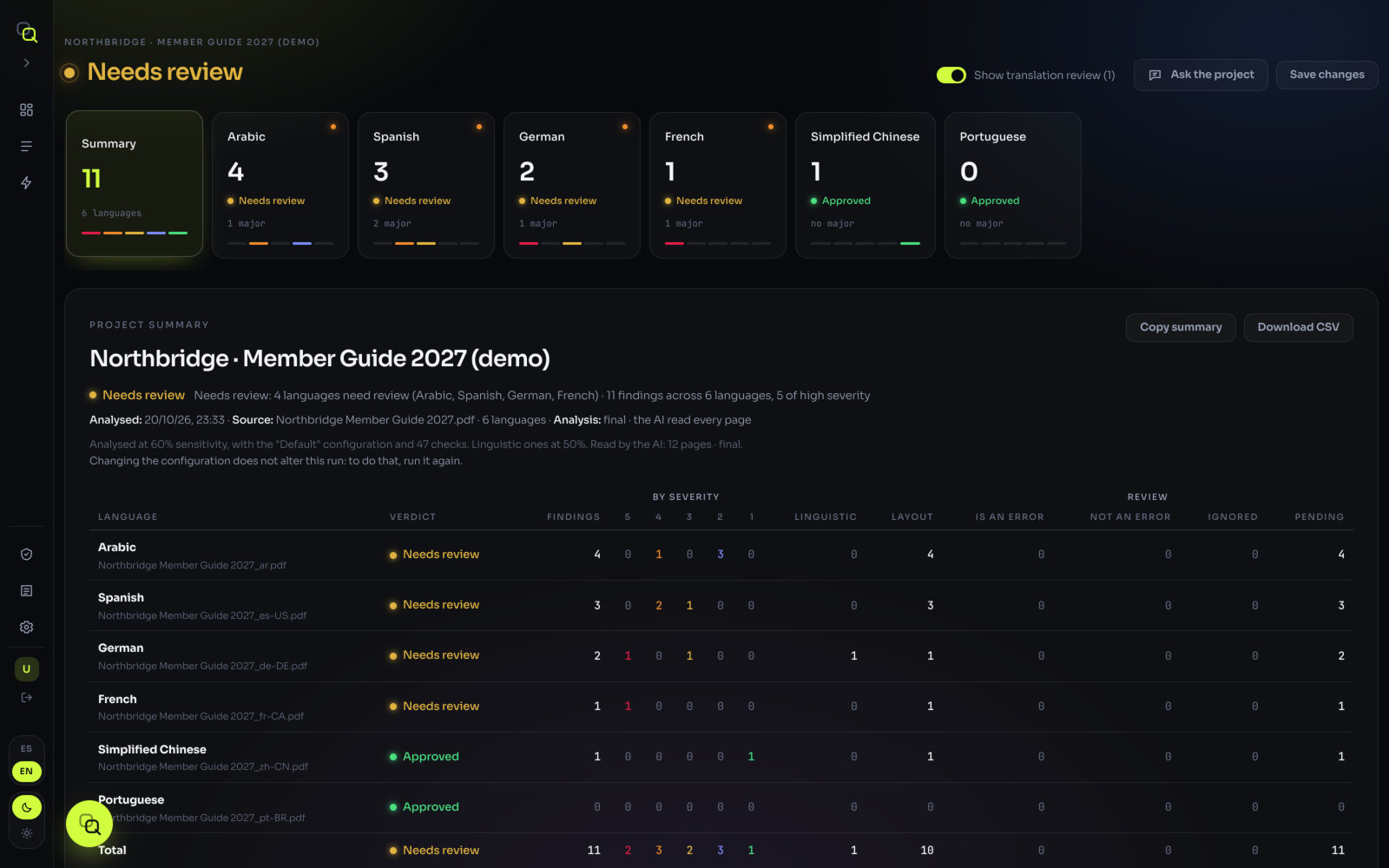
The header gives the project's verdict and the reason, for example "Needs review: 2 languages need review (French, Arabic)" or "Approved: all 6 languages approved". The project takes the worst verdict of its languages: one rejected language makes the whole project rejected. A project with a language that couldn't be analysed is never shown as approved.

The language cards are ordered by traffic light: rejected languages first, then those needing review, approved ones last; within each group, the one with more findings first. Each card says how many major findings it has ("3 major", or "no major"). The order rearranges itself as you review, when you ignore a finding or mark it Not an error.
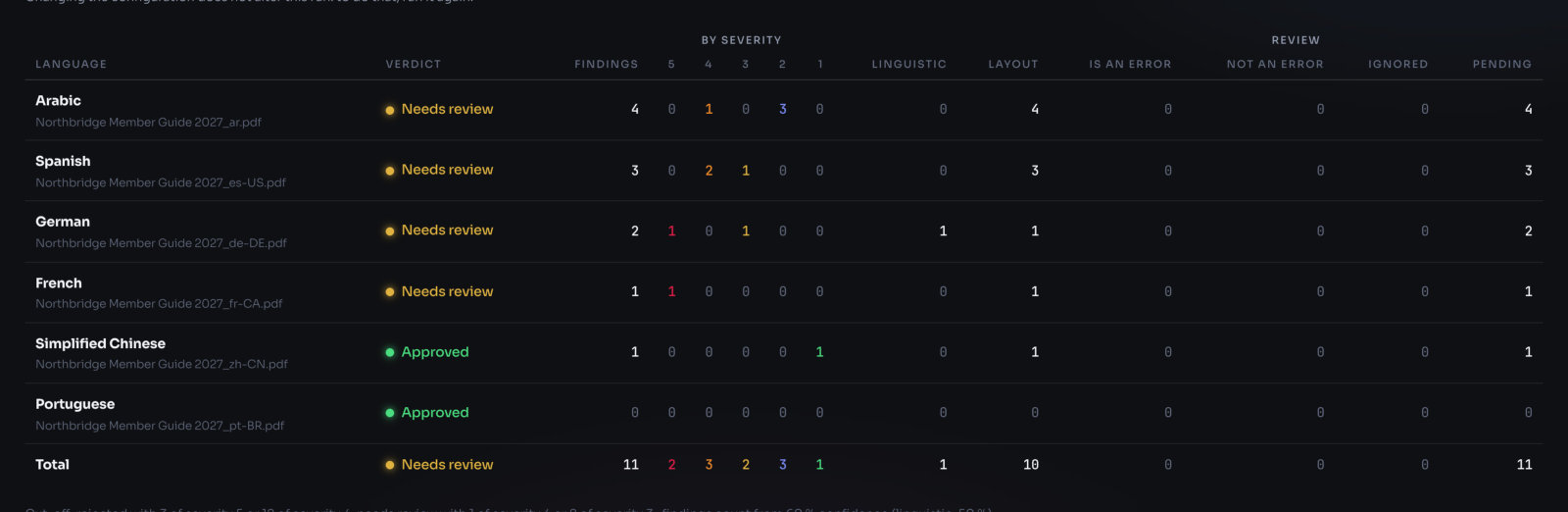
What to open first
- Open Summary. One row per language: Verdict, Findings, By severity, Linguistic, Layout, and how far the review has gone (Is an error, Not an error, Ignored, Pending).
- Open the first card. It's the language in the worst state. You see the original and the translation side by side, and its findings on the right, the most severe first.
- Click a finding. Both pages scroll to it and the spot is marked on each side.
Every part of this screen is described in The results screen. How a verdict is decided is in The traffic light.
Your first decisions
A finding is something EasyQLab thinks is wrong. Your job is to confirm it or dismiss it. Each finding card has three buttons for that.
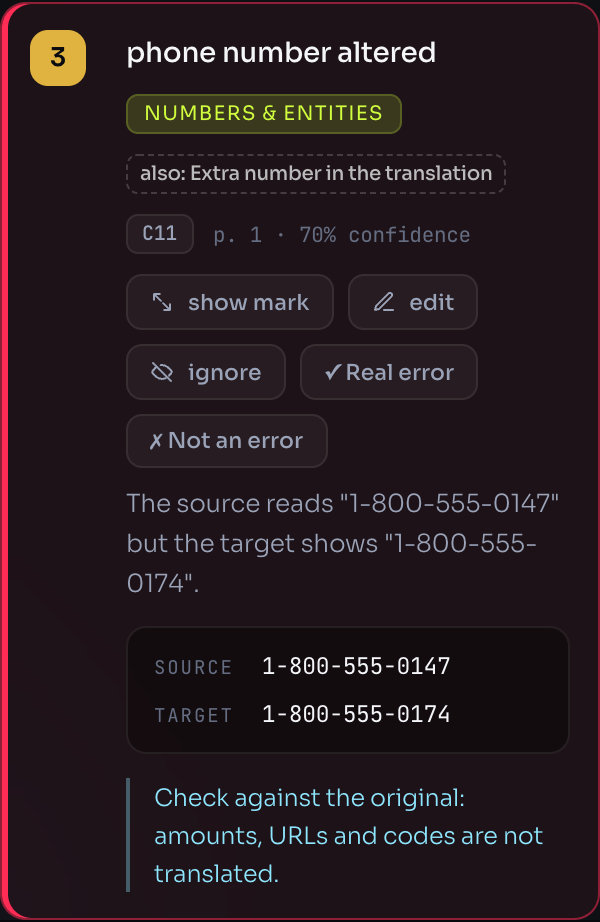
Real error confirms it. The finding counts for the project even if EasyQLab was unsure, and it is marked "confirmed". Use it when the translation or the layout really has to be fixed.
Not an error dismisses it as a false alarm. It leaves the count and the annotated PDF, and it is marked "dismissed". Use it when EasyQLab is wrong: the change was intended, or the rule doesn't apply here.
ignore puts it aside without judging it. It stops counting and is left out of the annotated PDF; it stays in the findings CSV marked "ignored", and restore brings it back. Use it for things that are out of scope for this job.
Both Real error and Not an error also teach EasyQLab: findings of that kind become a little more or less confident in future analyses. When you've gone through a whole language, mark it Review complete. The full walkthrough, with every button on the card, is in Reviewing the findings.
Save and come back
The analysis itself is saved in the project as soon as it runs. Your decisions — what you confirmed, dismissed, ignored, edited or wrote — are saved automatically as you go. Save changes, on the results screen, saves them right away and confirms it: the button briefly reads Changes saved.
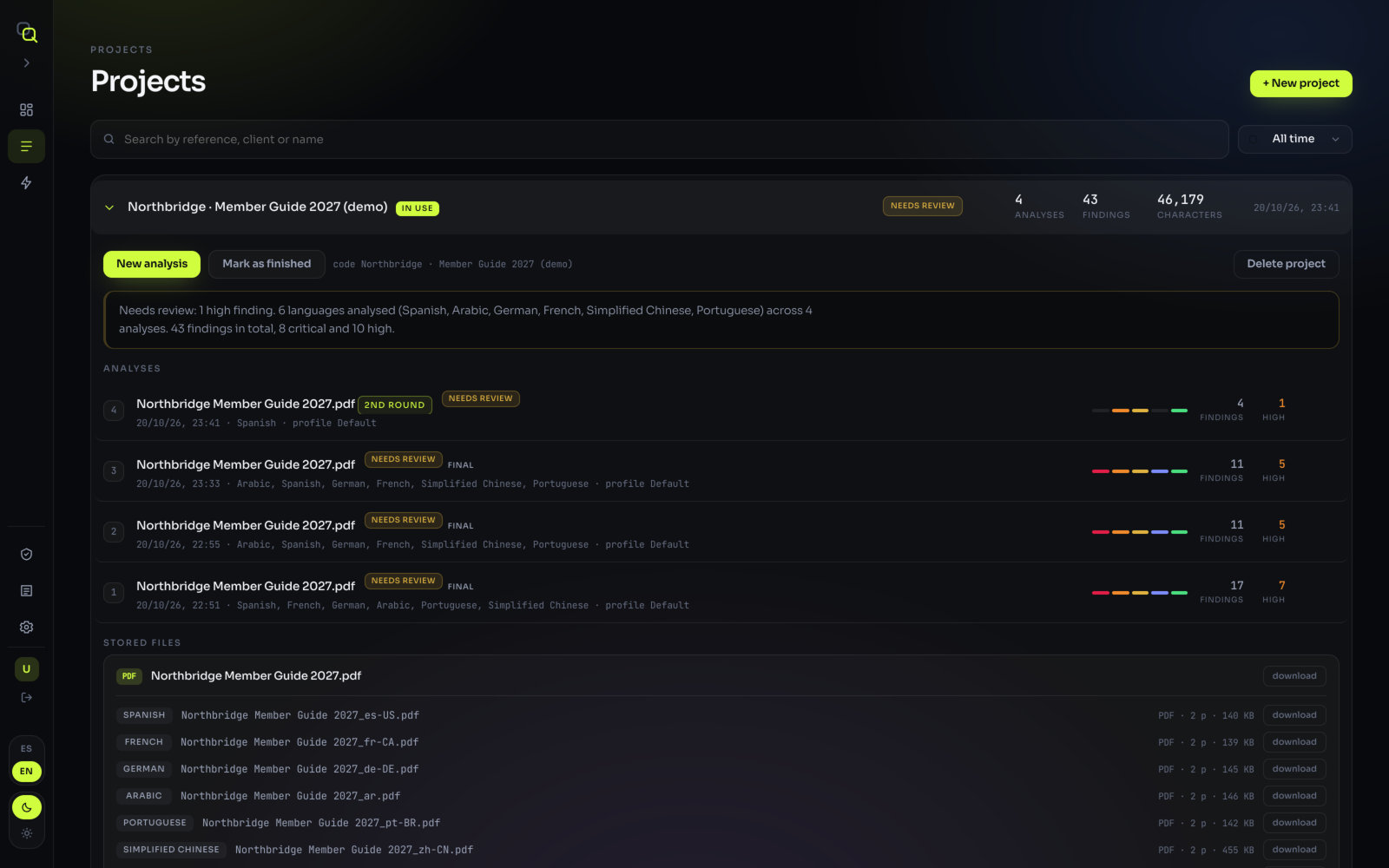
- Click Projects in the menu. Search by reference, client or name.
- Click the project to unfold it: its Analyses, newest first, and its Stored files.
- Click open next to an analysis. The screen says "Restoring the pages…" while it draws the pages again.
What you'll see: the same findings as when it ran — they are not recalculated — with your decisions, notes and ignored findings as you left them. Anyone in your organization can open it too.
When the job is delivered, Mark as finished locks the project without deleting anything. See Finishing and reopening a project.
Quick analysis
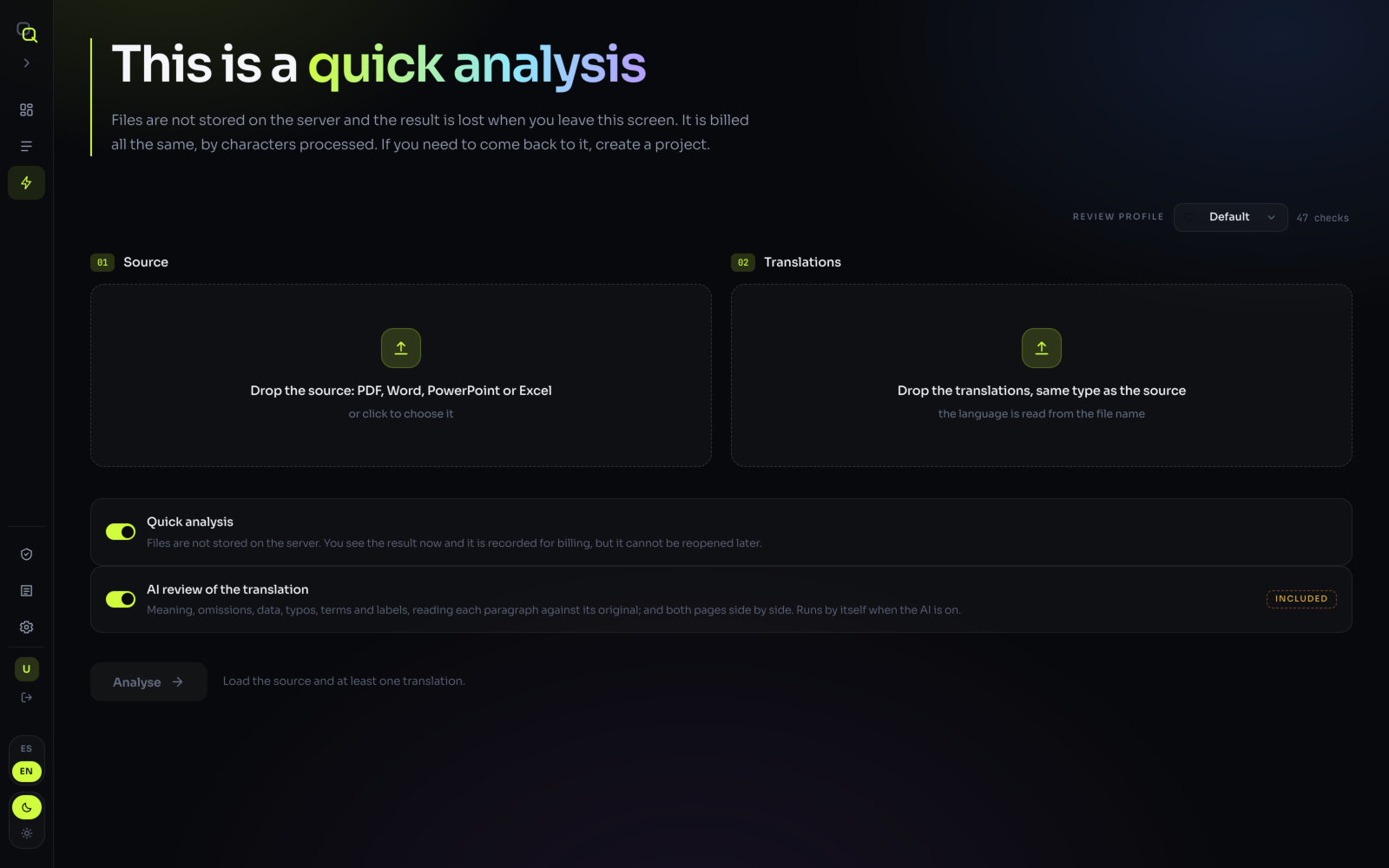
Quick analysis, in the menu, checks files without a project. You upload and analyse exactly as above, but:
- Files are not stored on the server.
- You see the result now, but it can't be reopened: it is lost when you leave the screen.
- It is billed all the same, by characters processed, and shows in Billing as "quick".
Next steps
- See everything you can do with a project in What you can do.
- Learn what each finding means in What it checks.
- Send your client a report: Reports and exports.
- Check the corrected file with a second round.
- Set up a profile for each client in Settings and review profiles.