
YOUR ACCOUNT
Projects, dashboard and billing
Find a project and reopen its analyses, finish or delete it, read your usage on the Dashboard and in Billing, and see how your organization shares its work.
Projects
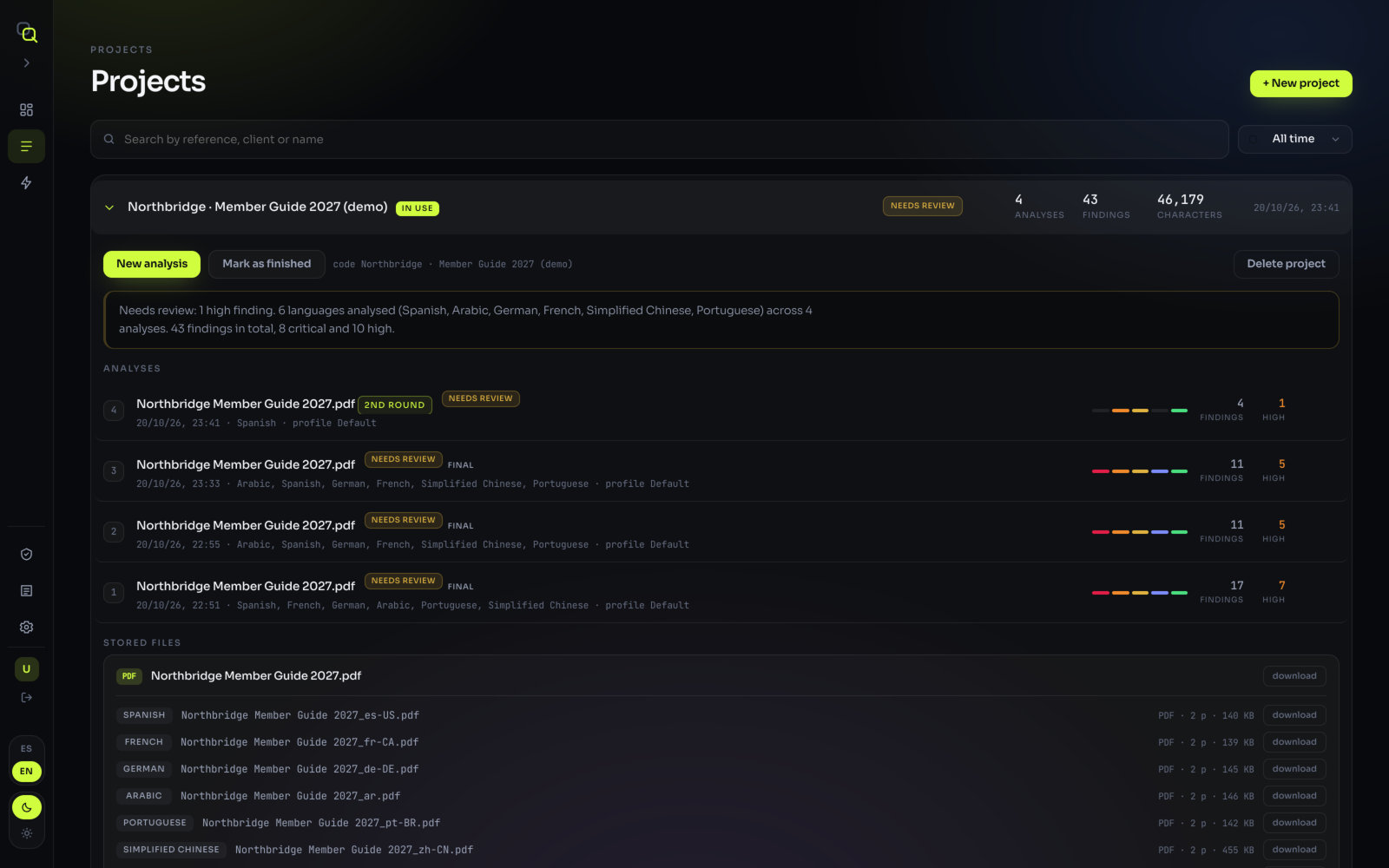
Projects, in the menu, lists every project of your organization, the most recent first. Each row is a summary; click it to unfold the project.
Find a project
- Search in Search by reference, client or name. The client reference number is usually the fastest way. If nothing matches, the screen suggests: "Try the reference number."
- Filter by Period: All time, Last 30 days, Last 3 months, Last year or Between two dates…, with From and To.
What each row shows
| On the row | What it means |
|---|---|
| Reference, name, client | As you entered them in New project. |
| in use | The project currently open on the analysis screen. |
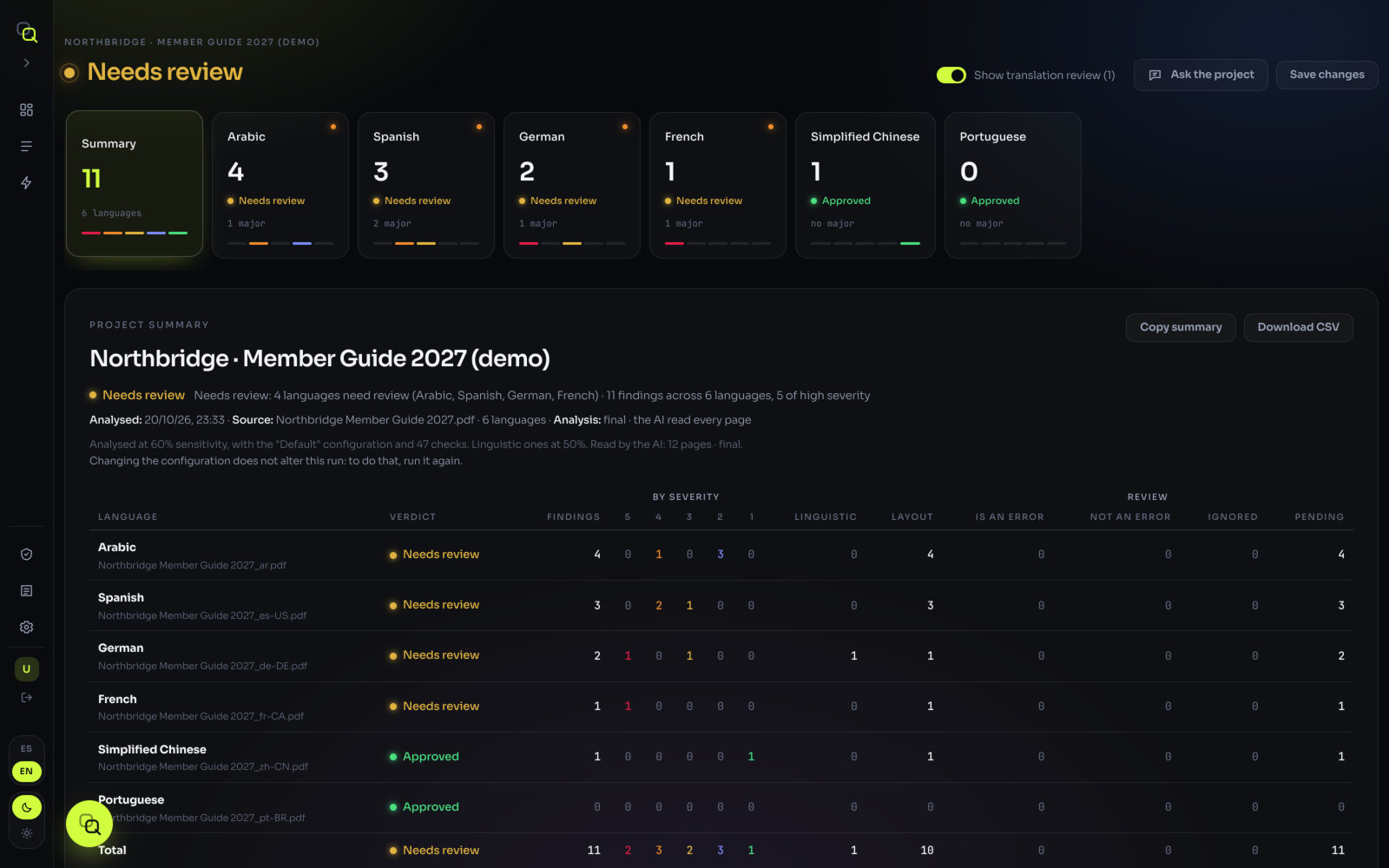
| Verdict | Approved, Needs review or Rejected; hover it for the reason. While the AI is still reading, it says "analysing · N pages left" instead. A finished project shows finished. |
| analyses · findings · characters | How many analyses it has, and their findings and characters added up. |
| Date | When its latest analysis ran. |
Inside a project
An unfolded project shows, from top to bottom:
- The actions: New analysis (takes you to the upload screen of this project), Mark as finished or Reopen project, the project's code, and Delete project.
- A summary, for example "8 languages analysed (Spanish, French, …) across 2 analyses" and "37 findings in total, 2 critical and 9 high".
- Analyses, newest first. Each one has its run number, the source file's name, its verdict, final once the AI has read every page, the date, the languages and the profile it ran with, a severity bar, and its findings and high ones. A second round carries the badge 2nd round.
- Stored files, each with download: the originals and translations you uploaded.
+ New project creates another project; see Create the project.
Opening a saved analysis
- Open the project in Projects.
- Click open next to the analysis.
What you'll see: "Restoring the pages…" while the stored files are downloaded to draw the pages again. The findings are already there: they are the ones from that run, and they are not recalculated. What you ignored, your Real error and Not an error decisions, your edits and your QA comments come back with them.
Finishing and reopening a project
When a job is delivered, click Mark as finished in the project. "This project is finished: no new analyses can be run. Nothing was deleted — reopen it whenever you need to."
- The project shows finished in the list.
- Its analyses are still listed, with their numbers and verdicts, but they can't be opened for editing.
- Its stored files stay, and can still be downloaded.
Click Reopen project whenever you need to work on it again: a second round, a late correction, a question from the client.
Deleting a project
- Click Delete project inside the project.
- Read the warning. It names the project and says how many analyses and findings go with it.
- Type
deleteto confirm, exactly. Anything else gets "It does not match. Type delete, exactly." - Click Delete permanently.
Dashboard
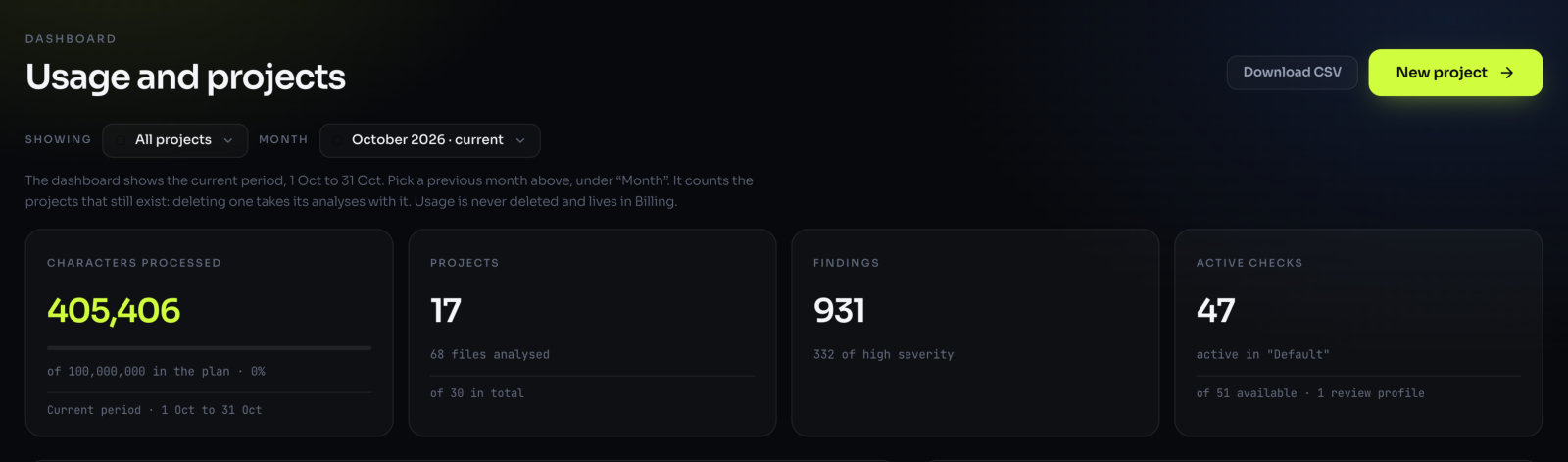
The Dashboard (Usage and projects) is the first screen after signing in. It shows your organization's activity for the current period, and says so: "The dashboard shows the current period, … to …".
Choosing what it shows
- Showing: All projects, or a single project.
- Month: the current period (marked "current") or a previous month. Looking back, the screen reminds you: "You are looking at a previous month".
The four cards
| Card | What it shows |
|---|---|
| Characters processed | The characters analysed in the period. If your plan includes a quota, a bar shows how much of it you've used ("of … in the plan · 42%"), and the dates of the period. |
| Projects | Projects with activity in the period, how many files were analysed (and how many came from quick analyses), and the total number of projects. |
| Findings | How many findings, and how many of high severity. |
| Active checks | How many checks are on in the profile you're using, out of the checks available, and how many review profiles you have. |
The panels
| Panel | What it shows |
|---|---|
| Latest projects | The most recent projects, to jump back in. |
| Findings by severity | The findings split from 1 to 5. |
| Top projects by usage | Characters processed per project in the period. |
| Files by language | How many files were analysed in each language in the period. |
Download CSV exports the data as a spreadsheet. New project takes you straight to the form.
Billing
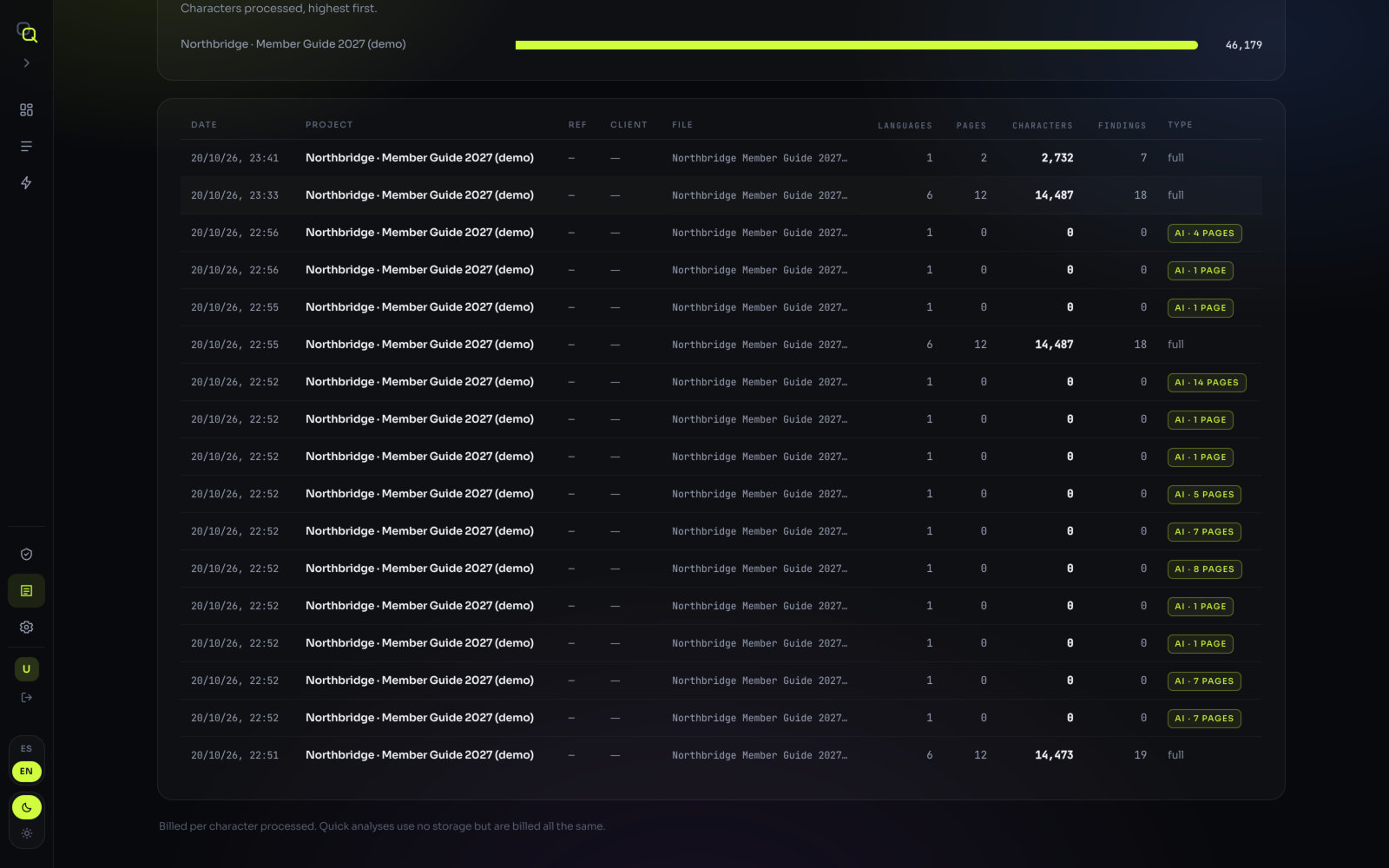
Billing, at the bottom of the menu, is your usage record: "What was used, analysis by analysis." EasyQLab is billed per character processed. Quick analyses use no storage but are billed all the same.
Filters
- Search in Search by project, reference, client or file.
- Period: All time or a month with activity.
- Type: Any type, full (project analyses) or quick.
Totals and charts
At the top: analyses, characters, thousands (of characters), pages and quick analyses in what you filtered. When pages were read by the AI, two more totals appear: AI pages and AI cost.
- Usage this month: the running total, day by day. "The dashed line is the projection to month end, at the pace of the period so far", and, if your plan includes a quota, how much is included.
- Usage by project: characters processed, highest first.
What a usage record is
Each row of the table is one analysis: Date, Project, reference, Client, File, Languages, Pages, Characters, findings and Type (full, quick, or the AI pages read). A second round is a row of its own, for that language only.
A usage record stays even if you delete the project later; it is marked deleted ("The project was deleted. The usage is billed all the same."). Download CSV exports the record.
Your organization
Every project, file and setting belongs to an organization. Nobody outside it sees them.
- Everybody in the organization sees all its projects, files and review profiles. Two people can review the same project.
- Roles: each person is an admin or a member. When you create an account, an organization is created for you and you are its admin.
- Your user is shown at the bottom of the menu, with the organization's name and the button to sign out.