
HELP
Troubleshooting
Something didn’t go as expected? Find the symptom below. Each one says what causes it and what to do. The error messages are listed at the end, word for word.
Uploading and running
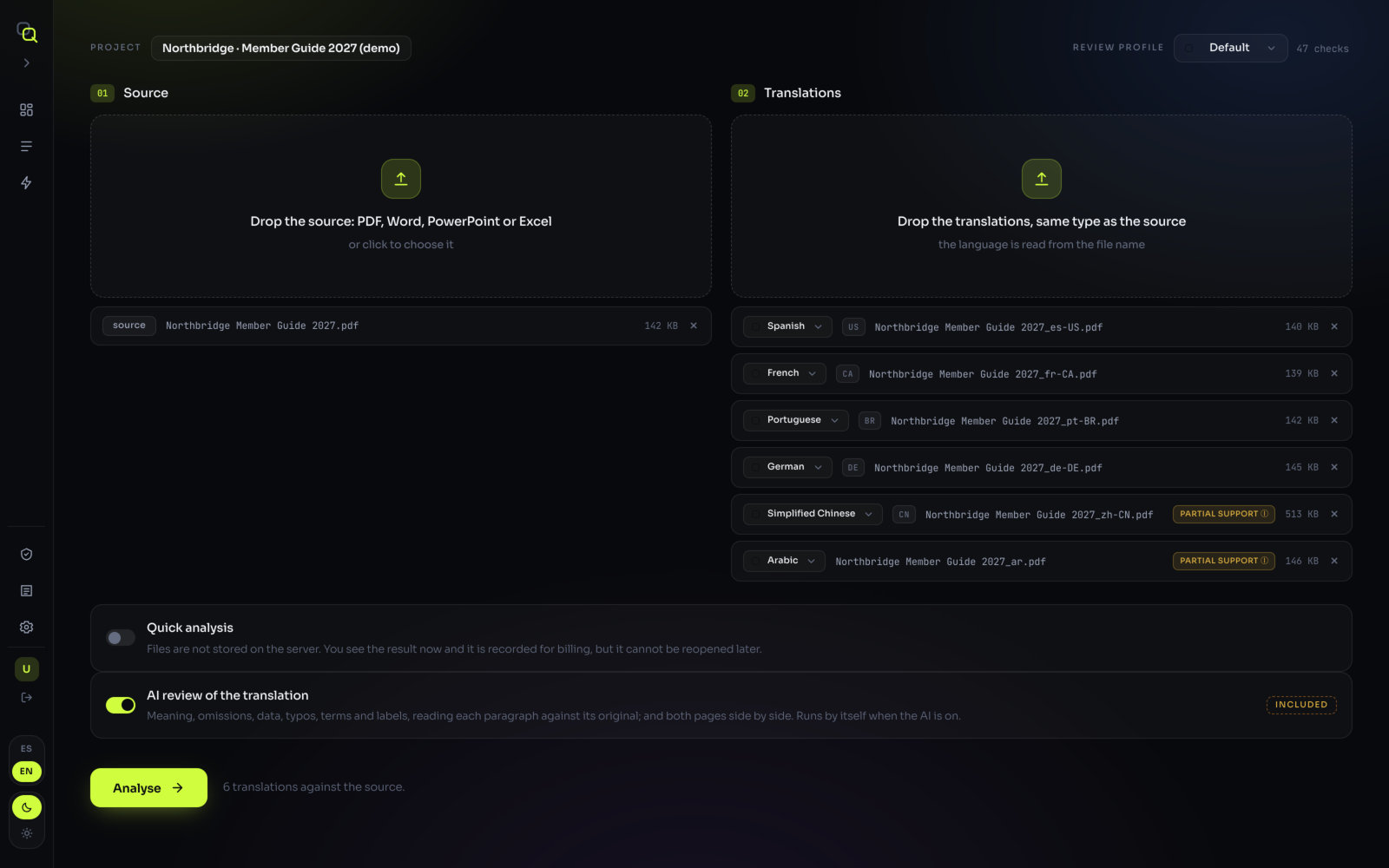
A file was left out
Symptom: one of your translations is not among the results, and the screen says “1 file was left out because the language was not recognised”, or the file shows “language not recognised · this file will not be analysed”.
Cause: EasyQLab reads the language from the file name, and this name doesn’t give a language it knows. The other files are analysed anyway.
Fix:
- Click Pick the language… next to the file and type or choose the language.
- Or rename the file with the language in it, such as
guide_es-US.pdforguide_Korean.pdf, and load it again. See Naming the files. - Click Analyse.
Other reasons a file is left out: it is password protected, it is larger than 50 MB, or two translations have the same language. See Why a file is left out.
The language wasn’t recognised, or is the wrong one
Symptom: a translation shows “language missing”, or a language you didn’t expect.
Cause: the file name has no language code or name, or it has one that means something else.
Fix: pick the right language from the list on the file. It matters: the rules each file is checked with depend on its language, such as spelling, number formats and punctuation. For the variants (Spain or US Spanish, Canada or France French), include the variant in the name, such as _es-US or _fre-CA.
“The source and the translation must be the same kind of file”
Symptom: a language fails with “…: the source and the translation must be the same kind of file (both PDF, both Word, both PowerPoint or both Excel)”.
Cause: the original is, say, a PDF and that translation is a Word file.
Fix: upload the same type for both. If you have the PDF and the Word file of each, upload both: pairing is then instant. See PDF plus Word or PowerPoint.
It is taking a long time
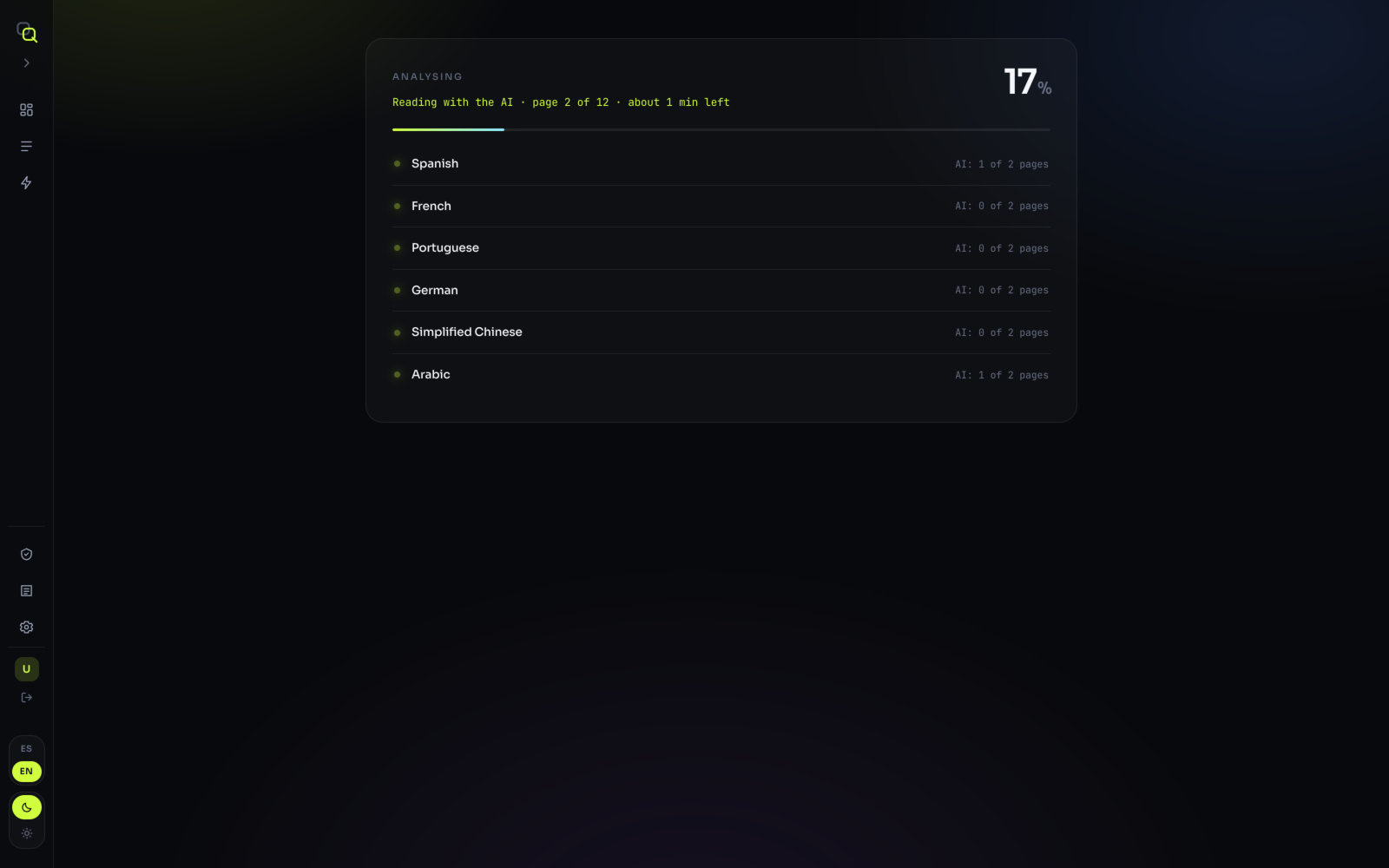
Symptom: the progress says “Reading with the AI · page 12 of 40 · about 6 min left”.
Cause: the AI reads every page, about 40 seconds a page, with the languages in parallel.
Fix: nothing to fix. You can close the tab: the server carries on, and everything is there when you come back. If the server finished while you were away, the language says so: “While you were away, the server finished the AI reading of N pages of this language”. Click Got it.
Results and verdicts
The verdict says “Incomplete”
Symptom: the project shows Needs review with “Incomplete: one language was not analysed”, and a notice “One language could not be analysed”.
Cause: a language failed. The verdict only covers what was analysed, so the project can’t be approved: nobody looked at the missing language. The Summary lists it under “Could not be analysed:” with the reason.
Fix: read the reason, fix it (see the error messages below), and run that language again. If no language at all could be analysed, nothing is saved: click Back to the files, check each reason and run again.
“N pages not read”
Symptom: the Summary says “final · the AI read every page · 3 pages not read”, or a language says “3 pages the AI could not read”.
Cause: the AI reading of a project has 15 minutes, and reads up to 60 pages per document. Pages it didn’t reach are reported instead of making you wait.
Fix: the other checks ran on every page; on those pages the AI review of the translation and the AI visual review are missing. The analysis is final. To have them read, run the analysis again, or check those pages by eye. For a very long document, split it in parts.
The AI didn’t run, or “The AI is switched off on this server”
Symptom: the Summary says “quick · no AI reading”, there are no findings from the AI review of the translation or the AI visual review, or the chat answers “The AI is switched off on this server: questions cannot be answered”.
Cause: the AI is not available on the server at the moment. The analysis then runs with the rules only.
Fix: the rule-based findings are valid. Contact the EasyQLab team, and run the analysis again once the AI is back to get the full reading.
Zero findings on a file you know has problems
Symptom: a language is approved with nothing, or almost nothing, to show.
Cause: check three things. The warning “This PDF has no live text” means a scan or outlined text: only images and colour can be compared. A low “Paragraphs aligned” figure means much of the original found no counterpart. And the Show translation review (N) switch may be off.
Fix: ask for the PDF with editable text; check the pairing; turn the switch on. Then look at the doubtful findings: the line “N doubtful findings · not counted” and show ignored.
The page looks different from my file
Symptom: a Word or PowerPoint page in the viewer breaks lines differently, or uses another font.
Cause: there is no PDF, so the page you see comes from converting the file. Where one of your fonts is missing, a similar one is used. The checks ran on the file, not on this image.
Fix: nothing is wrong with the findings. If you have the PDF, upload it together with the Word or PowerPoint file: the viewer then shows the real page, and the 11 checks that need the drawn page also run. See Do I need the PDF?
Reviewing and reports
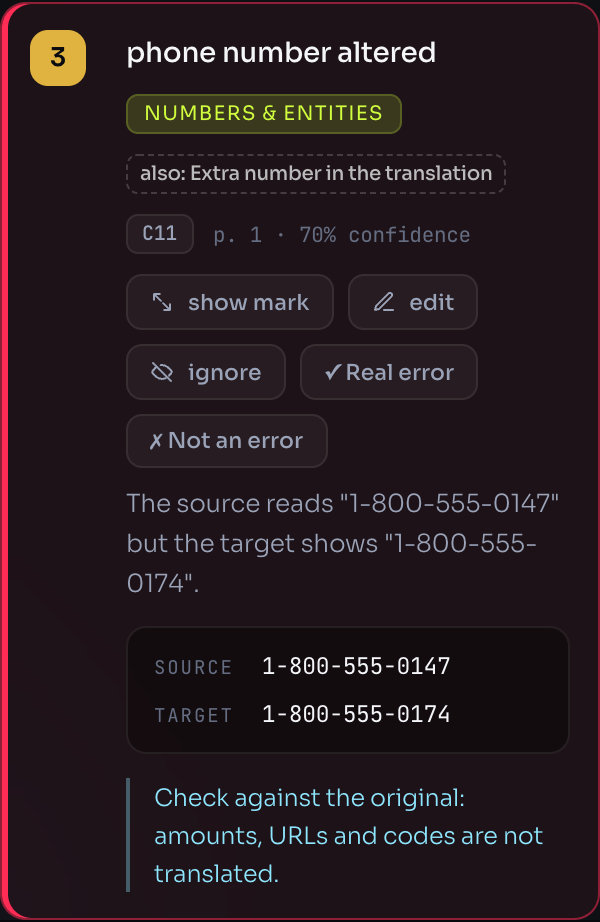
A finding is wrong
| If the finding is… | Click |
|---|---|
| A false alarm | Not an error. It stops counting and EasyQLab learns from it. |
| Right, but it doesn’t matter for this delivery | ignore. |
| Right, but badly worded or too severe | edit, and change the wording or the severity. |
| A check that never matters for this client | Switch the check off in that client’s review profile, in Settings → Checks. |
The report is in the wrong language
Cause: the annotated PDF and the summary are written in the interface language at the moment you download them.
Fix: use the ES / EN switch to change the interface language and download again; nothing needs to be analysed again. The explanations written by the AI review stay in the language the interface had when the page was read; the screen notes it under the finding. The Project analysis is rewritten in the current language with Regenerate.
“Your latest changes were not saved”
Cause: the connection dropped while saving your review.
Fix: what you marked is still on screen and is retried every few seconds. Don’t close the tab until the notice goes away. If you see “The analysis was not saved”, click Retry: you don’t need to analyse again.
A saved analysis opens without its pages
Symptom: “This analysis has no stored pages” or “The pages could not be restored”.
Fix: the findings are complete either way. Try again in a moment; if the pages were never stored, run the analysis once more with the same files to see them.
Settings, projects and numbers
I moved the sensitivity and a saved run didn’t change
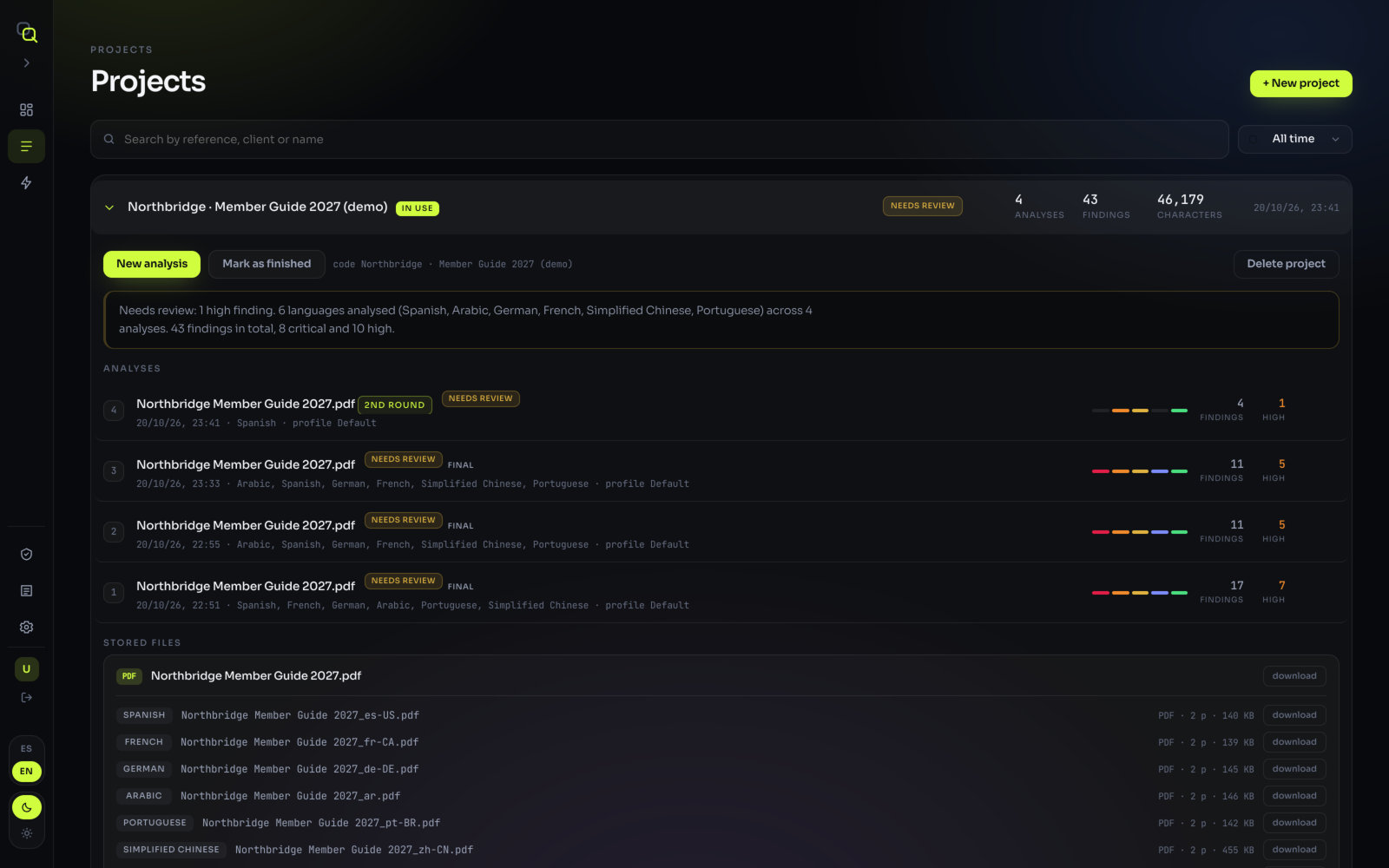
Cause: this is on purpose. A saved analysis keeps the sensitivity it ran with, and says so: “Analysed at 60% sensitivity… Changing the configuration does not alter this run: to do that, run it again.” An approved project never changes verdict because someone moved the setting later.
Fix: to see the project with the new sensitivity, start a New analysis in the project. The sensitivity can only be changed on some plans.
I changed the thresholds and nothing changed
Cause: same rule: saved analyses keep the traffic-light thresholds they ran with. New thresholds apply to new analyses with that review profile.
Fix: run the project again. Check also that you changed the profile the project uses: each project has its own Review profile.
I can’t open a run of a finished project
Cause: a project marked finished is locked: you still see its runs, with their numbers and verdicts, but you can’t open them or run new analyses.
Fix: click Reopen project. Nothing was deleted. See Finishing and reopening a project.
The Dashboard numbers don’t match the project
Cause: the Dashboard adds up every run of every project in the period, not only the latest run you have open. It only counts projects that still exist: deleting one takes its analyses with it.
Fix: for what was billed, look at Billing: usage is never deleted, even with the project. See Dashboard.
Error messages
| The screen says | What to do |
|---|---|
| It is password protected: it cannot be read. | Ask for a copy without a password. |
| It weighs … and the limit is …. | Reduce the file, or split it. The limit is 50 MB per file. |
| This is not a PDF, Word, PowerPoint or Excel file. | Only .pdf, .docx, .pptx and .xlsx are accepted. Save old .doc or .ppt files in the new format. |
| Two translations have the same language (…). | Each language goes once per analysis: remove one, or run the other separately. |
| …: the file could not be read. | It may be damaged, or not what its extension says: open it, save it again and re-run. |
| …: the document has too many paragraphs to pair in time. | Split it in two and analyse each part. |
| …: the server took too long and cut the request. | It happens with very heavy or very long files: try again. |
| …: could not reach the server. | Check your connection and run again. |
| …: the server is not available right now. | Try again in a minute. |
| …: the server could not fetch the file from storage. | Try again. |
| The checks could not be loaded | Click Try again. After a while idle, the server can take a few seconds to start. |
| Your session expired. Sign in again; nothing was lost. | Sign in again. |
Still stuck? Contact the EasyQLab team with the project name and the message you see.