
READING THE RESULTS
Reviewing the findings
How to go through the findings of a language: read the list, look at both pages, decide what is real, leave your own comments, and mark the language as reviewed.
A review session, start to finish
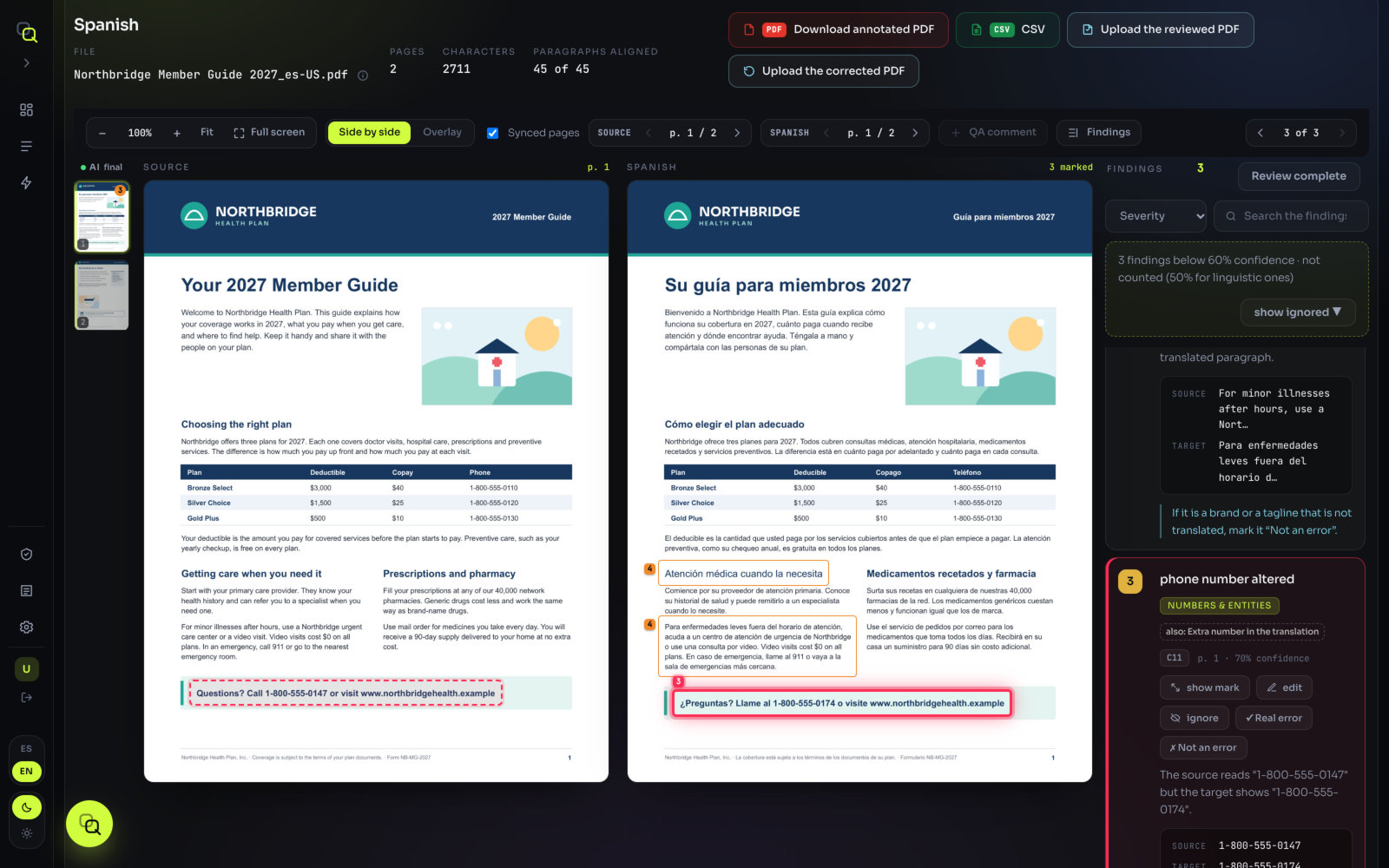
This is the routine that works for most projects. Each step links to the details further down.
- Open the first language card. Cards are in traffic-light order, so the first one is the language that most needs work. See The language cards.
- Leave the sort on Severity. The most serious findings come first, in reading order within each severity.
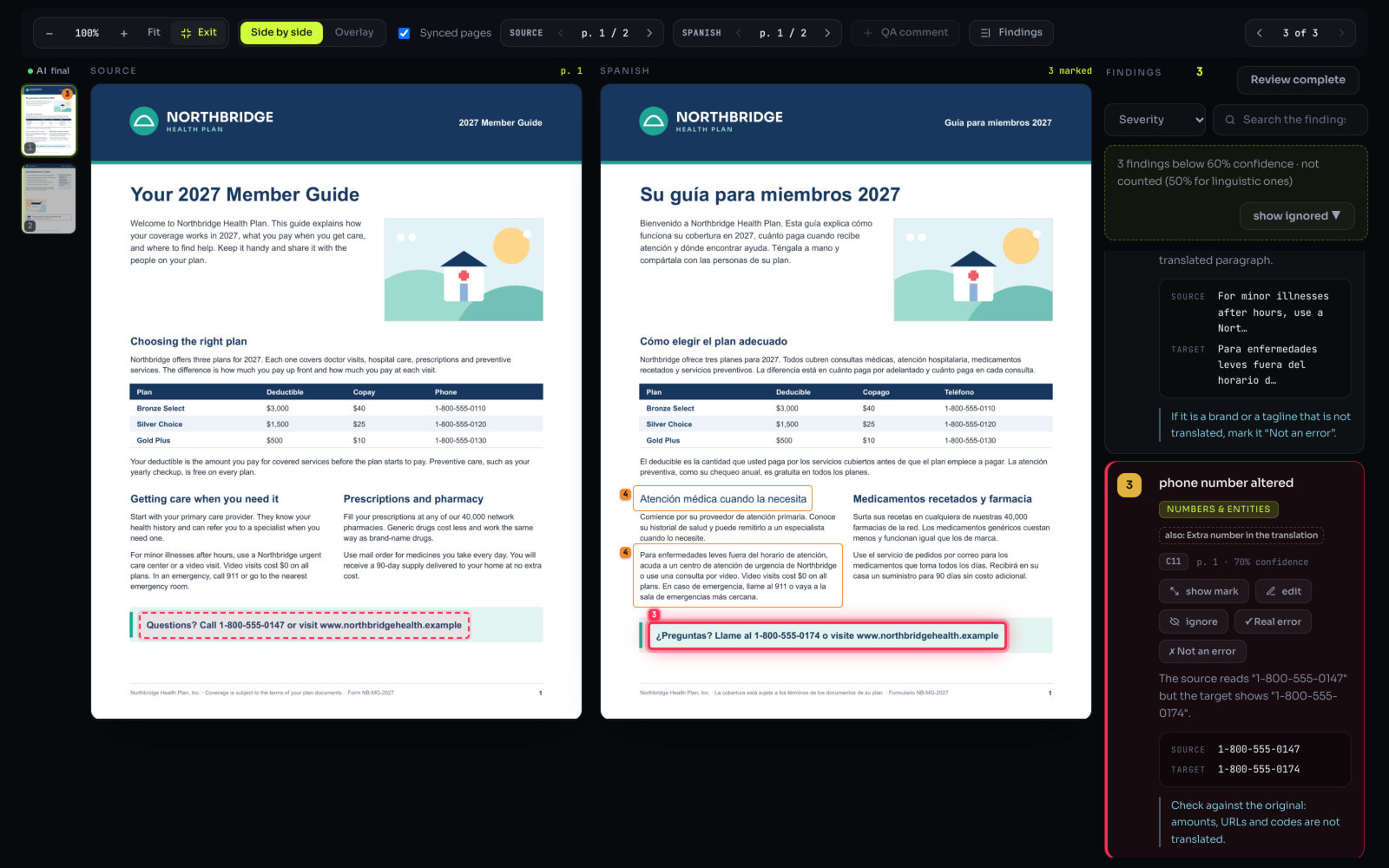
- Click the first finding. Both pages jump to it, with the problem marked on the original and on the translation.
- Decide. Real error, Not an error or ignore. See Deciding.
- Press ↓ to go to the next finding. The “N of M” counter in the toolbar tells you where you are.
- Add what EasyQLab didn’t flag with QA comment. See Your own comments.
- Check the doubtful ones. If the list says “N doubtful findings · not counted”, open them and confirm any that are real. See Hidden findings.
- Click Review complete. Then open the next card.
What you’ll see: as you decide, the number on the card, its verdict and the project verdict update. When a language changes verdict, its card moves to its new place in the row.
The list of findings
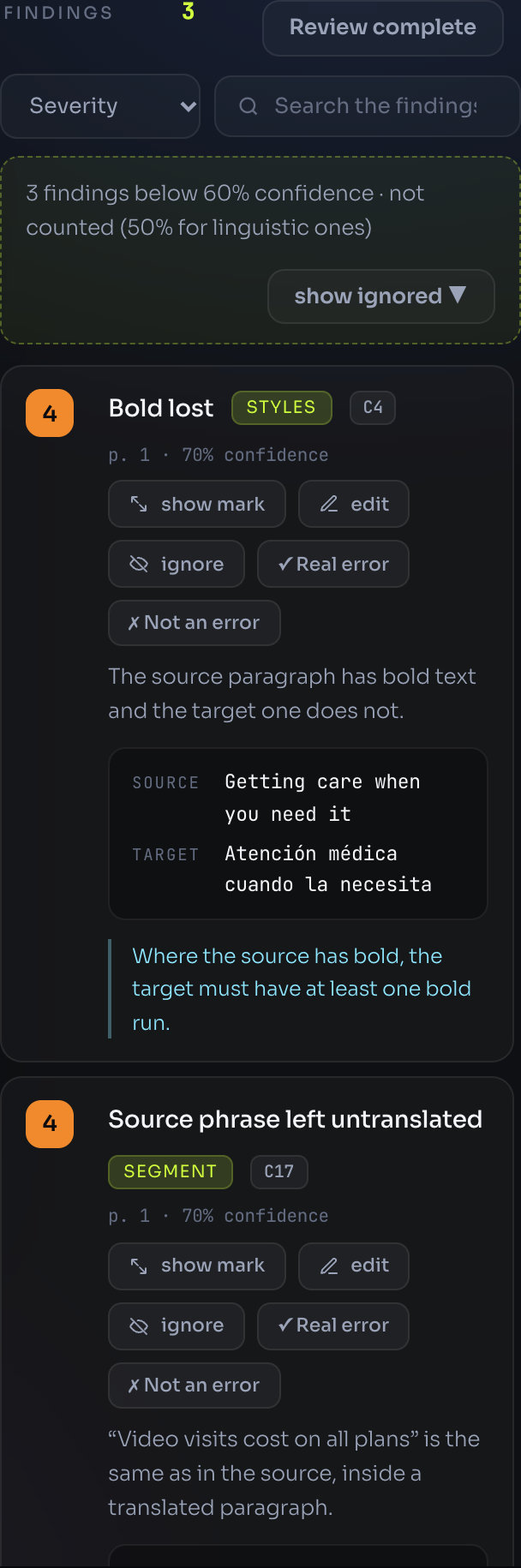
Open a language by clicking its card, or click a row in the Summary tab. The findings appear in a column next to the pages, headed Findings with the number that counts.
| To… | Use |
|---|---|
| Show only some severities | The Severity buttons above the pages, one per severity with its count. Click one to hide it; at least one stays on. |
| Show only some families | The Category buttons, when there are two or more categories. show all brings them all back. |
| Find a word or a check | The search box, Search the findings…. It searches titles, messages, check codes, categories, the source and target text, hints and notes. |
| Change the order | The sort menu: Severity, Category or Page. |
| Move from one finding to the next | The arrows next to “N of M”, or the keys ↑ and ↓. |
| Make room for the pages | The Findings button in the toolbar hides and shows the column. |
The findings that count always come first. Ignored findings and doubtful ones, when you show them, go to the end, each group under its own divider. The arrows and “N of M” only walk through the findings that count.
Hidden findings
Findings that EasyQLab is unsure about are hidden and don’t count. The list tells you how many there are, for example “3 doubtful findings · not counted”, and adds “· 1 of them severe” when some are severity 4 or 5.
- Click show ignored on that line. The doubtful findings appear at the end of the list, marked “doubtful”.
- Click Real error on any that is real. It counts from then on.
- Click hide ignored to fold them away again.
More on confidence.
The finding card
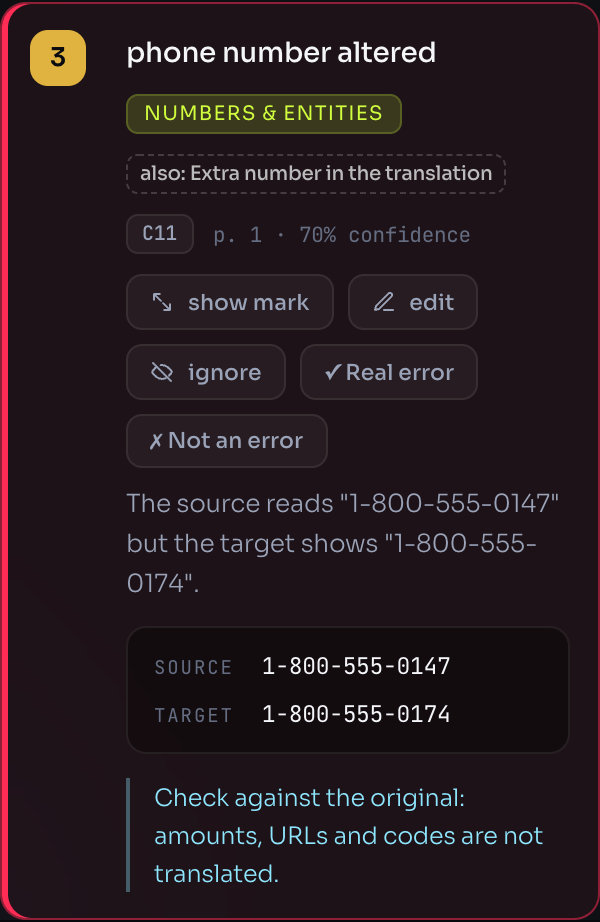
Each finding is a card. From top to bottom:
| Part | What it tells you |
|---|---|
| Coloured pill | The severity, 1 to 5. Hover to read its name. |
| Title | What is wrong, in one line. |
| “N the same” | The same problem shows up elsewhere in the document. Each one is its own card; click to jump to the next. |
| Category | The family of the check, such as Layout or Punctuation. |
| “also: …” | Other checks saw this same error. It is shown once, with the highest severity. |
| “same paragraph:” and numbers | This paragraph has other findings; each number is one of them, in its severity colour. Click a number to go there. |
| Check code and page | Which check raised it (see What it checks) and on which page. |
| Labels | “confirmed”, “dismissed”, “ignored”, “edited”, “doubtful” or “QA comment”, when they apply. |
| Message | The explanation. |
| Source / Target | The evidence from the original and from the translation. Colours are shown as swatches, fonts by name. |
| Hint | What to change, when the check has a suggestion. |
And the buttons:
| Button | What it does |
|---|---|
| show mark | Takes both pages back to the marked spot. When the finding has no box (it is about the whole page), the button reads show page. |
| edit | Fix the wording, change the severity or leave a note. See below. |
| ignore / restore | Takes the finding out of the count, or brings it back. |
| Real error | Confirms the finding. |
| Not an error | Marks it as a false alarm. |
If EasyQLab could not place the paragraph in the original, the card says so, and only the translation is marked.
Looking at both pages
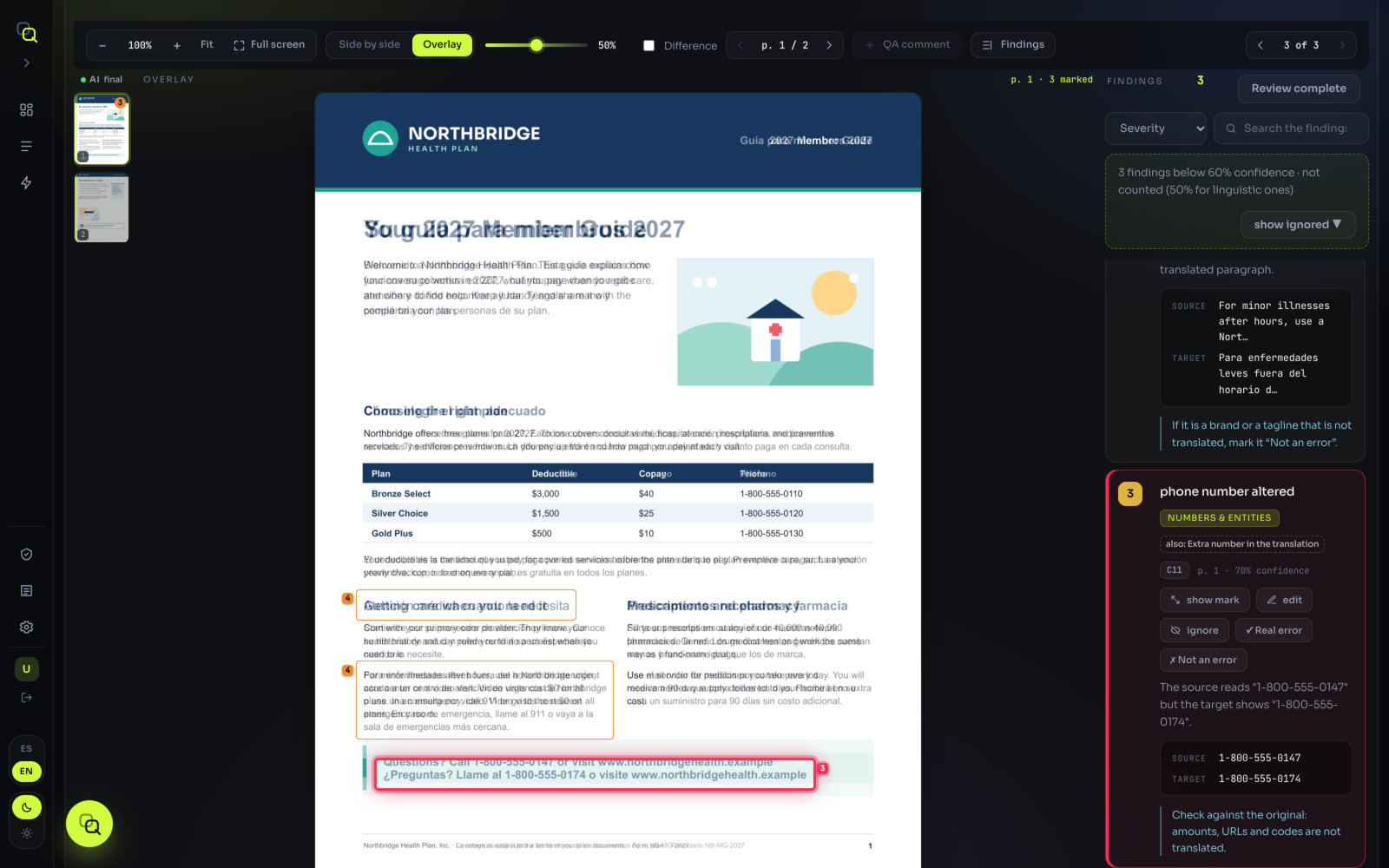
Click a finding and both pages scroll to it. Use the view that suits the problem:
| Problem | Best view |
|---|---|
| Wording, numbers, untranslated text | Side by side, with Synced pages on. |
| A logo, rule or image that moved | Overlay with Difference. |
| A colour or a font | Overlay, sliding Translation opacity. |
| Small print, footnotes | Zoom in, or Full screen. |
Every control of the viewer is listed on The results screen.
Deciding: real error or not
Each finding has two buttons. One click is enough; click the same button again to undo.
| Button | What it does |
|---|---|
| Real error | Confirms the finding. It is marked “confirmed” and counts, even if EasyQLab was unsure about it. |
| Not an error | Marks it as a false alarm. It is marked “dismissed”, moves to the ignored findings and stops counting. It doesn’t go into the annotated PDF. |
Hover over a label (“confirmed” or “dismissed”) to see who decided.
How EasyQLab learns from you
EasyQLab learns from the decisions of your team’s reviewers. Real error raises the confidence of findings of that kind in your next projects; Not an error lowers it.
It moves gradually: it starts after three matching decisions and never by more than 10 points, so one click never flips a verdict.
Ignoring a finding
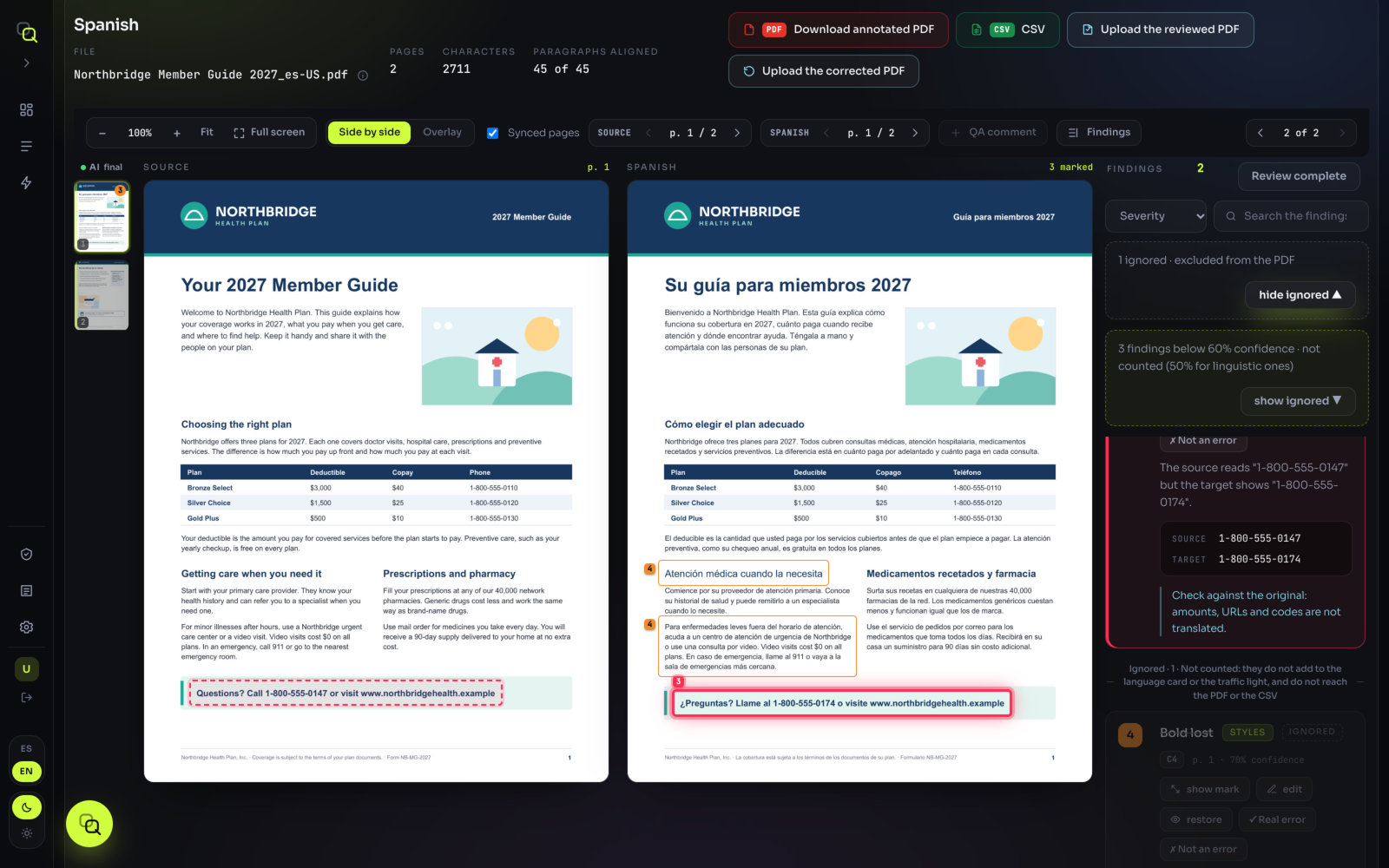
Some findings are right but don’t matter for this delivery. Click ignore on the finding (or press i on the selected one). To bring it back, click restore.
The list hides ignored findings and says how many there are, for example “2 ignored · excluded from the PDF”. Click show ignored to see them together at the end, under “Ignored”, and hide ignored to hide them again.
Ignore or Not an error?
| ignore | Not an error | |
|---|---|---|
| Counts in the card and the traffic light | No | No |
| Goes into the annotated PDF | No | No |
| Stays in the findings CSV | Yes, with “ignored” in the State column | Yes, with “ignored” in the State column |
| Labels on the card | “ignored” | “dismissed” and “ignored” |
| Column in the Summary | Ignored | Not an error |
| Teaches EasyQLab | No | Yes: lowers confidence in that kind of finding |
| Undo | restore | Click Not an error again |
Your own comments
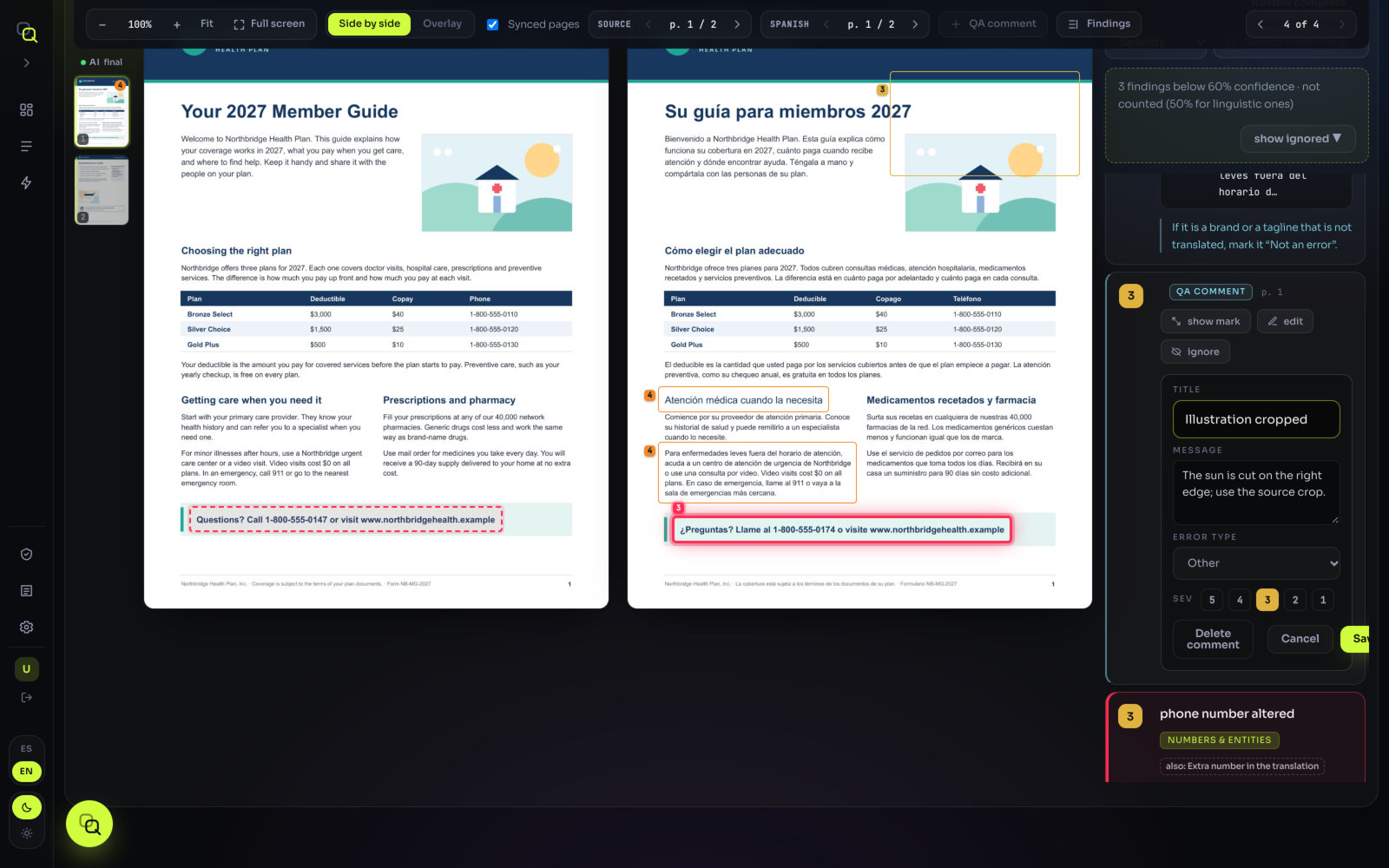
You can fix what a finding says, or add a problem EasyQLab didn’t flag.
Editing a finding
- Click edit on a finding. A form opens inside the card.
- Change what you need. Title, Message, the severity (the five numbered buttons) and Your note, which is signed with your name.
- Click Save (or Ctrl+Enter). Cancel or Esc closes the form without saving.
What you’ll see: the card is marked “edited”. Your wording replaces EasyQLab’s in the annotated PDF, which adds that the text was edited by hand. Back to the original, in the same form, undoes the edit.
Adding a QA comment
- Click QA comment in the viewer toolbar. The screen says “Drag over the page to place the comment”.
- Drag a box over the spot on the translated page.
- Fill in the comment. Title, Message, an Error type and a severity.
- Click Save.
The error types are: Omission, Added text, Meaning changed, Terminology, Typo or spelling, Grammar, Punctuation, Spacing, Formatting, Typography, Layout, Overflow, Number or data, Untranslated, Link and Other.
A QA comment counts like any finding, with the severity you gave it, and goes into the annotated PDF signed with your name. To remove it, click edit and then Delete comment.
Review complete
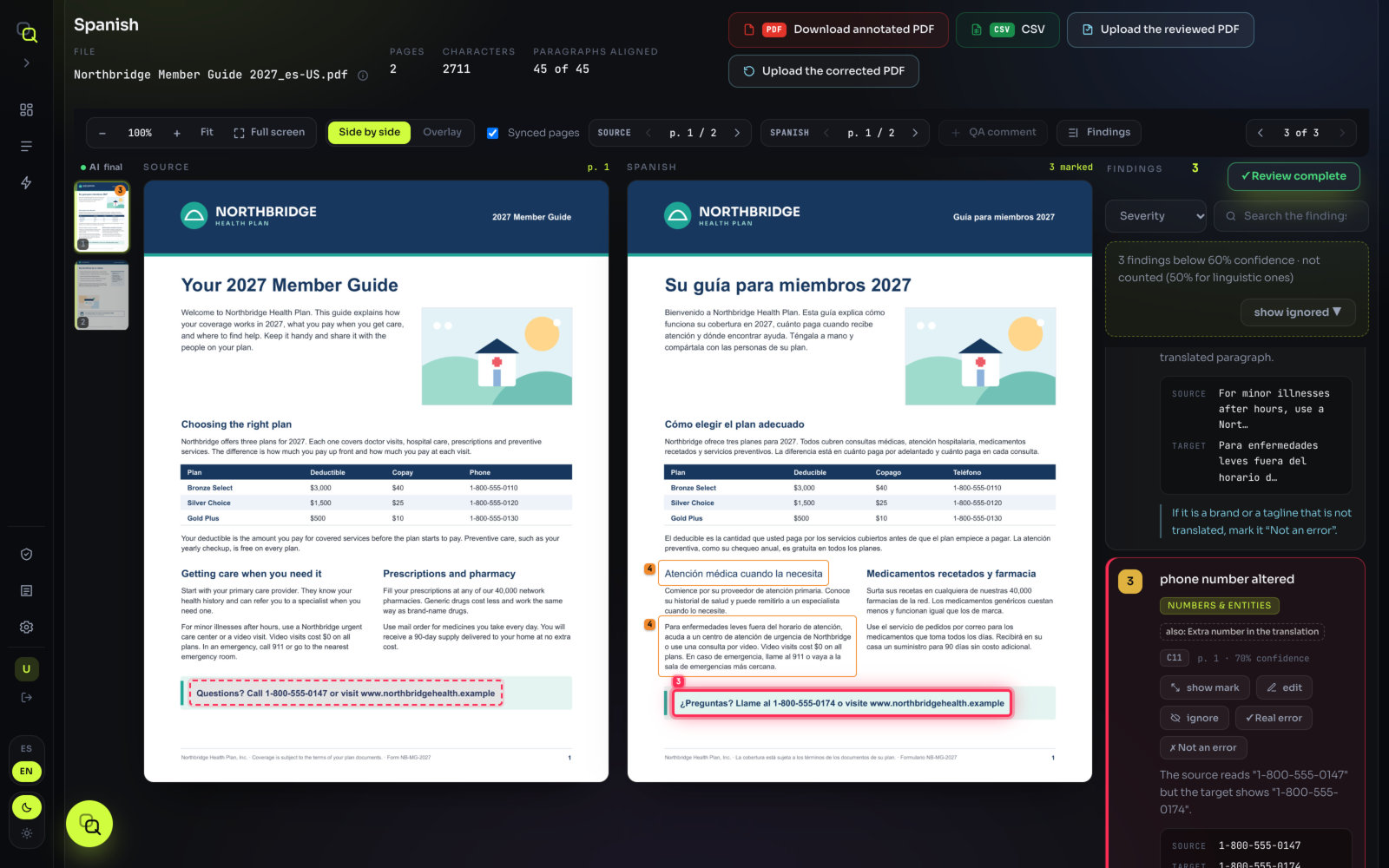
When you have gone through every finding of a language, click Review complete at the top of the findings column. The button gets a tick and shows who reviewed it and on which date; click it again to undo.
From then on, whatever you didn’t dismiss in that language is taken as confirmed when EasyQLab learns from your team’s decisions. So mark it only when you have really looked at everything.
Show translation review
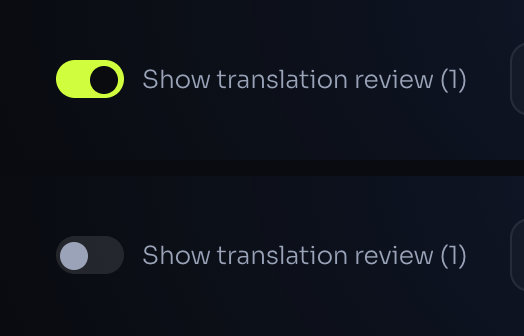
The AI review of the translation runs with every analysis. On the results screen, the Show translation review (N) switch decides whether its findings are shown.
Switched off, those findings are neither shown nor counted in the cards, the traffic light or the summary. Nothing is deleted: switch it on and they come back. The choice is saved with the project. The default for new analyses is the AI review of the translation switch on the upload screen.
Keyboard shortcuts
| Key | What it does |
|---|---|
| ↓ or → | Next finding |
| ↑ or ← | Previous finding |
| i | Ignore (or restore) the selected finding |
| + and − | Zoom in and out |
| 0 | Zoom back to 100 % |
| Esc | Cancel the comment you are drawing or editing; leave full screen |
| Ctrl+Enter | Save the comment you are editing |
Shortcuts don’t act while you are typing in a box.
Saving, and reviewing as a team
Everything you do on the findings is saved with the project as you go: decisions, ignored findings, edits and comments. Click Save changes in the header to save right away; the button confirms with Changes saved.
When you reopen the project, you see the same findings with everything you marked.
Everybody in your organization sees all its projects, so two people can review the same project, for example one language each. Review complete and the labels on each decision show who did what.