
READING THE RESULTS
Reports and exports
What you can take out of EasyQLab: an annotated PDF per language for whoever fixes the file, a CSV of findings for your records, and a summary for an email to your client.
The four exports

| Output | Where | What you get | For |
|---|---|---|---|
| Download annotated PDF | An open language | The translated PDF with every finding as a PDF comment, plus a summary at the end. | The DTP operator or translator who fixes the file. |
| CSV | An open language | A spreadsheet with one row per finding, for every language of the analysis. | Your records, filtering, invoicing the fixes. |
| Copy summary | The Summary tab | The project summary as plain text. | An email or a chat message to your client or team. |
| Download CSV | The Summary tab | One row per language, plus a total row. | A status report across languages. |
The other two buttons on an open language, Upload the reviewed PDF and Upload the corrected PDF, bring files in rather than out. They are explained on Second round and human review.
Every export reflects your review at the moment you click: what you ignored, confirmed, edited or added is taken into account. Review first, export last.
The annotated PDF
- Open a language from its card.
- Click Download annotated PDF in the bar above the pages. It shows “building PDF…” for a moment.
- Save the file. It is named after the translation, ending in
_QA.pdf. - Send it to whoever fixes the file.
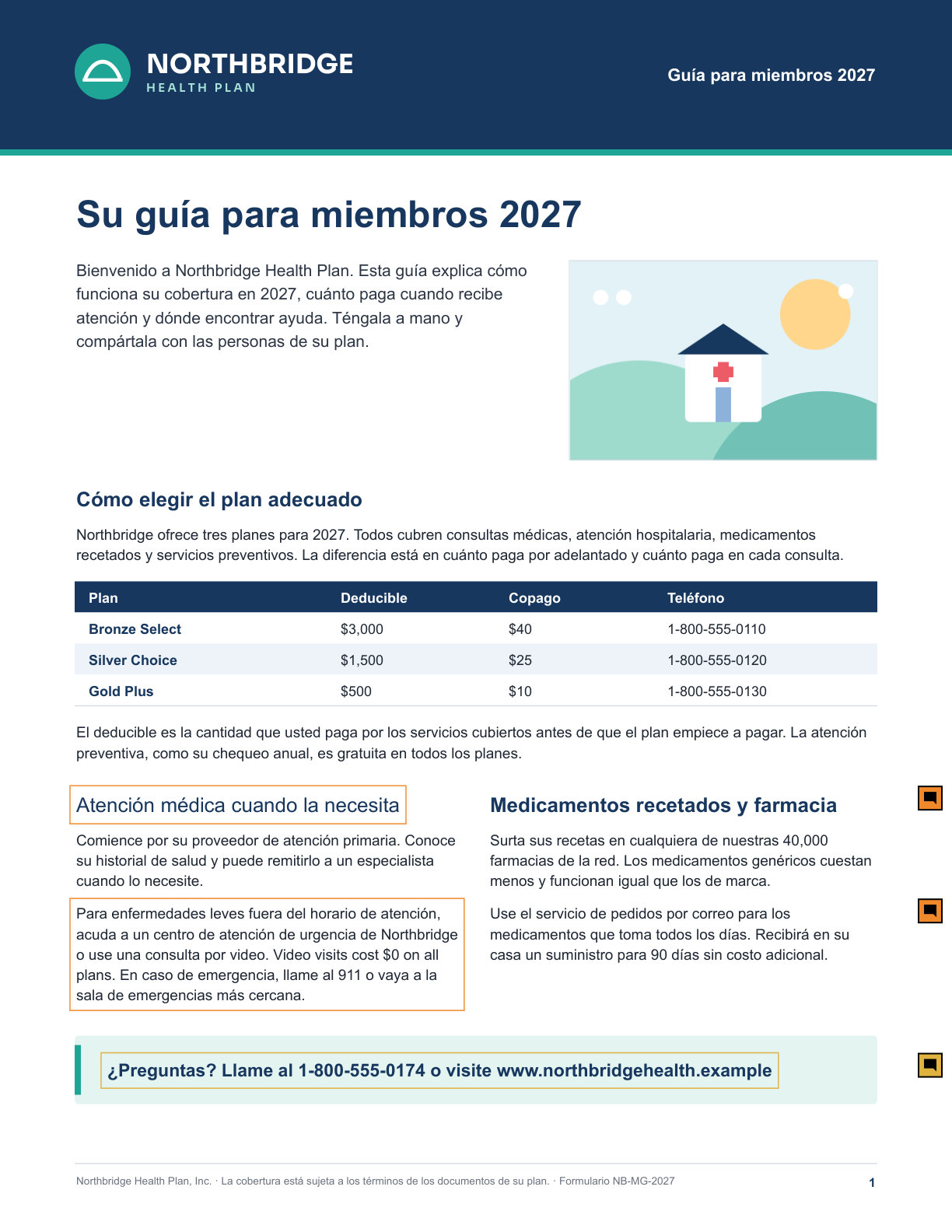
What you’ll see: the translated file, page by page, with a coloured box on each problem and a comment next to it. It opens in any PDF reader that shows comments.
The PDF uses standard PDF comments. The content of the page is not changed: the boxes and notes sit on top of it and can be hidden or deleted in the reader.
What a comment contains
Each comment is signed “EasyQLab”, or with the name of the person who wrote or edited it. Its subject is the check’s name and the title. Inside:
| Line | Example |
|---|---|
| Severity, category, check and title | [SEV 4 · high] Styles · Bold — Bold is missing |
| The explanation | The same message as on the screen. |
SOURCE: and TARGET: | The evidence from the original and from the translation. |
NOTE: | The hint, when the check has one. |
NOTE BY + name | The note a reviewer added with edit. |
(text edited by hand) | When a person changed the title or the message. |
A QA comment you drew yourself appears as [SEV 3 · medium] COMMENT · your name — title, followed by your message.
When the same problem appears in several places, each place is marked, and the comment starts with [1/3], [2/3]… so whoever fixes it knows there are more.
The check is named, not coded: the person fixing the file reads “Bold”, not “C4”. The confidence percentage is not in the PDF.
The summary at the end
After the last page of the document, the PDF adds a summary headed “EasyQLab — Quality control report”:
- The source file, the translated file, the language and the number of findings (with the severe ones in brackets).
- Five coloured boxes, one per severity, with how many findings each has.
- “Details”: every finding in one list, with its severity, check, title and page, the message, the source and target text, and a small picture of the marked area in the translation and in the original. The picture shows the text exactly as it is in the file, in any script.
If nothing counts, the summary says “No relevant findings. These files require no attention.”
What goes in, and what doesn’t
| Finding | In the PDF? |
|---|---|
| Findings that count (the same as the language card) | Yes |
| Findings you confirmed with Real error, even doubtful ones | Yes |
| Your edits and your QA comments | Yes |
| Severity 1 findings | Listed in the summary at the end; not marked on the page |
| Ignored findings, and findings marked Not an error | No |
| Doubtful findings below the confidence cut-off | No |
| Translation review findings, when Show translation review (N) is off | No |
There is one PDF per language. Download each one from its own language.
The language of the report
The PDF is written in the interface language, English or Spanish, at the moment you download it. To get it in the other language, switch ES / EN and download it again: nothing needs to be analysed again.
The explanations written by the AI review are in the language the interface had when the page was read. On screen, a note under such a finding says so.
The findings CSV
Click CSV (“Download the findings spreadsheet”) next to the PDF button. You get one spreadsheet for the whole analysis, one row per finding, with a Language column to tell the languages apart. It is named after the original, ending in _QA.csv.
It uses semicolons and opens directly in Excel and other spreadsheet programs, accents and all.
The columns, one by one
| Column | What it holds |
|---|---|
| Language | The language of the translation. |
| File | The translated file’s name. |
| Places | How many places in the document the finding covers. |
| Pages | The page, or pages, where it appears. |
| Check | The check code, such as C4 or C39. Empty for a QA comment. |
| Category | The family of the check, or “QA comment”. |
| Sev | The severity, 1 to 5. |
| Finding | The title. |
| Detail | The explanation. |
| Source | The evidence from the original. |
| Target | The evidence from the translation. |
| Suggestion | The hint, when there is one. |
| State | “ignored” for ignored findings (including those marked Not an error); empty otherwise. |
| Your note | The note a reviewer added. |
| Author | Who wrote the note or the comment. |
| Written by hand | “QA comment” for a comment a person drew, “edited” for a finding whose wording a person changed; empty for what EasyQLab found as is. |
Findings below the confidence cut-off are left out. Ignored findings stay in the file with “ignored” in the State column, so you keep a record of everything that was looked at.
The Summary tab
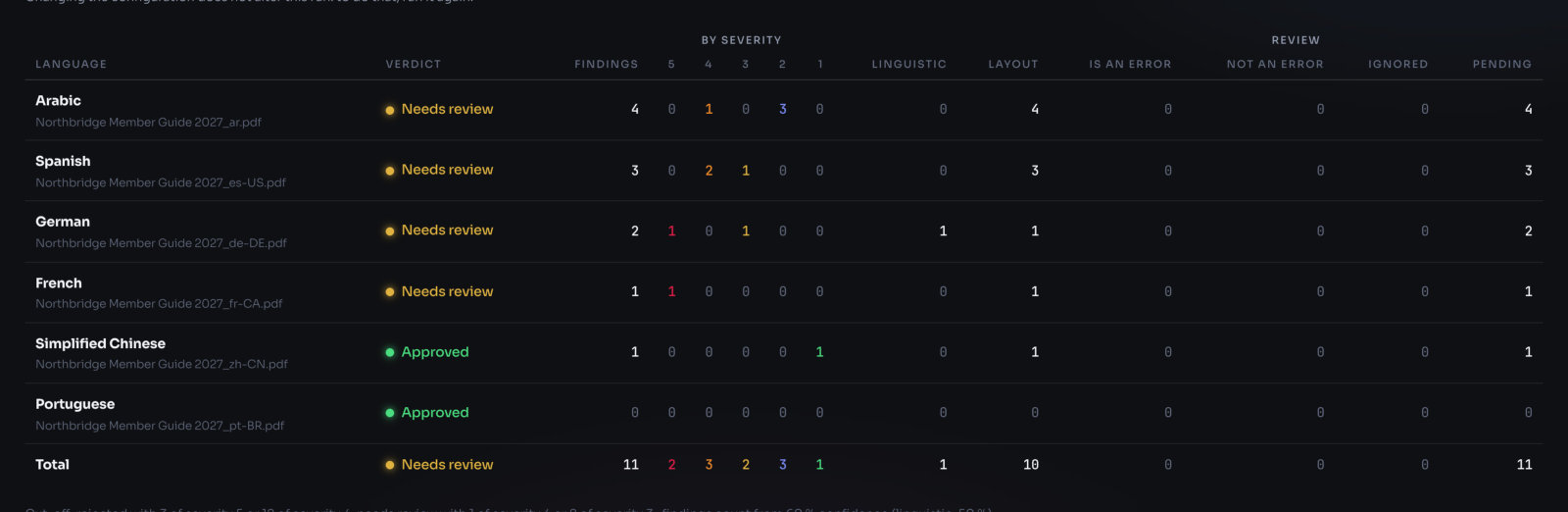
The Summary tab shows the whole project on one screen; every column is explained on The results screen. It has two exports.
Copy summary
- Open the Summary tab.
- Click Copy summary. The button says Copied for a moment.
- Paste it into an email or a message.
What you’ll see when you paste: plain text, one line per language, ready to read without opening EasyQLab. For example:
SUMMARY · Member Guide 2027 · guide_en.pdf · 3 languages
Analysed: 20/10/26, 14:05 · Analysis: final · the AI read every page · Engine: …
Verdict: Needs review: one language needs review (Spanish)

Spanish: Needs review · 9 findings (sev 5: 0 · 4: 1 · 3: 3 · 2: 4 · 1: 1) · linguistic 3 · layout 6 · is an error 1 · not an error 0 · ignored 0 · pending 8
French: Approved · 4 findings (sev 5: 0 · 4: 0 · 3: 2 · 2: 2 · 1: 0) · …
Total: Needs review · …

Cut-off: rejected with 3 of severity 5 or 12 of severity 4; needs review with 1 of severity 4 or 8 of severity 3 · findings count from 60 % confidence
The last line tells your reader the rules behind each verdict.
Download CSV (summary)
Click Download CSV on the Summary tab for the same table as a spreadsheet. It is named after the original, ending in _resumen.csv. The columns are: Language, File, Verdict, Findings, Sev 5, Sev 4, Sev 3, Sev 2, Sev 1, Linguistic, Layout, Is an error, Not an error, Ignored and Pending. The last row is the total, with the project verdict.
The tab also holds the AI Project analysis; see Ask the project.
After the report
When the corrected files come back, you don’t need to review everything again. Open the analysis from its project, open the language, and click Upload the corrected PDF: EasyQLab tells you what was resolved, what is still there and what is new. And if a human reviewer also marked the file, Upload the reviewed PDF compares their marks with EasyQLab’s. Both are on Second round and human review.