
YOUR ACCOUNT
Settings and review profiles
Choose what gets checked and how strictly: keep a profile per client, turn checks on and off, change their severity, upload your client's lists, authorise font substitutions and decide when a language is rejected.
Everything on this page lives in Settings, at the bottom of the menu. It has four tabs — Checks, Client lists, Typefaces and Traffic light — and, above them, the bar of review profiles.
Review profiles
A review profile is a set of settings: which checks run, with what severity, the font equivalences, the traffic-light thresholds and the sensitivity. Keep one per client or per kind of job, and pick which one measures each project.
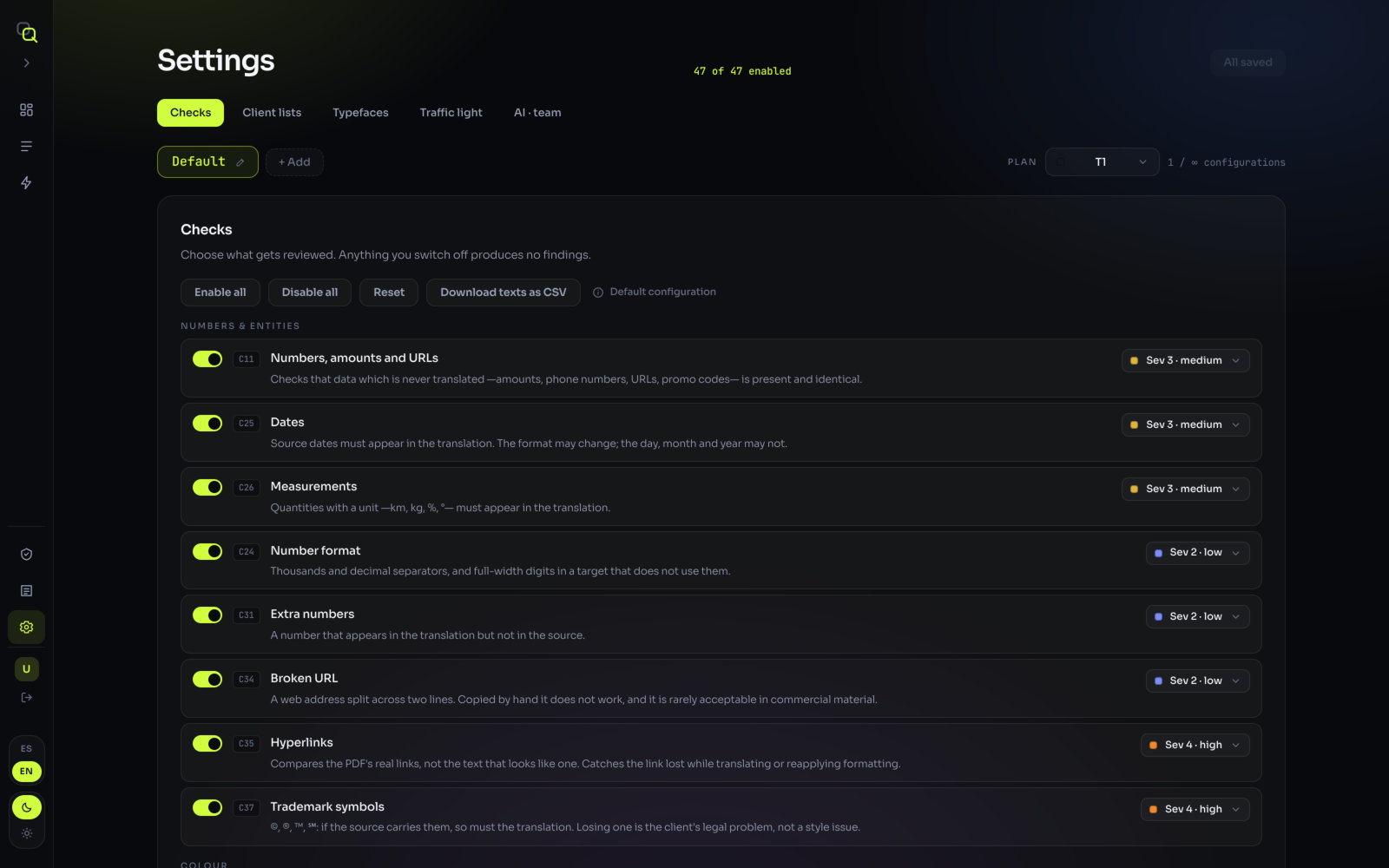
- Click a profile in the bar to edit it. Everything you change in the tabs applies to that profile.
- Click + Add to create a new one. It starts with the standard settings (every check on, standard severities, no font equivalences) and a number as its name.
- Click the pencil (Rename), or double-click the name, to call it something you'll recognise: the client's name, for example.
- Click Save changes at the top when you're done. The button then reads All saved, and a note confirms "Saved to "…"" with the profile's name.
What you'll see: the counter next to the bar, for example "2 / 3 configurations". The × next to a profile removes it (there is always at least one).
How many profiles you can have depends on your plan: 3, 10 or unlimited. When you reach the limit, + Add is disabled and says "Your plan allows 3 configurations".
Using a profile on a project
On a project's analysis screen, pick the profile next to Review profile before you click Analyse. Profiles belong to your organization, so a colleague can measure their project with the same one.
Checks
The Checks tab lists every check, grouped by category, with its code, its name, a one-line description and its severity. "Anything you switch off produces no findings."
- Use the switch next to a check to turn it on or off.
- Change its Severity in the selector on the right, from Sev 1 · acceptable to Sev 5 · critical.
- Click Save changes.
What you'll see: the counter at the top, for example "45 of 47 enabled". The severity you choose here is the one every finding of that check gets, and it is what the traffic light counts.
| Button | What it does |
|---|---|
| Enable all | Switches every check on. |
| Disable all | Switches every check off. Useful to start from zero and turn on only a few. |
| Reset | Switches them all back on. |
| Download texts as CSV | The code, category, severity, state, name and description of every check, in English and Spanish, as a spreadsheet: handy to send a client the list of what is checked. |
| Default configuration ⓘ | Explains where the standard settings come from. |
The check code appears on every finding, in the report and in the annotated PDF, so you can trace a mark back to its rule. The three consensus checks are marked Needs three languages or more: they compare languages with each other and only run with three or more. What each check does is in What it checks.
Client lists
The Client lists tab takes a single CSV with your client's font equivalences, glossary, forbidden terms, non-translatables and brands.
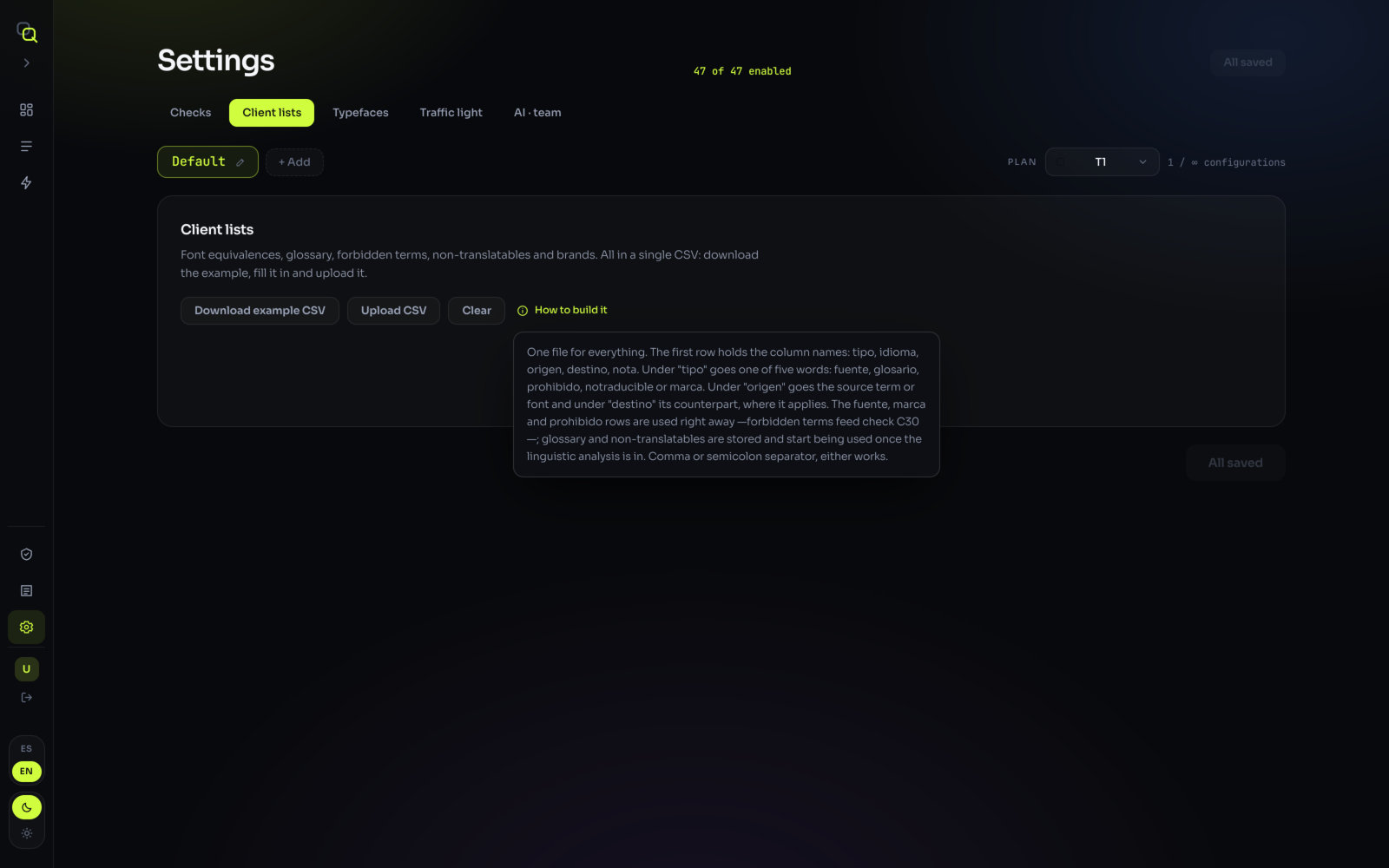
- Click Download example CSV and open it in a spreadsheet.
- Fill in one row per entry. The columns are below. Comma or semicolon separators both work.
- Click Upload CSV.
What you'll see: "Done: 12 rows loaded.", and how many entries of each type you have. Rows without a type or without an origin are skipped, and the message lists their row numbers. Uploading a new CSV replaces the lists; Clear removes them.
The first row holds the column names, as the screen explains under How to build it:
| Column | What goes in it |
|---|---|
tipo | One of five words: fuente (font equivalence), glosario (glossary), prohibido (forbidden term), notraducible (non-translatable) or marca (brand). Required. |
idioma | The language the row applies to, in English (Spanish, Korean). Leave it empty for brands and non-translatables that apply to every language. |
origen | The source term or font. Required. |
destino | Its counterpart, where it applies: the replacement font, or the glossary translation. |
nota | A note for your team. |
What each type does
| Type | What EasyQLab does with it |
|---|---|
fuente | Added to the profile's font equivalences: that substitution in that language is not reported. |
marca | A brand that must reach the translation as is. It helps pair paragraphs, and it is reported if it's missing from the translation. |
notraducible | Treated like a brand: a term or code that has to appear unchanged in the translation. |
prohibido | Feeds check C30 Forbidden terms: the term is flagged wherever it appears in a translation. |
glosario | Given to the AI review of the translation as the client's required renderings. |
Typefaces
The Typefaces tab holds the Font equivalences: "Which font may replace which, per language." A substitution you authorise here doesn't raise a finding in C3 Typefaces and substitutions.
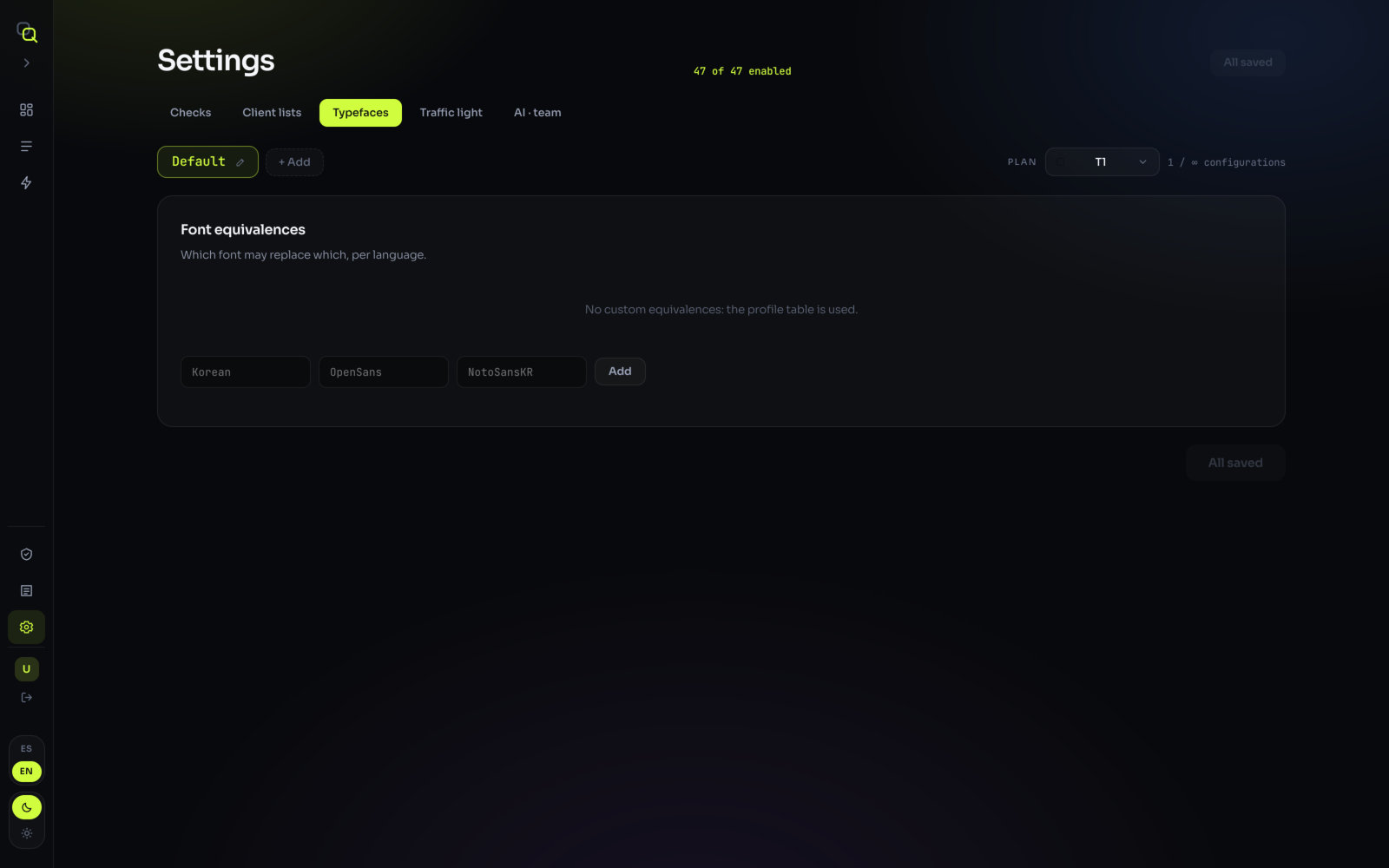
- Type the language in English (the placeholder shows
Korean). - Type the original font (
OpenSans) and the font or fonts that may replace it (NotoSansKR). Separate several replacements with commas. - Click Add, then Save changes.
What you'll see: the new line in the list, "Korean · OpenSans → NotoSansKR". The × at the end of a line removes it. Without custom equivalences, the screen says "No custom equivalences: the profile table is used."
Traffic light
The Traffic light tab — "When it is rejected and when it needs review" — decides the verdict of each language from how many findings of each severity it has.
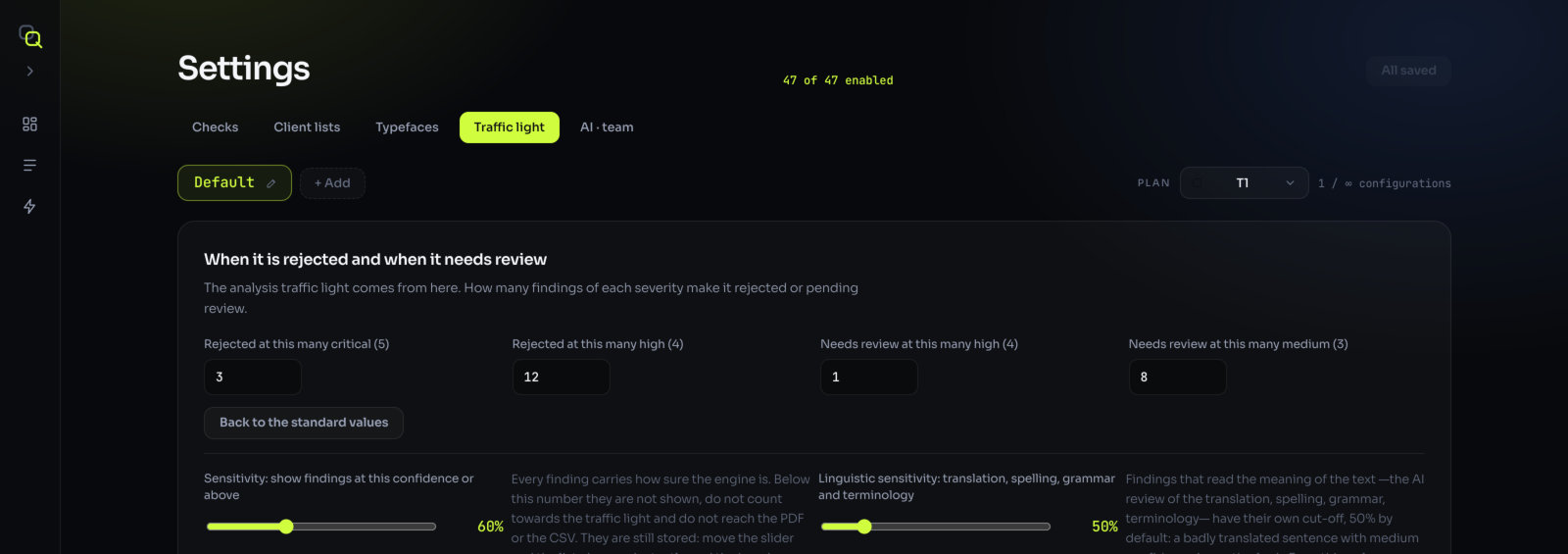
| Setting | Default |
|---|---|
| Rejected at this many critical (5) | 3 |
| Rejected at this many high (4) | 12 |
| Needs review at this many high (4) | 1 |
| Needs review at this many medium (3) | 8 |
Any critical finding below the rejection threshold also means "Needs review". Everything else is approved. Back to the standard values restores the defaults. Each number goes from 1 to 99.
The new thresholds apply to new analyses; a saved run keeps the ones it had. The Summary of every analysis prints the cut-off it was measured with. Worked examples are in The traffic light.
Sensitivity
Every finding carries how sure EasyQLab is about it, as a percentage. Findings below the sensitivity are not counted, don't change the traffic light and don't reach the PDF; the list says how many are hidden and lets you show them.
- General sensitivity: 60 % by default.
- Linguistic sensitivity (translation, spelling, terminology): 50 % by default, "because a badly translated sentence with medium confidence is worth a look".
- The floor: below 40 %, a finding isn't kept at all. The slider never goes below it.
Depending on your plan, the sensitivity is fixed and the tab simply tells you its value ("Your plan's sensitivity is 60% and cannot be changed."), or it can be moved with two sliders under the thresholds. Where it can be moved, it belongs to the profile and applies to new analyses only: "an approved project does not change verdict because someone moved this slider".
The translation review switch
This one isn't in Settings: it is on the analysis screen, next to Analyse, and it's called AI review of the translation. The AI reads the translation either way, and it costs the same.
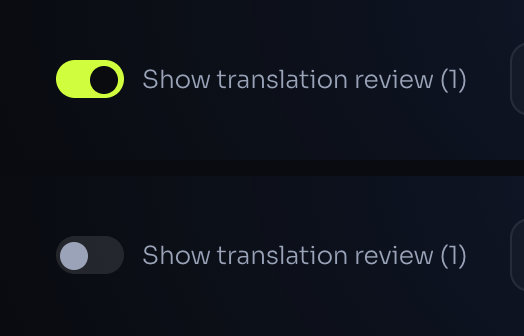
- On: the translation findings show and count in the cards, the traffic light and the summary.
- Off: they are neither shown nor counted.
On the results screen, Show translation review (N) switches it after the analysis: N is how many translation findings there are. The choice is saved with the project. When it's useful: layout-only QA.
Worked example: a profile for a client
Say your client is an insurer that sends a member guide in eight languages every year. Their brand guide allows Noto fonts in Asian and Arabic languages, bans one informal word in Spanish, and they reject anything with even one critical error.
- Create the profile. In Settings, click + Add and rename it "Insurer – member guide".
- Adjust the checks. In Checks, raise C4 Bold to Sev 5 · critical (the guide's bold terms are legal), and lower C13 Spacing to Sev 1 · acceptable (DTP fixes spacing at the end anyway).
- Add the font substitutions. In Typefaces: Korean, OpenSans → NotoSansKR; Arabic, Lexend → NotoSansArabic; Simplified Chinese, OpenSans → NotoSansSC.
- Upload the client's lists in Client lists (example below).
- Make the traffic light stricter. In Traffic light, set Rejected at this many critical (5) to 1.
- Click Save changes.
- On the next project for this client, pick "Insurer – member guide" next to Review profile before you analyse.
The CSV for step 4, in a spreadsheet:
| tipo | idioma | origen | destino | nota |
|---|---|---|---|---|
| marca | Northbridge | Never translated | ||
| notraducible | MyBenefits Portal | Product name | ||
| prohibido | Spanish | aseguranza | Use "seguro" | |
| glosario | Spanish | deductible | deducible | Client term |
| glosario | French | deductible | franchise |
What you'll see on the next analysis: no typeface findings for the authorised Noto fonts; a finding wherever "aseguranza" appears in Spanish or "Northbridge" is missing from a translation; and a language rejected as soon as it has one critical finding.