
READING THE RESULTS
Second round and human review
Two ways to check the work after the first analysis: run the corrected file of one language against the same original, and compare a human reviewer’s marks with EasyQLab’s, mark by mark.
| Second round | Measure against the human review | |
|---|---|---|
| Button | Upload the corrected PDF | Upload the reviewed PDF |
| You upload | The translation after DTP fixed it | The translation with the reviewer’s comments in it |
| It answers | Did DTP fix what was found? | Did EasyQLab find what the reviewer found? |
| You get | Resolved · Still there · New | Both found · We missed · Only the tool |
| Saved in the project | Yes, as a run marked “2nd round” | No: it stays on screen until you leave or click Remove |
| Billed | Yes, that language only | It doesn’t run a new analysis |
Both buttons are on the right of an open language, next to Download annotated PDF. Hover over each one to read what it does.
Second round: check the corrected file
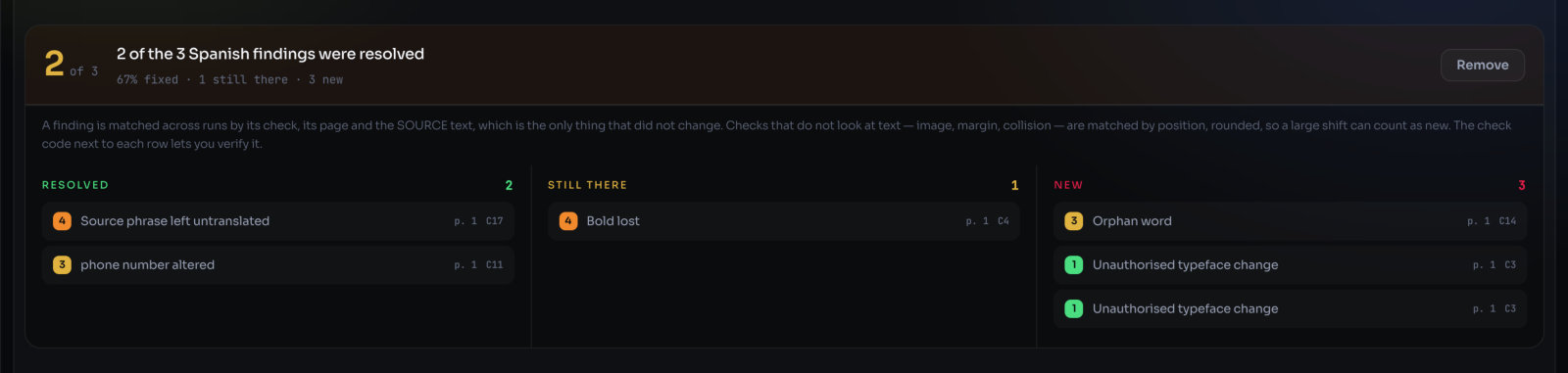
With eighteen languages, nobody re-checks all eighteen after the fixes: one or two come back. The second round checks only those. Upload the corrected file of one language, and EasyQLab runs it against the same original and shows only what changed.
Use it when DTP or the translator sends back a corrected file and you need to know, before delivery, that the fixes were made and nothing new broke.
How to run it
- Open the analysis from its project. Go to Projects, open the project and click the run. The second round needs the original, which is stored in the project.
- Open the language that came back corrected.
- Click Upload the corrected PDF and choose the corrected file. Its tooltip reads “Second round: check the corrected …” with the language name.
- Wait a moment. The panel says “Comparing the corrected Spanish…” with each step.
- Read the result.
What you’ll see: a heading such as “2 of the 3 Spanish findings were resolved”, a line such as “67% fixed · 1 still there · 3 new”, and three columns:
| Column | What is in it | What to do |
|---|---|---|
| Resolved | Findings of the first run that are gone from the corrected file. | Nothing: they were fixed. |
| Still there | Findings that appear in both runs. | Send them back, or decide they can stay. |
| New | Findings that only the corrected file has. | Look at them first: a fix may have broken something else. |
Each row shows the severity, the title, the page and the check code. Once it is saved, the line adds “saved in the project and billed”. Remove takes the panel off the screen; the saved run stays in the project.
How a finding is matched across the two runs
The translation changed — that is the point — so it can’t be used to recognise a finding. EasyQLab matches a finding by what didn’t change: its check, its page and the original text.
Checks that don’t look at text — images, margins, collisions — are matched by position, rounded, so a small shift doesn’t count as a new finding. A large shift can. The check code on each row lets you verify it.
The first run is taken as it is on your screen: findings you ignored or marked Not an error, and doubtful ones, are not in the count. So an ignored finding that is still in the corrected file is not reported as “still there”.
What is saved, and what is billed
- The second round is saved in the project as a run of its own, marked “2nd round” in the Projects list. Open it like any other run.
- The corrected file is stored in the project as the next version of that language’s file.
- It is billed, and only that language is billed. It appears in Billing with one language. See Billing.
This measures whether DTP fixed the file. It is not a measure of how good EasyQLab is: that is the next section.
Measure against the human review
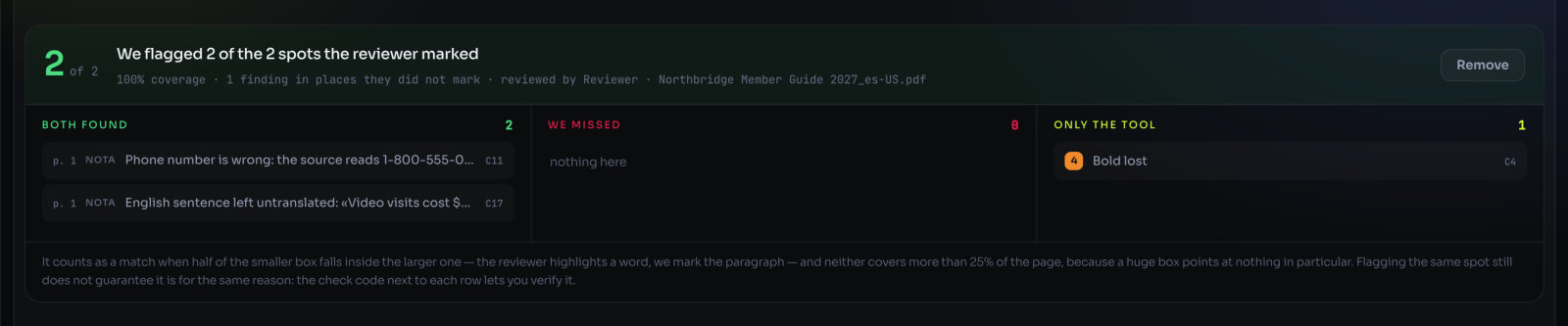
If a reviewer also went through the file, compare their marks with EasyQLab’s, mark by mark: what both found, what EasyQLab missed, and what EasyQLab found that they didn’t mark.
What a “reviewed PDF” is
It is the translated PDF as your reviewer returned it, with their comments in it: highlights, strike-outs, underlines, insertion marks, boxes, ellipses, sticky notes, typed text, freehand marks, lines or shapes. Any reader that saves standard PDF comments works. Each comment counts as one mark; the pop-up windows of the comments are left out.
It should be the same file EasyQLab analysed, so the marks fall on the same places.
How to run it
- Open the language the reviewer checked.
- Click Upload the reviewed PDF and choose the PDF the reviewer returned. The button says “reading the marks…”.
- Read the result.
What you’ll see: a heading such as “We flagged 2 of the 3 spots the reviewer marked”, a line with the coverage, the findings in places they did not mark, the reviewer’s name as it is in their comments and the file name. The score is green from 95 % coverage, amber from 70 %, red below. Then three columns:
| Column | What is in it | Each row shows |
|---|---|---|
| Both found | Marks of the reviewer that an EasyQLab finding also covers. | The page, the kind of mark, the reviewer’s comment and the check codes that covered it. |
| We missed | Marks of the reviewer with no EasyQLab finding on that spot. | The page, the kind of mark and the reviewer’s comment. |
| Only the tool | EasyQLab findings in places the reviewer didn’t mark. | The severity, the title and the check code. |
Click any row to go to that spot on the page. Click Remove to take the reviewer’s PDF out again. If the file has no comments, you see “that PDF has no reviewer marks”.
The comparison is not stored with the project. To see it again after reopening, upload the reviewed PDF again.
When a mark counts as found by both
A mark counts as found by both when half of the smaller box falls inside the larger one: the reviewer highlights a word, EasyQLab marks the paragraph that contains it. A box that covers more than a quarter of the page points at nothing in particular, so it never counts as a match.
Being on the same spot doesn’t guarantee it is for the same reason. The check code on each row lets you verify it.
Only the findings that count on your screen are compared. Ignored findings, findings marked Not an error and doubtful ones are left out.
Using it to calibrate
The comparison is the most direct way to see how EasyQLab fits your team’s standards. Go through the two side columns:
- For each row in We missed, click it and look at the spot. If it is a real error, add it with QA comment, so the report is complete. See Adding a QA comment.
- For each row in Only the tool, click it and decide. Real error if the reviewer missed it; Not an error if it is a false alarm. These decisions teach EasyQLab. See How EasyQLab learns from you.
- Look for patterns. If the same check keeps landing in Only the tool for a client whose reviewers don’t care about it, lower its severity or switch it off in that client’s review profile. See Settings: Checks.