
START HERE
Files, formats and limits
Which files EasyQLab accepts and what gets checked in each, whether you need the PDF, how to name the files so the language is recognised, and how big and how long a project can be.
Formats
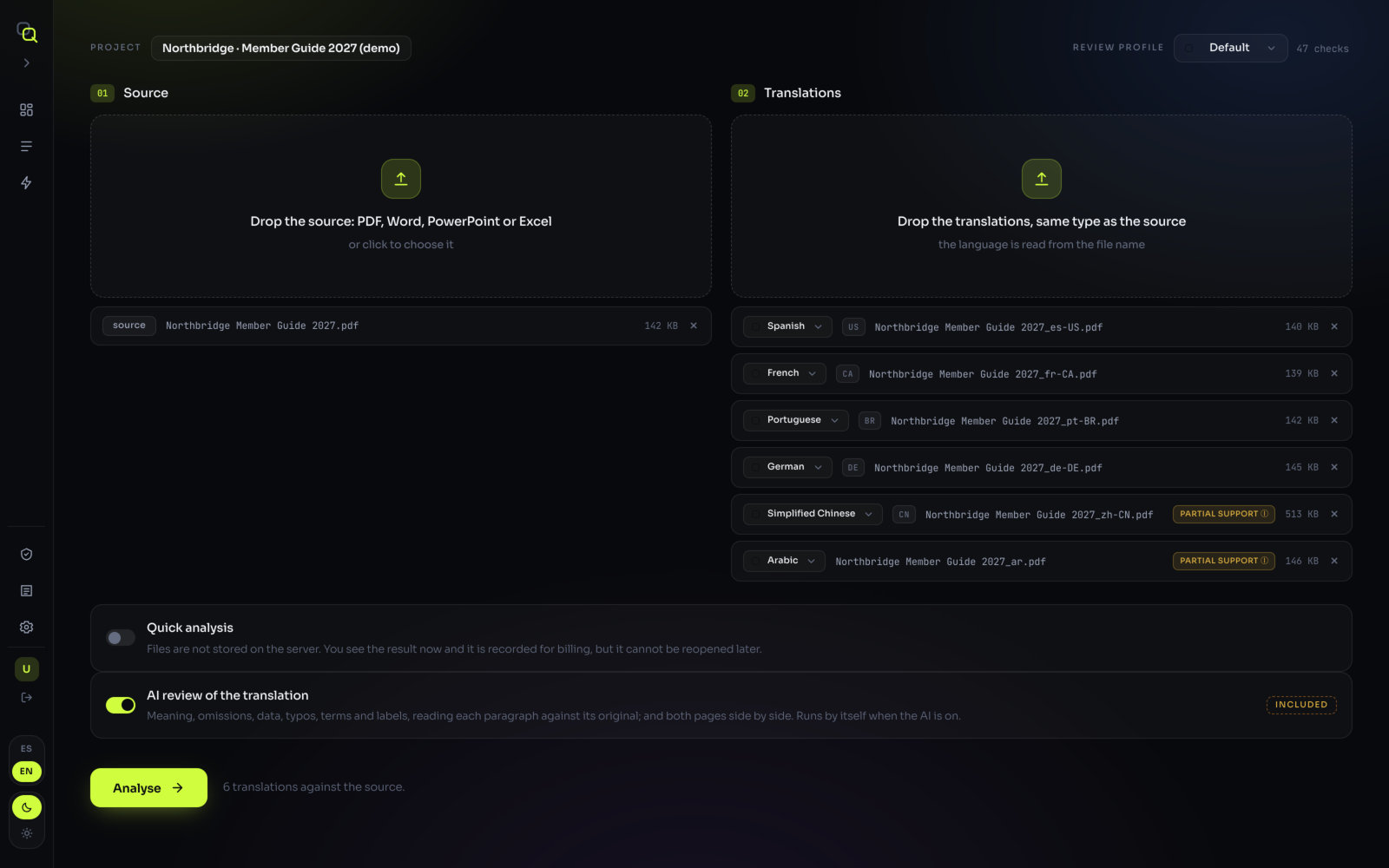
EasyQLab compares an original (the Source) with its translations. Four formats go in:
| File | Accepted | What is checked |
|---|---|---|
| Yes | Everything: text, numbers, formatting, typography, colour, images, layout on the drawn page, and the AI reviews of the translation and of the pages. Password-protected PDFs can't be read. | |
| Word (.docx) | Yes | Text, numbers, formatting (font, size, bold, colour, superscript), structure, links and the translation review, read straight from the file. Checks that need the drawn page don't run without a PDF (see below). |
| PowerPoint (.pptx) | Yes | The same as Word, slide by slide. Each text box keeps its real position on the slide, and EasyQLab sees how much PowerPoint shrank the text to make it fit. |
| Excel (.xlsx) | Yes | The text and format of each cell, sheet by sheet, up to 5,000 rows per sheet (a notice tells you when a sheet was cut). |
| .doc, .ppt, .xls | No | Save them as .docx, .pptx or .xlsx first. |
| IDML, InDesign | No | Export a PDF and upload that. |
Files of any other type are simply not taken when you drop them. A file that isn't really what its extension says shows "This is not a PDF, Word, PowerPoint or Excel file."
Do I need the PDF?
No. Word, PowerPoint and Excel are checked on their own, by reading the file. That's exact: the text, the fonts and the formatting are what the file says.
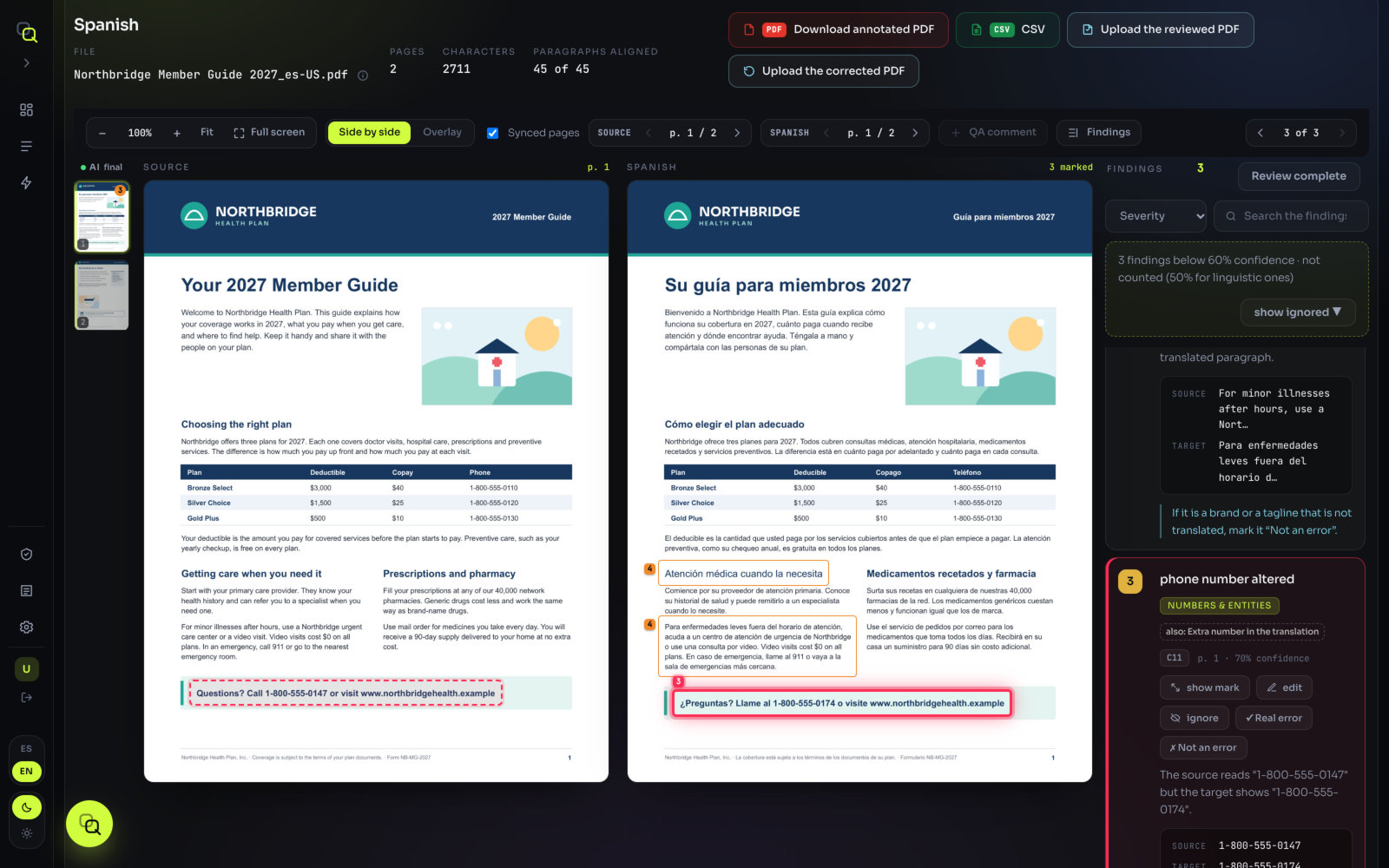
To let you see where each finding is, EasyQLab shows a page made by converting the file, labelled View of the file. It looks like your file, but "where one of your fonts is missing a similar one is used and text may break differently. The checks ran on the file, not on this image."
With and without the PDF
| What | Word, PowerPoint or Excel alone | |
|---|---|---|
| Text, numbers, dates, URLs | Yes | Yes |
| Fonts, sizes, bold, colour, superscript | Yes | Yes, from the file's styles |
| Structure (missing or moved paragraphs) | Yes | Yes |
| Hyperlinks (C35) | Yes | Yes: the link lives in the file |
| AI review of the translation | Yes | Yes |
| Pairing paragraphs | Done by the AI | From the file's structure, instantly |
| Images | Missing, replaced or moved | Only the number of images |
| The 11 checks of the drawn page | Yes | No (list below) |
| What you see in the viewer | The real page | A converted view |
These eleven need the page as it is drawn, so they only run with a PDF:
| Code | Check | What it catches |
|---|---|---|
| C2 | Brand colour in vectors | Brand colour drift in backgrounds, boxes and rules |
| C5 | Italics | Italics in the source missing from the translation |
| C8 | Margins | The translation spilling out of the text area |
| C9 | Trim area and collisions | Text cut off or on top of an image |
| C14 | Orphan words | Where each line breaks |
| C33 | Size emphasis | A word set larger for emphasis that lost it |
| C34 | Broken URL | An address split across two lines |
| C40 | AI visual review | Looks at both pages side by side: tables, rules, boxes, logos |
| C41 | Tables cell by cell | Cells in the wrong column, text running out of its cell |
| C42 | Text that cannot be seen | White on white, or covered |
| C45 | Text boxes | Text spilling out of its box |
In Word, the page count is the one Word wrote down the last time it repaginated, so without a PDF EasyQLab doesn't claim a page is missing. In PowerPoint and Excel, slides and sheets are counted exactly. The full list of checks is in What it checks.
PDF plus Word or PowerPoint
If you have both the PDF and its Word or PowerPoint file, upload both. You get every check of the PDF, and paragraphs paired from the live file: instantly and exactly.
- Drop the PDFs as usual in Source and Translations.
- Drop each .docx or .pptx in the same area as its PDF. Give it the same name with a different extension:
Guide_fre-FR.pdfandGuide_fre-FR.docx.
What you'll see: the translation shows + Word. The live file is attached to the PDF with the same name; failing that, to the translation in the same language; and if there is only one translation, to that one.
When both the source's and the translation's live files are there, paragraphs are paired from the files' structure. The PDF still rules on layout, so every check runs.
Bilingual Word
Some jobs come with a bilingual Word, typically from design tools that can't export a translatable file. It is a table with two columns: the original on the left, the translation on the right, one row per segment.
| Source | Translation |
|---|---|
| Your 2027 benefits at a glance | Sus beneficios de 2027 de un vistazo |
| Call us at 1-800-555-0100 | Llámenos al 1-800-555-0100 |
| Open enrollment ends November 15. | La inscripción abierta termina el 15 de noviembre. |
- Drop the translation's PDF in Translations.
- Drop the bilingual Word next to it. Name it with the language so it finds its PDF, for example
Flyer_spa-US_bilingual.docx.
With only the translation's Word present, EasyQLab takes it as a bilingual Word and pairs the paragraphs from its two columns. If it doesn't have that table, EasyQLab says so and goes on without it.
Size and time
| Limit | Value |
|---|---|
| File size | Up to 50 MB per file. A larger file shows "It weighs … and the limit is …". |
| Time per page | About 40 seconds per page with the AI reading. Languages run in parallel: two pages in eight languages take about two minutes; four pages in eight languages, about three; a 60-page document in one language, about seven. |
| Pages read by the AI | Up to 60 pages per document. |
| AI reading of a project | Up to 15 minutes. Pages not read in that time are reported as "N pages not read". |
| Excel | Up to 5,000 rows per sheet, with a notice. |
| Languages | Each language goes once per analysis. |
Big files
Large files are uploaded to your organization's storage first and fetched from there by the server. It happens automatically: you don't have to do anything. If the server can't fetch the file, the language shows "the server could not fetch the file from storage. Try again."
Very heavy or very long documents can hit a time limit: "the server took too long and cut the request". Run it again. If a document has too many paragraphs to pair in time, EasyQLab asks you to split it in two and analyse each part.
"N pages not read"
The results still cover everything the rules checked; only the AI's reading of those pages is missing. The Summary header says it too ("final · the AI read every page", or the pages not read). See Troubleshooting.
Scanned PDFs and outlined text
A scan, or a PDF whose text was converted to outlines, has no live text. EasyQLab says so: "This PDF has no live text. It is a scan or it was outlined. Typography, text and numbers cannot be compared: only images and colour."
Naming the files
EasyQLab reads the language of each translation from its file name, looking from the end of the name backwards. Put the language code or the language's English name at the end, separated by an underscore, a hyphen or a space. Words such as final, draft, rev, v2, print, web or copy are skipped, so Guide_fre_final_v2.pdf is still French.
| File name | Read as | Why |
|---|---|---|
Guide_spa-US.pdf | Spanish (US) | Three-letter code with a region |
Guide_es-MX.docx | Spanish (MX) | Two-letter code with a region |
Guide_spa-ES.pdf | Spanish (ES) | Spain: decimal comma and «» quotes expected |
Guide_fre-CA.pdf | French (CA) | Canadian French spacing rules |
Guide_fr.pdf | French | Two-letter code |
Guide_ger-CH.pdf | German (CH) | Swiss German number format |
Guide_ita.pdf | Italian | Three-letter code |
Guide_por-PT.pdf | Portuguese (PT) | The region is shown next to it |
Guide Brazilian Portuguese.pdf | Portuguese | Name in English |
Guide_zh.pdf | Simplified Chinese | Chinese without a region |
Guide_zh-TW.pdf | Traditional Chinese | Chinese with a region (also zh-HK) |
Guide Traditional Chinese.pdf | Traditional Chinese | Two-word name |
Guide_kor.pdf | Korean | Three-letter code |
Guide_ja.pdf | Japanese | Two-letter code |
Guide_ar.pdf | Arabic | Two-letter code |
Guide_heb.pdf | Hebrew | Three-letter code (also he, iw) |
Guide_yid.pdf | Yiddish | Three-letter code |
Guide_urd.pdf | Urdu | Three-letter code |
Guide_rus.pdf | Russian | Three-letter code |
Guide_gre.pdf | Greek | Three-letter code (also el) |
Guide_hat.pdf | Haitian Creole | Three-letter code (also ht, kreyol) |
Guide_kea.pdf | Kabuverdianu | Three-letter code |
Guide_fil.pdf | Tagalog | Filipino is read as Tagalog |
Guide Persian.pdf | Farsi | Persian is read as Farsi |
The region doesn't change the language: por-BR and por-PT are both Portuguese. It is still shown next to the file and, for Spanish, French, Portuguese and German, it decides the number and quotation-mark conventions expected (see Languages).
no, to, id, sm, yo, bo and ps are everyday words, so they are skipped. For Norwegian, Tongan, Indonesian, Samoan, Yoruba, Tibetan and Pashto, use the three-letter code or the name in English: _nor, _ton, _ind, _smo, _yor, _tib, _pus._KR, _JP, _CN or _BR on their own are not recognised: use _ko, _ja, _zh, _pt. And _TW alone is read as Twi; for Traditional Chinese write _zh-TW.The full list of languages and their names is in Languages.
When a file isn't recognised or is left out
If EasyQLab can't work out the language, the file shows language missing: "We could not work it out from the file name. Pick it from the list: the rules the file is checked with depend on it."
- Open Pick the language… next to the file.
- Choose the language, or Another language… to type it.
If you analyse without picking it, the file is left out: "language not recognised · this file will not be analysed". The others are analysed anyway, and the results say which files were left out and that they don't count in the result.
| What you see | What to do |
|---|---|
| language not recognised · this file will not be analysed | Pick its language from the list, or rename the file. |
| the source and the translation must be the same kind of file | Upload all PDF, all Word, all PowerPoint or all Excel. |
| It is password protected: it cannot be read. | Ask for the PDF without a password. |
| It weighs … and the limit is … | The file is over 50 MB. Reduce it and upload it again. |
| Two translations have the same language | Each language goes once per analysis: remove one, or run the other separately. |
| the file could not be read | It may be damaged or not what its extension says: open it, save it again and re-run. |
| The file is empty. | Upload the right file. |
More symptoms and fixes in Troubleshooting.