
READING THE RESULTS
The traffic light
How EasyQLab decides that a language — and the whole project — is Approved, Needs review or Rejected, how to read the reason it gives, and what you can do to change it.
| Verdict | Colour | What it tells you |
|---|---|---|
| Approved | Green | No major findings. These files require no attention. |
| Needs review | Amber | There are major findings worth checking before delivery. |
| Rejected | Red | There are critical findings: this cannot be delivered as is. |
Three things decide the verdict: the severity of each finding, its confidence, and the thresholds. Then the project takes the worst of its languages.
Severities

Every finding has a severity from 1 to 5. Each check has a default severity, listed on What it checks.
| Severity | Name | What it means | Colour |
|---|---|---|---|
| 1 | acceptable | Optional suggestion | Green |
| 2 | low | Minor formatting detail | Blue |
| 3 | medium | Review recommended | Yellow |
| 4 | high | Severe inconsistency | Orange |
| 5 | critical | Blocks delivery · serious error | Red |
Severities 4 and 5 are the “major” findings: the card says “N major”, and the header counts them as “of high severity”.
You can give any check another severity in Settings → Checks. A new severity applies to new analyses. While reviewing, you can also change the severity of one finding with edit; see Your own comments.
Confidence
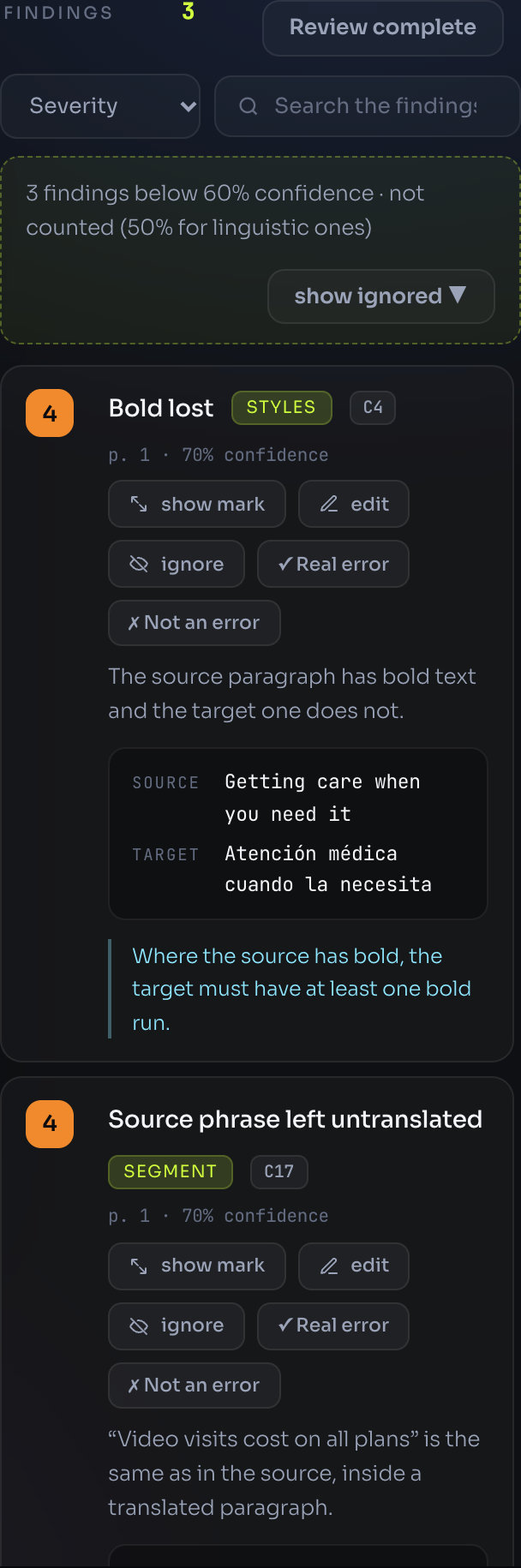
Every finding also carries a confidence: how sure EasyQLab is that it is a real problem. Only the findings at or above the cut-off count.
| Confidence | What happens to the finding |
|---|---|
| 60 % or more (50 % or more for linguistic findings) | It is shown and counts towards the card, the traffic light, the annotated PDF and the CSV. |
| Between 40 % and the cut-off | It is marked “doubtful” and hidden. It doesn’t count and doesn’t reach the PDF or the CSV. The list says how many there are, and you can show them. |
| Below 40 % | It is not kept at all. This floor is fixed: below it a finding is not worth looking at. |
Linguistic findings — the translation review, spelling and forbidden terms — use their own cut-off, 50 % by default, because a badly translated sentence with medium confidence is still worth a look. Everything else uses 60 %.
Seeing the doubtful findings
- Open a language. If it has doubtful findings, a line above the list says “N doubtful findings · not counted”, and “· N of them severe” when some are severity 4 or 5.
- Click show ignored on that line.
- Look at the end of the list. They appear under a divider, “Low confidence · N doubtful · Not counted until someone confirms them”, each one marked “doubtful”.
- Click Real error on any that is real. It starts counting at once, even though EasyQLab was unsure.
What you’ll see: the card, the header and the traffic light update as soon as you confirm. A confirmed finding also goes into the annotated PDF and the CSV.
How a language gets its verdict
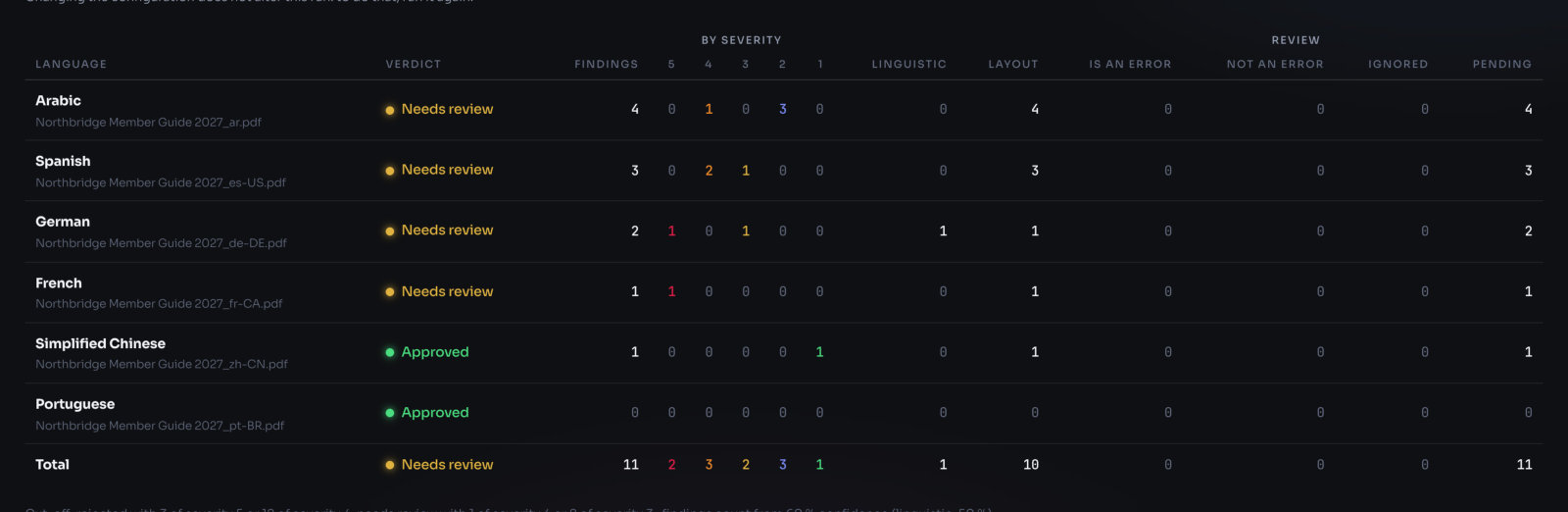
Each language is judged on its own findings, after leaving out what you ignored, what you marked Not an error and what fell below the cut-off. EasyQLab goes down this list and stops at the first line that matches:
| Order | If the language has… | Verdict and reason |
|---|---|---|
| 1 | 3 or more critical findings (severity 5) | Rejected: “Rejected: N critical findings (threshold is 3)” |
| 2 | 12 or more high findings (severity 4) | Rejected: “Rejected: N high findings (threshold is 12)” |
| 3 | At least one critical finding | Needs review: “Needs review: N critical findings” |
| 4 | At least one high finding | Needs review: “Needs review: N high findings” |
| 5 | 8 or more medium findings (severity 3) | Needs review: “Needs review: N medium findings (threshold is 8)” |
| 6 | Anything else | Approved: “Approved: nothing critical or high” |
With these defaults, findings of severity 1 and 2 never change the verdict. They are still listed, and still go into the report.
Worked examples
A project with three languages, default thresholds:
| Language | Sev 5 | Sev 4 | Sev 3 | Sev 2 and 1 | Verdict |
|---|---|---|---|---|---|
| Korean | 3 | 0 | 2 | 4 | Rejected: 3 critical findings (threshold is 3) |
| Spanish | 0 | 1 | 3 | 6 | Needs review: 1 high finding |
| French | 0 | 0 | 5 | 10 | Approved: nothing critical or high |
French has 15 findings and is still approved: none is major, and it has fewer than 8 medium ones. Spanish has fewer findings than French but one of them is high, so it needs review.
The project is Rejected: “Rejected: one language rejected (Korean)”.
Now you review Korean. One of the three critical findings is a false alarm, and you mark it Not an error. Korean drops to 2 critical findings and becomes “Needs review: 2 critical findings”. Its card moves to the right, next to Spanish, and the project becomes “Needs review: 2 languages need review (Spanish, Korean)”.
Changing the thresholds
- Click Settings. Pick the review profile you want to change.
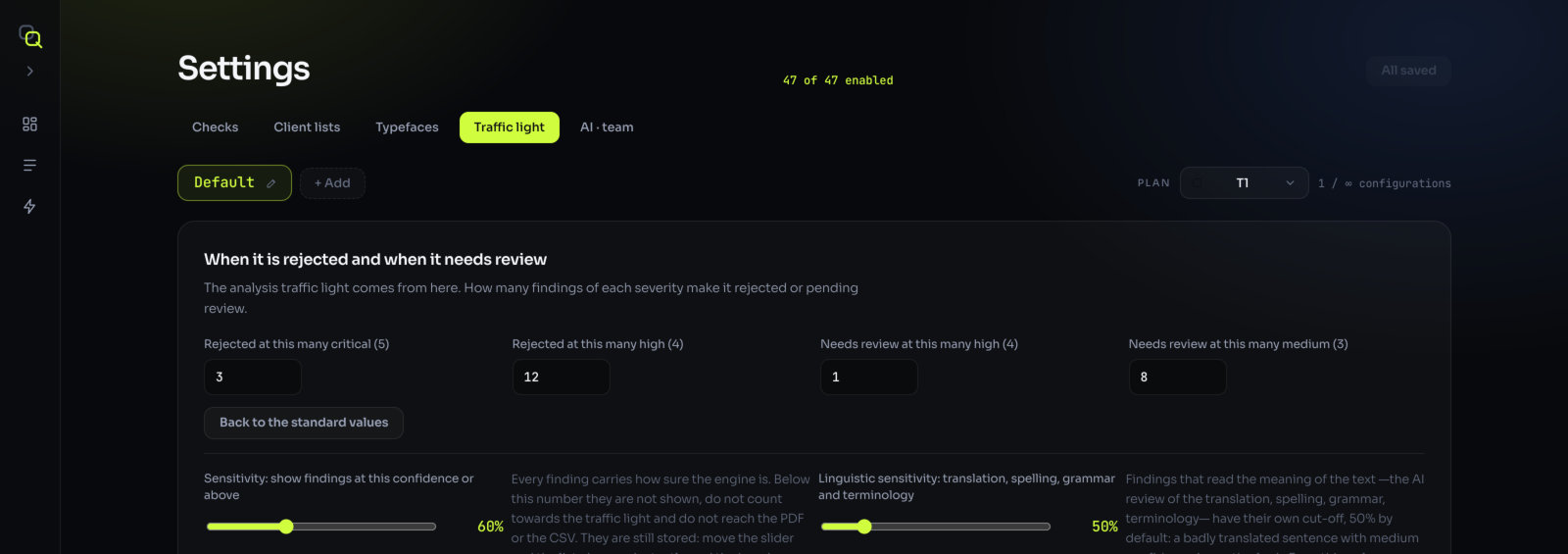
- Open Traffic light. The section is titled “When it is rejected and when it needs review”.
- Change the four numbers. Rejected at this many critical (5), Rejected at this many high (4), Needs review at this many high (4) and Needs review at this many medium (3).
- Click Save changes. To go back to the defaults, click Back to the standard values.
What you’ll see: the new thresholds apply to the next analyses with that profile. Saved analyses keep the thresholds they ran with.
What your review changes
The verdict is live: it follows your decisions while you review.
| You… | Effect on the count and the verdict |
|---|---|
| Click ignore | The finding stops counting. The verdict may improve. |
| Click Not an error | The finding is dismissed and ignored: it stops counting. |
| Click Real error on a counted finding | Nothing changes in the count: it already counted. It is marked “confirmed”. |
| Click Real error on a doubtful finding | It starts counting. The verdict may get worse. |
| Change a finding’s severity with edit | It counts with the new severity. |
| Add a QA comment | Your comment counts with the severity you gave it. |
| Turn off Show translation review (N) | The translation review findings stop counting in every language. |
The cards re-sort themselves when a verdict changes, so the worst language stays first.
How the project gets its verdict
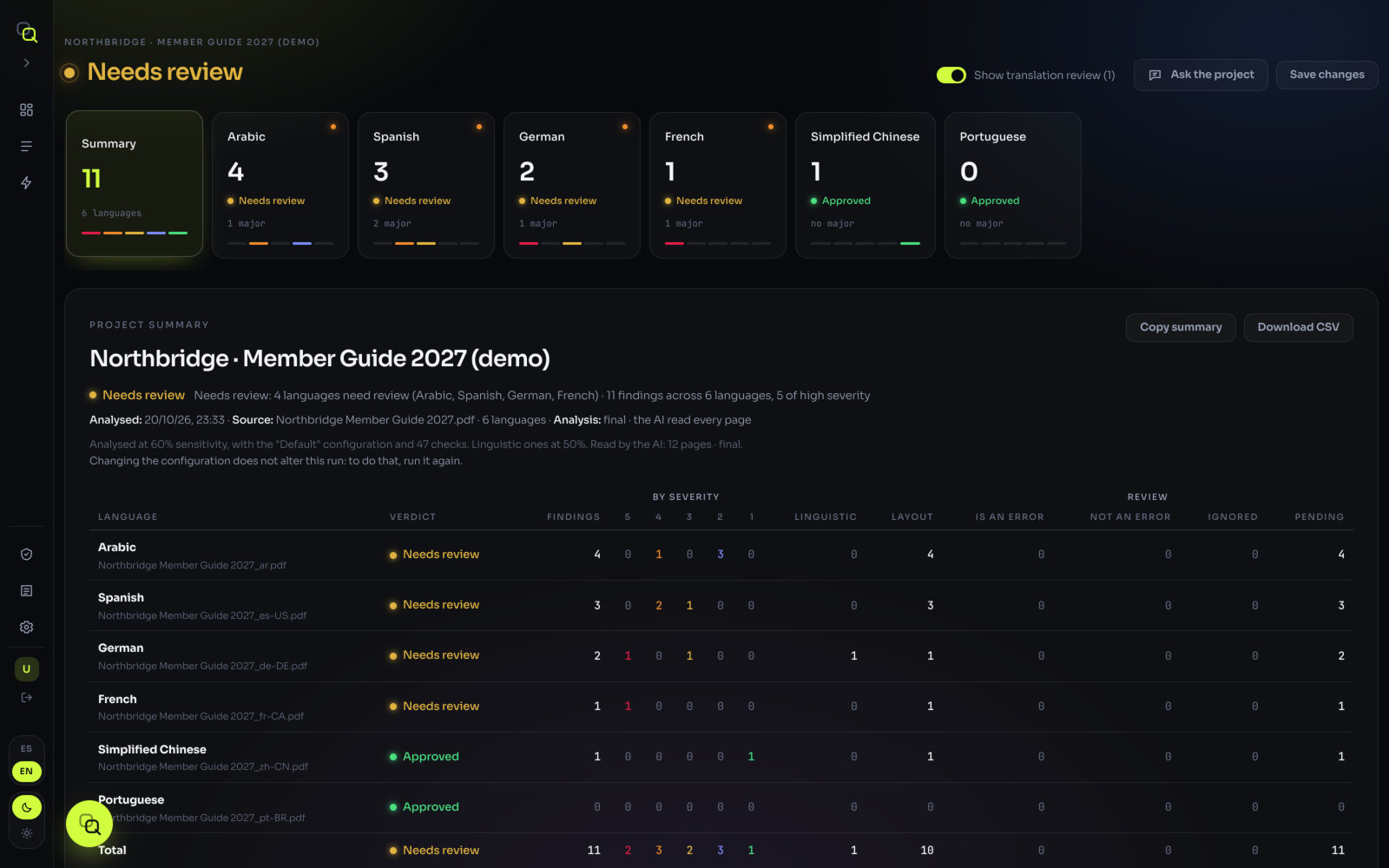
The project takes the worst verdict of its languages:
- One language rejected → the project is Rejected, even if the others are approved.
- No language rejected, at least one in review → the project Needs review.
- Every language approved → the project is Approved.
The reason names the languages that decide it, for example “Needs review: 2 languages need review (French, Korean)” or “Approved: all 8 languages approved”. With a single language, the project shows that language’s own verdict and reason.
The thresholds are per language. Adding up all languages would make a big project look worse than any of its parts: eight approved languages with five medium findings each are still eight approved languages.
Incomplete projects
If a language could not be analysed, the project can’t be approved: nobody looked at that language. It shows Needs review with the reason “Incomplete: one language was not analysed” (or “N languages were not analysed”). The Summary lists each one under “Could not be analysed:” with its reason.
The severities of the AI review
The two AI checks give a fixed severity for each kind of error, so a typo never weighs the same as an omission.
AI review of the translation
| Kind of error | Severity |
|---|---|
| Omission, changed figure or data, changed meaning | 5 |
| Added text, untranslated text, wrong label | 4 |
| Typo | 3 |
| Terminology, punctuation | 2 |
AI visual review
| Kind of error | Severity |
|---|---|
| Text running out of its place | 5 |
| A changed structure, such as a table; a rule, box or logo missing or added | 4 |
| Formatting applied differently; other layout issues | 3 |
| Spacing; cut or broken text | 2 |
The severity you set for these checks in Settings works as a ceiling. Set the AI review of the translation to 3, and an omission comes out at 3 instead of 5; a punctuation finding stays at 2.