
START HERE
What you can do with EasyQLab
Ten jobs EasyQLab does well, each as a short scenario with the steps and a link to the page that explains it in detail. Read the one that matches what you have on your desk today.
If you haven't run a project yet, start with Your first project: every use case below assumes you know how to create a project and upload files.
Approve a multi-language job before delivery
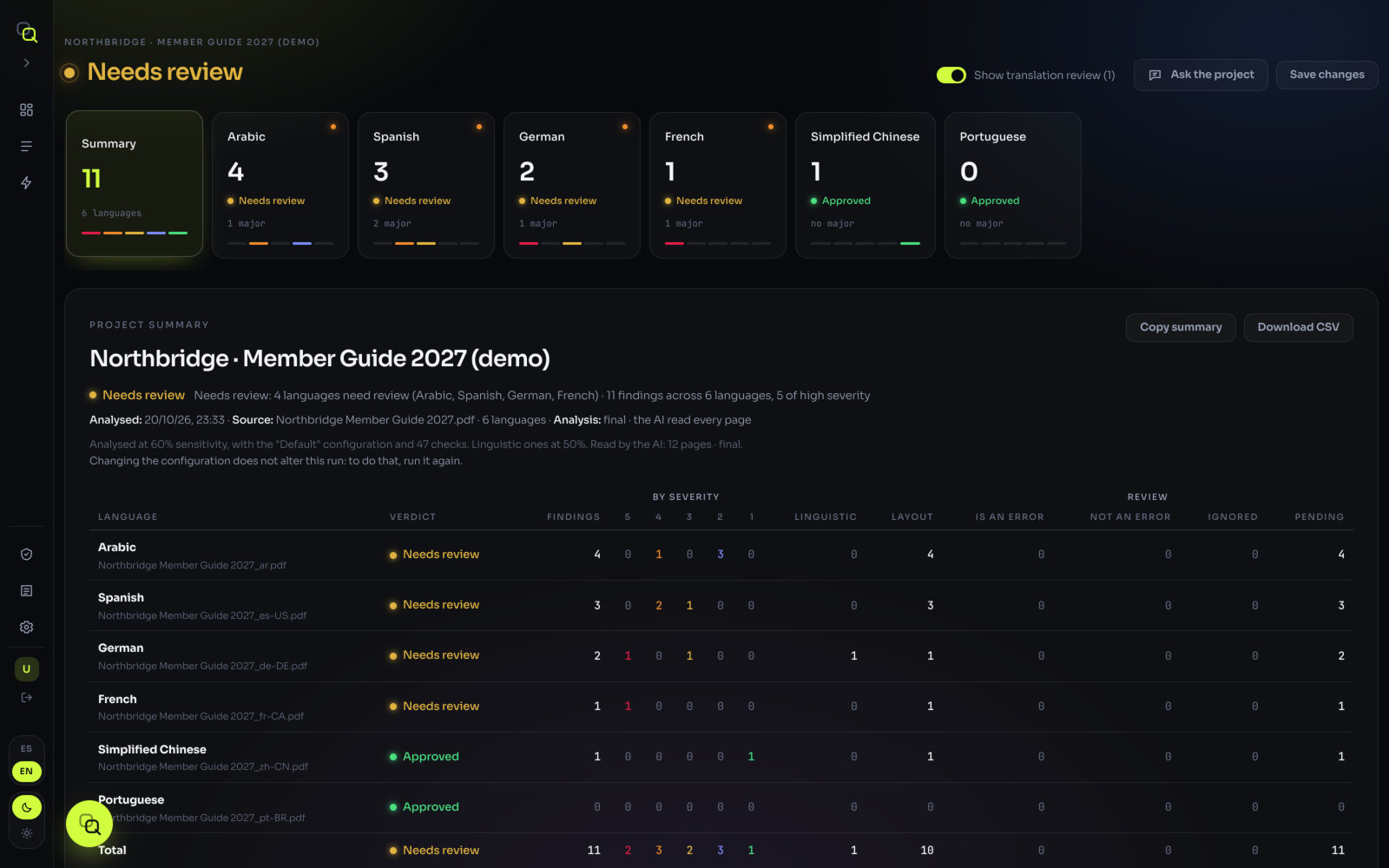
The situation. DTP has finished a member guide in eight languages. It ships to the client tomorrow, and you need to know which languages are ready and what has to be fixed in the others.
- Create the project and upload the original and the eight translations. See Upload the files.
- Click Analyse. Eight languages of two pages each take about two minutes.
- Read the header. "Needs review: 2 languages need review (French, Arabic)" tells you where to spend your time.
- Open Summary for the numbers per language, then open each language that isn't approved and go through its findings with Real error and Not an error.
- Send the fixes to DTP with the annotated PDF of each language (see Give your client a report), and check the corrected files with a second round.
- Click Mark as finished in Projects once it's delivered.
What you'll see: as you dismiss false alarms, the cards rearrange and a language can move from "Needs review" to "Approved". The project is approved only when every language is.
Find what a human reviewer missed, and prove it
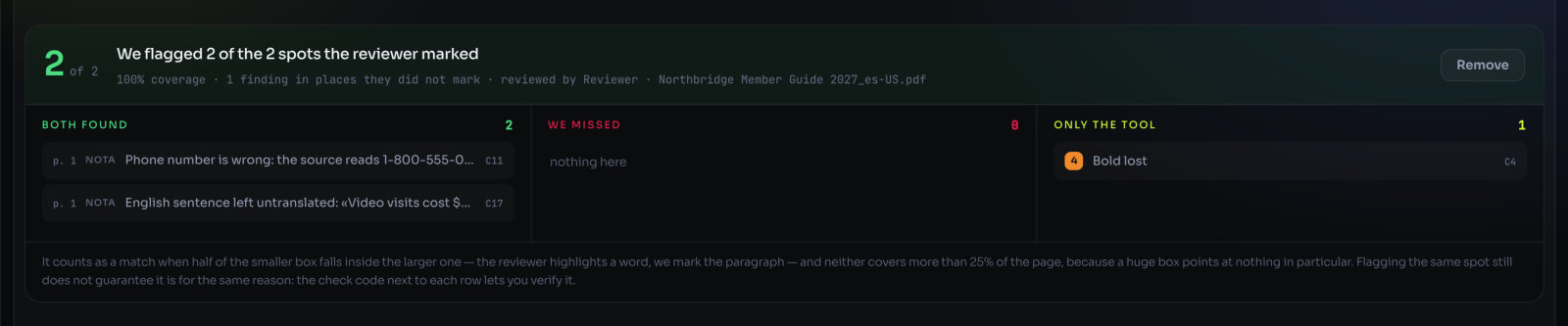
The situation. Your reviewer returned the Spanish PDF with comments. You want to know whether they caught everything — and, the other way round, whether EasyQLab is worth trusting on your material.
- Open the analysis of that language from its project.
- Under Measure against the human review, click Upload the reviewed PDF and choose the PDF the reviewer returned, with their comments in it.
- Read the headline, for example "We flagged 14 of the 16 spots the reviewer marked", and the coverage under it.
- Go through the three lists: Both found, We missed and Only the tool.
What you'll see: Only the tool is the list to show your reviewer: places they didn't mark. We missed is what to tell us about. A match means the two marks overlap on the page; the check code on each row lets you confirm it's for the same reason.
Details in Second round and human review.
Check the corrected file without re-reviewing everything
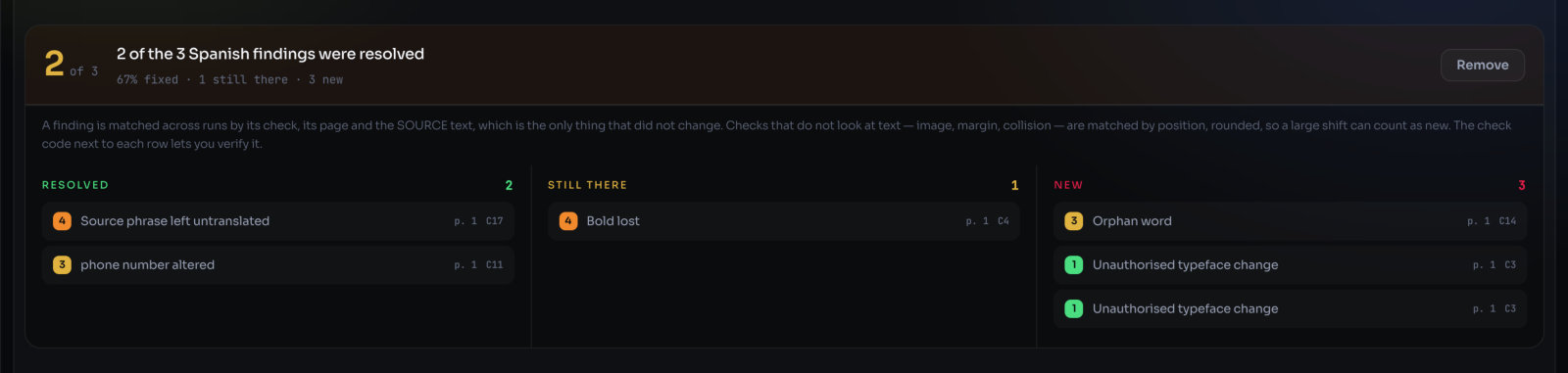
The situation. DTP sent back the corrected French. You don't want to read it all again: you want to know whether each finding was fixed, and whether the fix broke anything new.
- Open the analysis from its project (the original file is needed, and it's stored there).
- Open the language and find the Second round box: "Second round: check the corrected French".
- Click Upload the corrected PDF and choose the new file.
What you'll see: "9 of the 11 French findings were resolved", with the lists Resolved, Still there and New. The round is saved in the project and shows as "2nd round" in the list of analyses.
Give your client a report they can read
The situation. Your client wants evidence that the files were checked, and DTP needs to know exactly what to change.
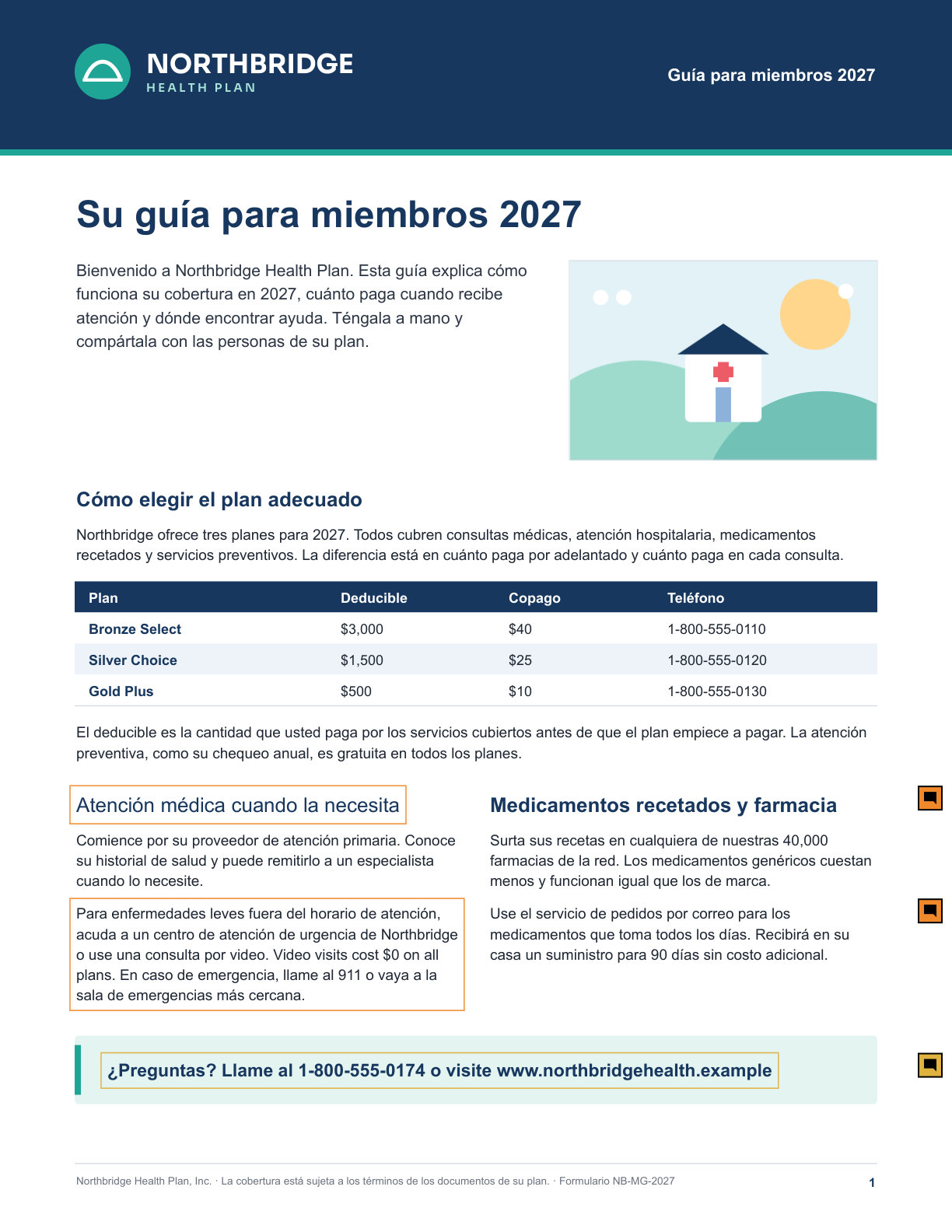

- Review first. Dismissed and ignored findings are left out of the PDF, so the report says only what's real.
- For each language, click Download annotated PDF to give DTP a PDF with a comment on every spot to fix.
- Click CSV for the findings as a spreadsheet, if your team tracks fixes in one.
- On Summary, click Copy summary to paste the verdict per language into an email, or Download CSV for the table.
The comments are written in the interface language: switch to EN before downloading for an English-speaking client. Everything about the exports is in Reports and exports.
Ask questions about the project instead of opening twenty files
The situation. The client asks whether a product name was left in English everywhere, or what the footer says on page 2 of the French. You'd rather not open every file.
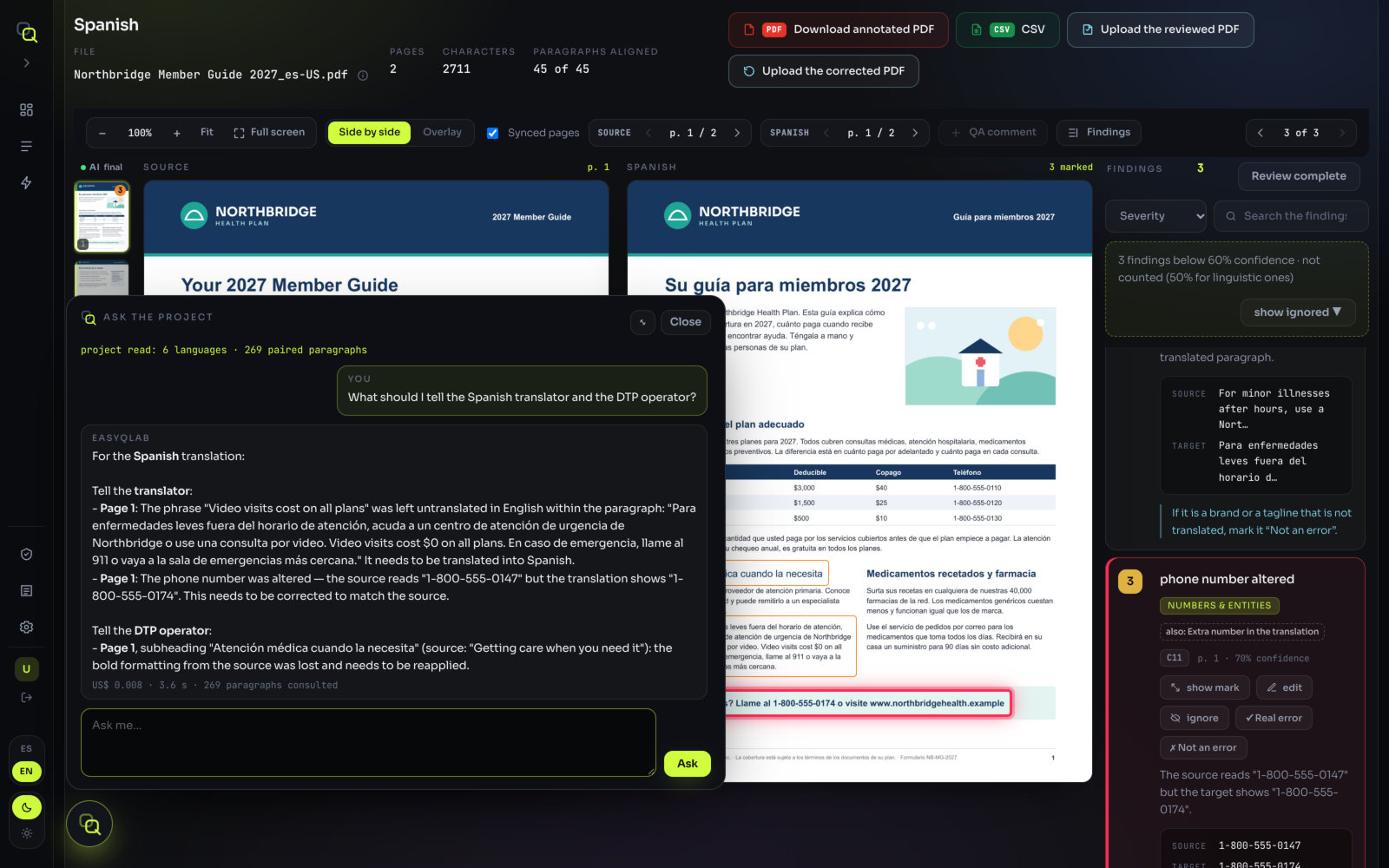
- Click Ask the project on the results screen.
- Type your question in plain words and click Ask. For example: "Was the word META left untranslated in every language?"
- Read the answer and the line under it: the cost and the seconds it took, and how many paragraphs it consulted.
It only reads; it doesn't change any finding. For a full written review of the project, use Generate AI analysis on Summary. Examples and limits in Ask the project.
Tune the checks to a client's standards
The situation. One client allows a different font in Korean, never wants a certain word, and considers a missing bold a serious problem. Another doesn't care about bold at all.
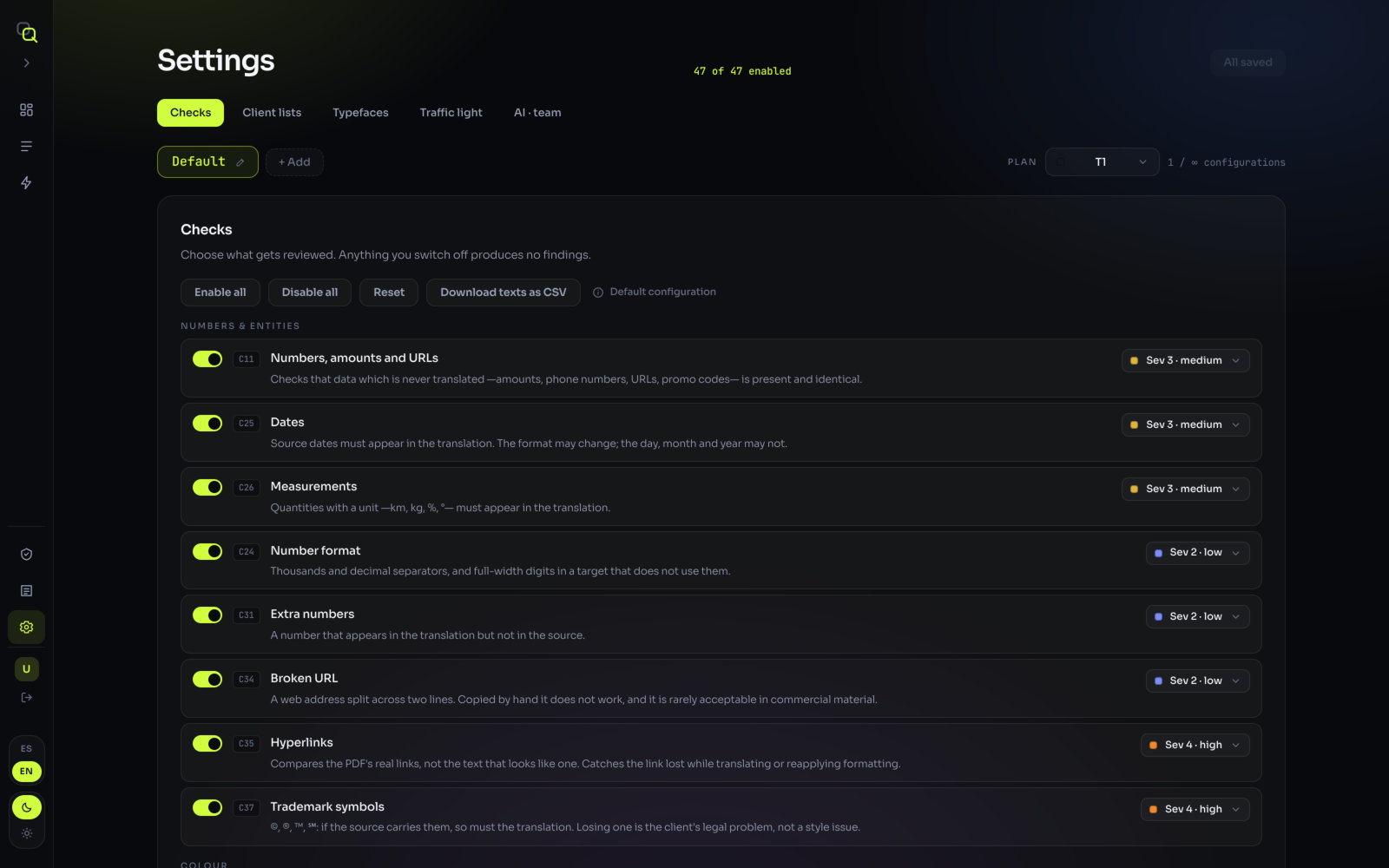
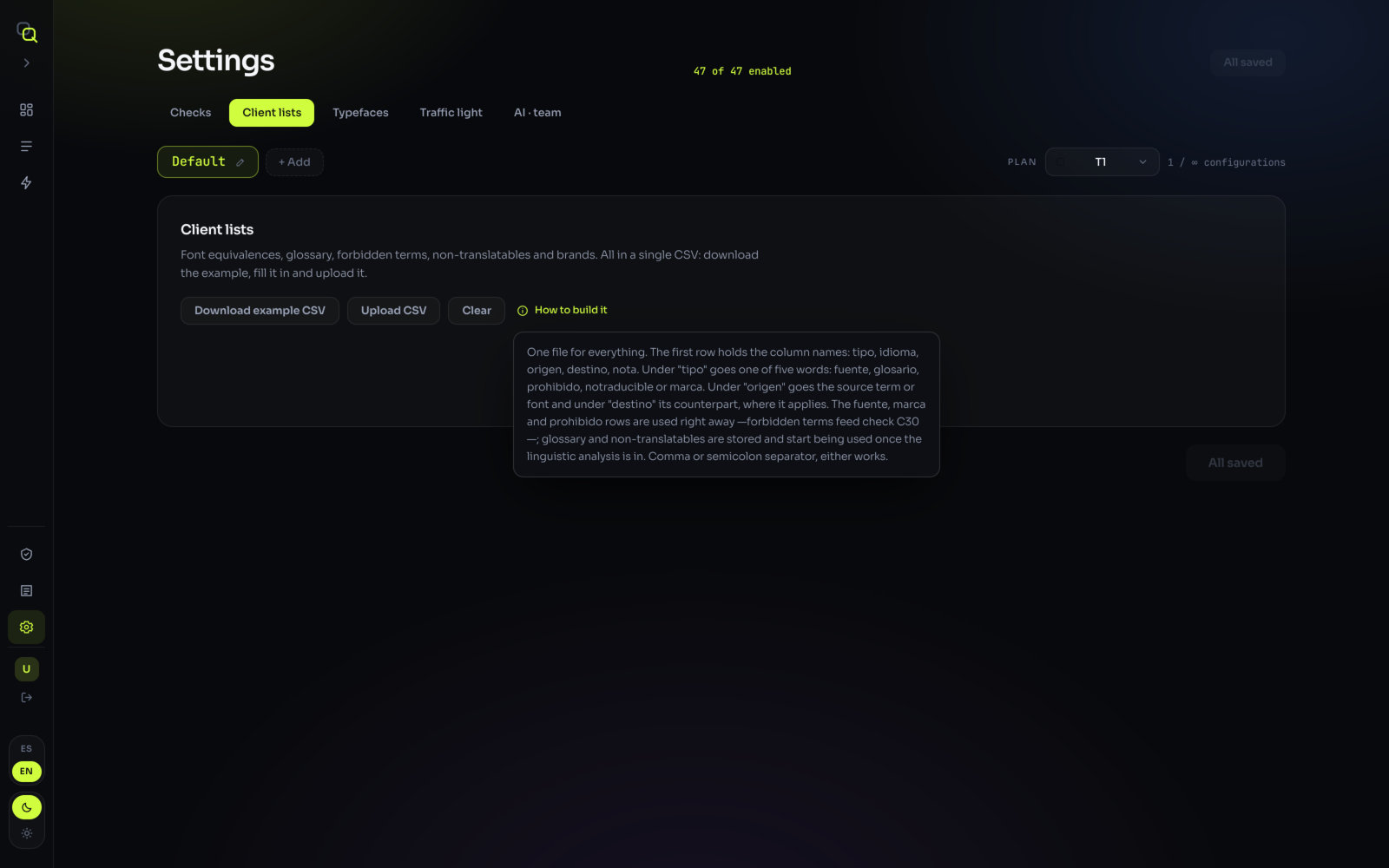
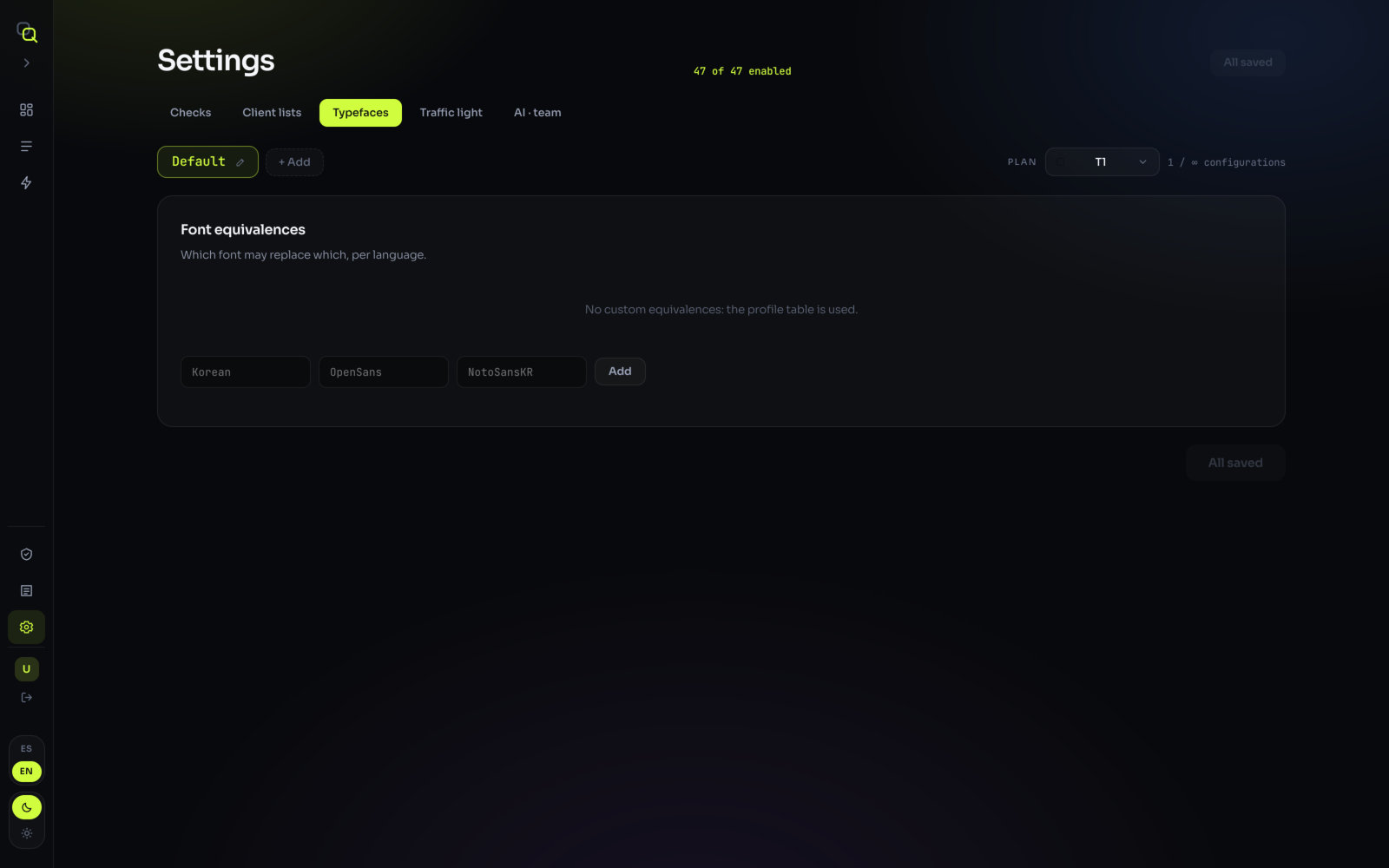
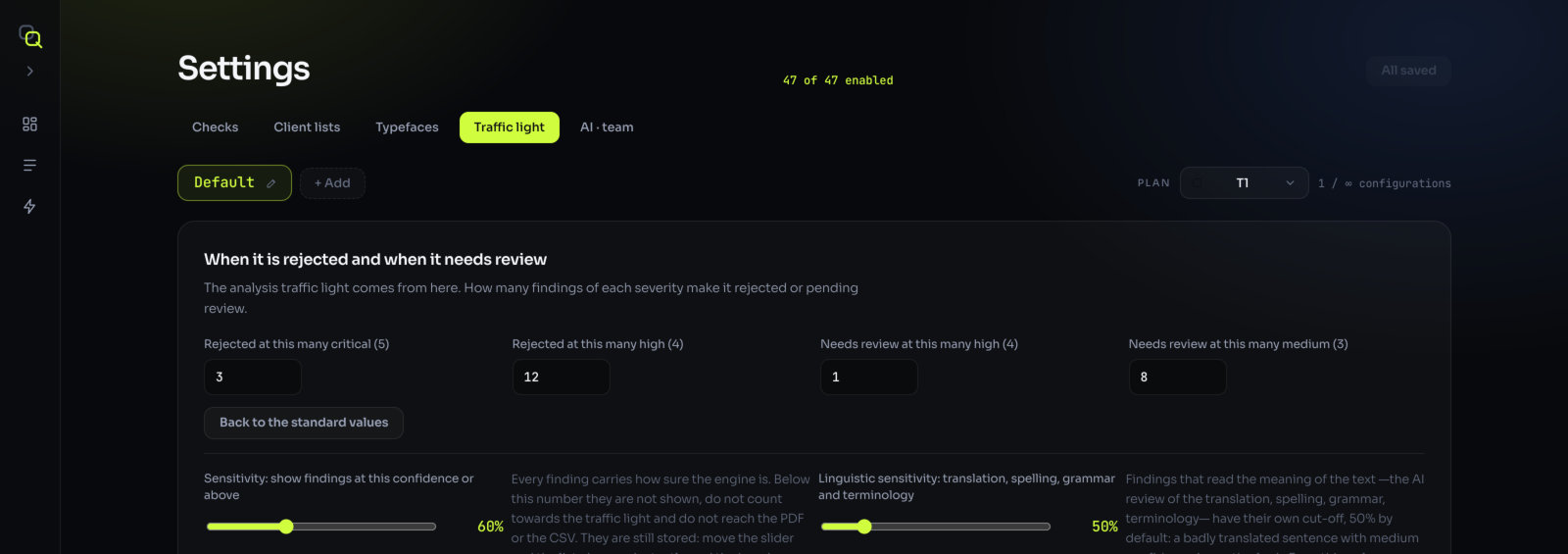
- In Settings, click + Add to create a profile and rename it after the client.
- Adjust Checks, Client lists, Typefaces and Traffic light.
- Click Save changes.
- On the client's next project, pick that profile next to Review profile before you analyse.
A worked example for a client is in Settings and review profiles.
Keep the translation review off when you only need layout QA
The situation. The translation was already approved by the client's linguists. Your job is the layout: overflowing text, missing bold, a moved logo, a broken table.
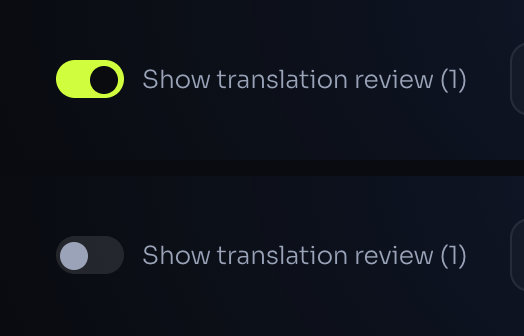
- Before you analyse, switch off AI review of the translation, next to Analyse.
- Or, after the analysis, switch off Show translation review (N) on the results screen.
What you'll see: the findings about meaning, omissions, typos and terms disappear from the list, the cards, the traffic light and the summary. Layout, typography, numbers and every other check stay.
Teach it what counts as an error for your team
The situation. EasyQLab keeps flagging something your team accepts, or shows as doubtful something your team always fixes.
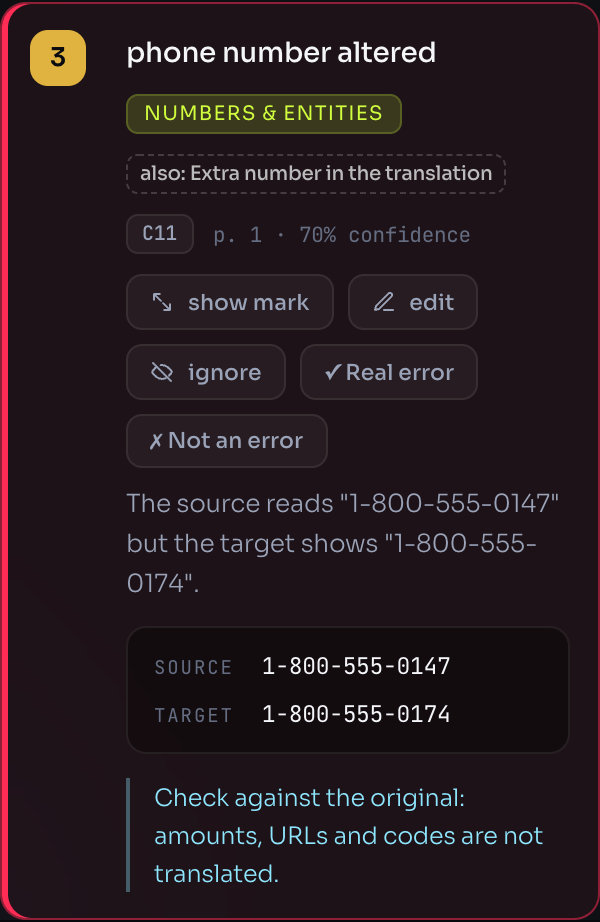
- Mark each finding Real error or Not an error as you review.
- When a language is done, click Review complete. From then on, whatever you didn't dismiss counts as real.
What you'll see: in later analyses, findings of that kind come with a confidence that has moved, and the card says why ("+6 from 4 verdicts"). The change is gradual, by design: at most 10 points, and only after three verdicts that agree.
To stop a kind of finding altogether, switch its check off in a profile instead (see above). More in Reviewing the findings.
Run a one-off check without creating a project
The situation. A prospect sends a sample to see what EasyQLab finds, or you want a quick look at a file that isn't part of any job.
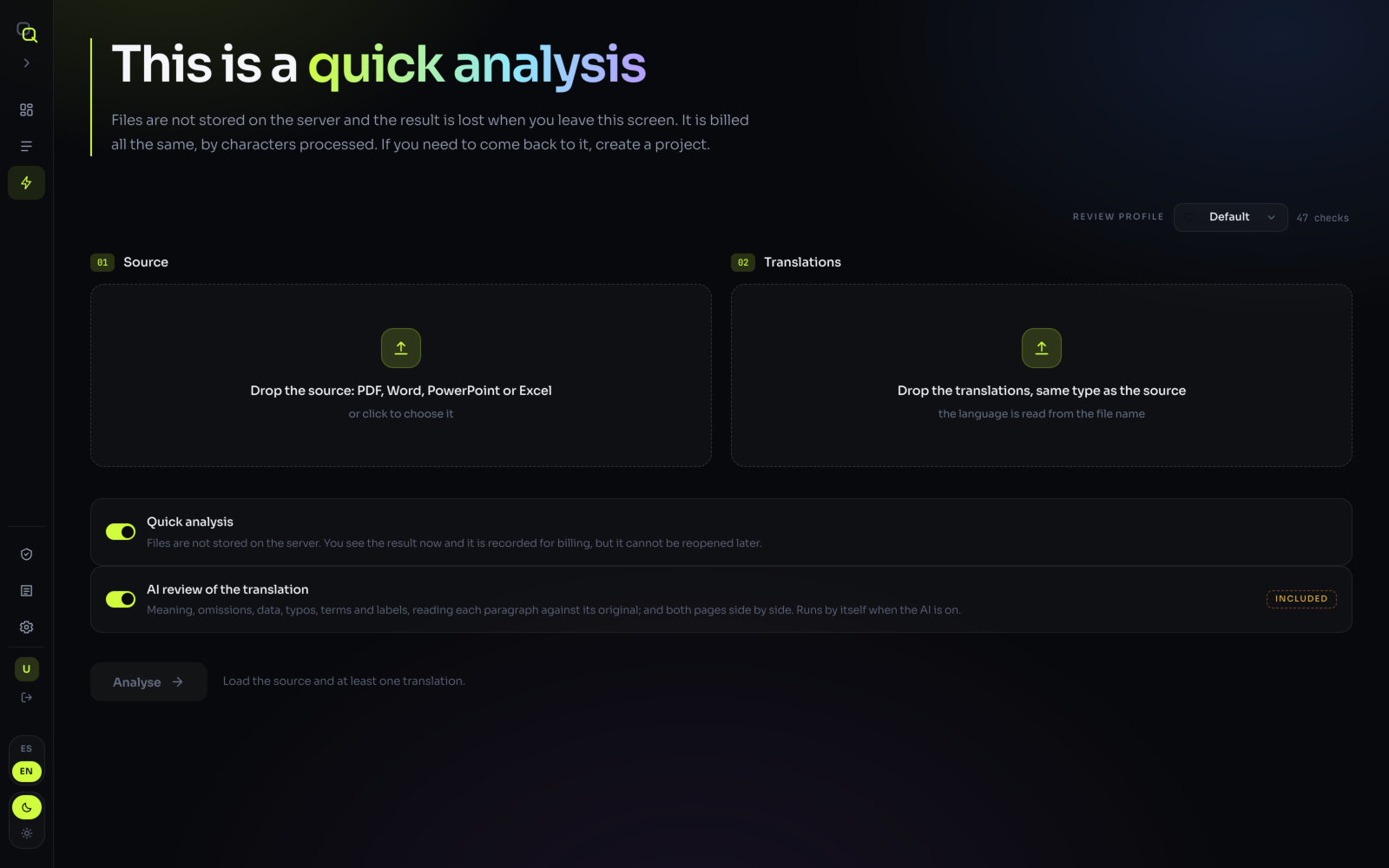
- Click Quick analysis in the menu.
- Upload the source and the translations, and click Analyse.
What you'll see: the usual results. But files are not stored, the result can't be reopened once you leave the screen, and it is billed all the same. If you might need it again, use a project.
Track usage per client and per month
The situation. At month end you need to know how much each project used, to invoice your client or to check your plan.
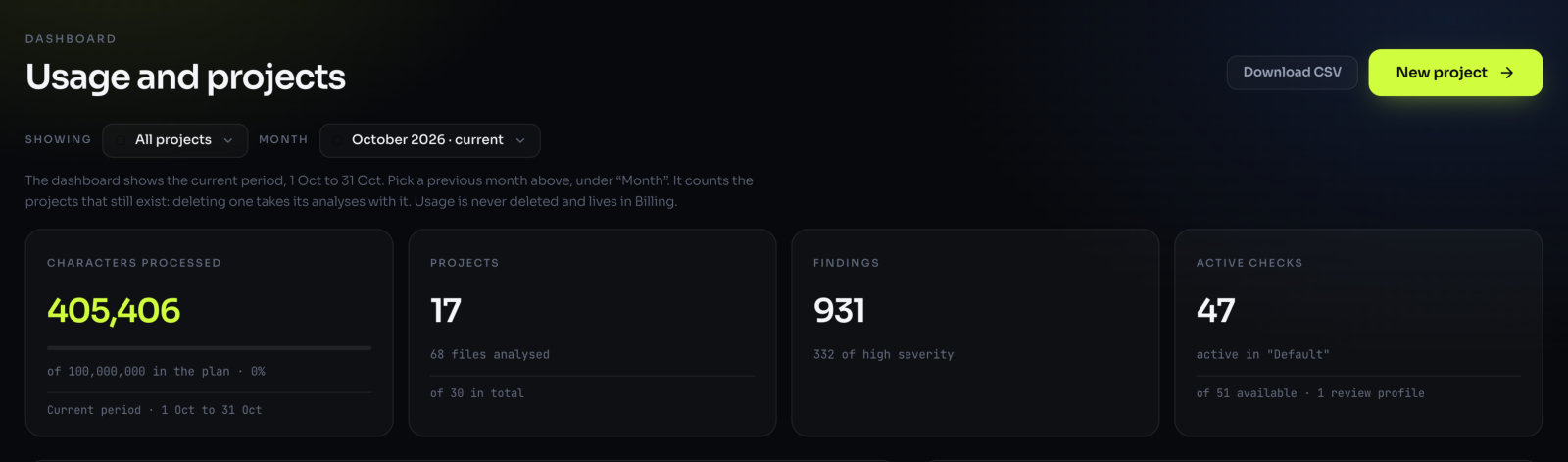
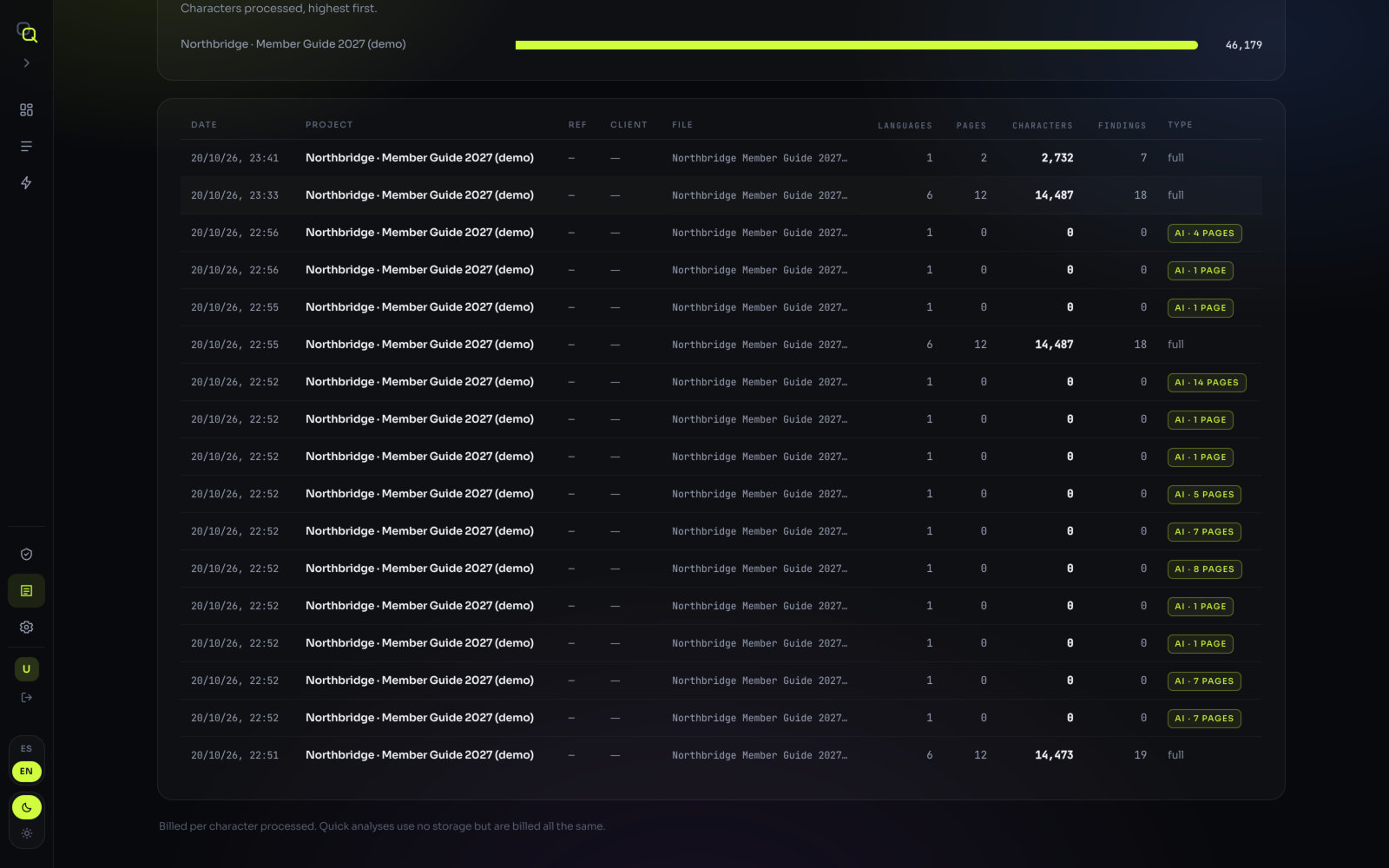
- On the Dashboard, pick a project under Showing and a period under Month.
- In Billing, filter by Period and search by project, reference, client or file.
- Click Download CSV on either page for a spreadsheet.
What every number means is in Projects, dashboard and billing.
What it does not do
So you don't go looking for it:
| Not available | What to do instead |
|---|---|
| Judge style or tone | EasyQLab checks meaning, data, omissions, typos, terms and layout, not whether a sentence reads elegantly. That stays with your linguist. |
| Glossary and terminology checks | Not available yet. You can upload a glossary in Client lists; the translation review reads it as context, but a term translated differently is not flagged as its own finding. Forbidden terms are checked. |
| Grammar checking | Not available yet. Spelling is checked in some languages (see Spelling), and the translation review catches typos. |
| IDML or InDesign files | Not accepted. Export a PDF and upload that (see Formats). |
| Fix the file | EasyQLab tells you what to fix and where; DTP fixes it. The annotated PDF is for reviewing, not for production. |
| Invite members from the screen | Not available yet. Ask the EasyQLab team to add someone to your organization. |