
READING THE RESULTS
The results screen
Everything EasyQLab found in a project lives on one screen. This page is a map of it, from top to bottom: what each part shows, what each button does and where to click next.
You reach the results screen in two ways: when an analysis finishes, or when you open a saved analysis from Projects (see Opening a saved analysis). Both show exactly the same thing. The findings are the ones from that run: they are not recalculated when you open them.
| Part of the screen | What it is for | More |
|---|---|---|
| The header | The verdict of the whole project and why, plus three actions. | The header |
| The cards | One card for the summary and one per language, in traffic-light order. | The language cards |
| The Summary tab | The project in one table, plus the AI project analysis. | The Summary tab |
| An open language | The file’s numbers, the export buttons, the viewer and the findings. | Opening a language |
| The floating button | Ask the project, a chat about this project. | Ask the project |
The header
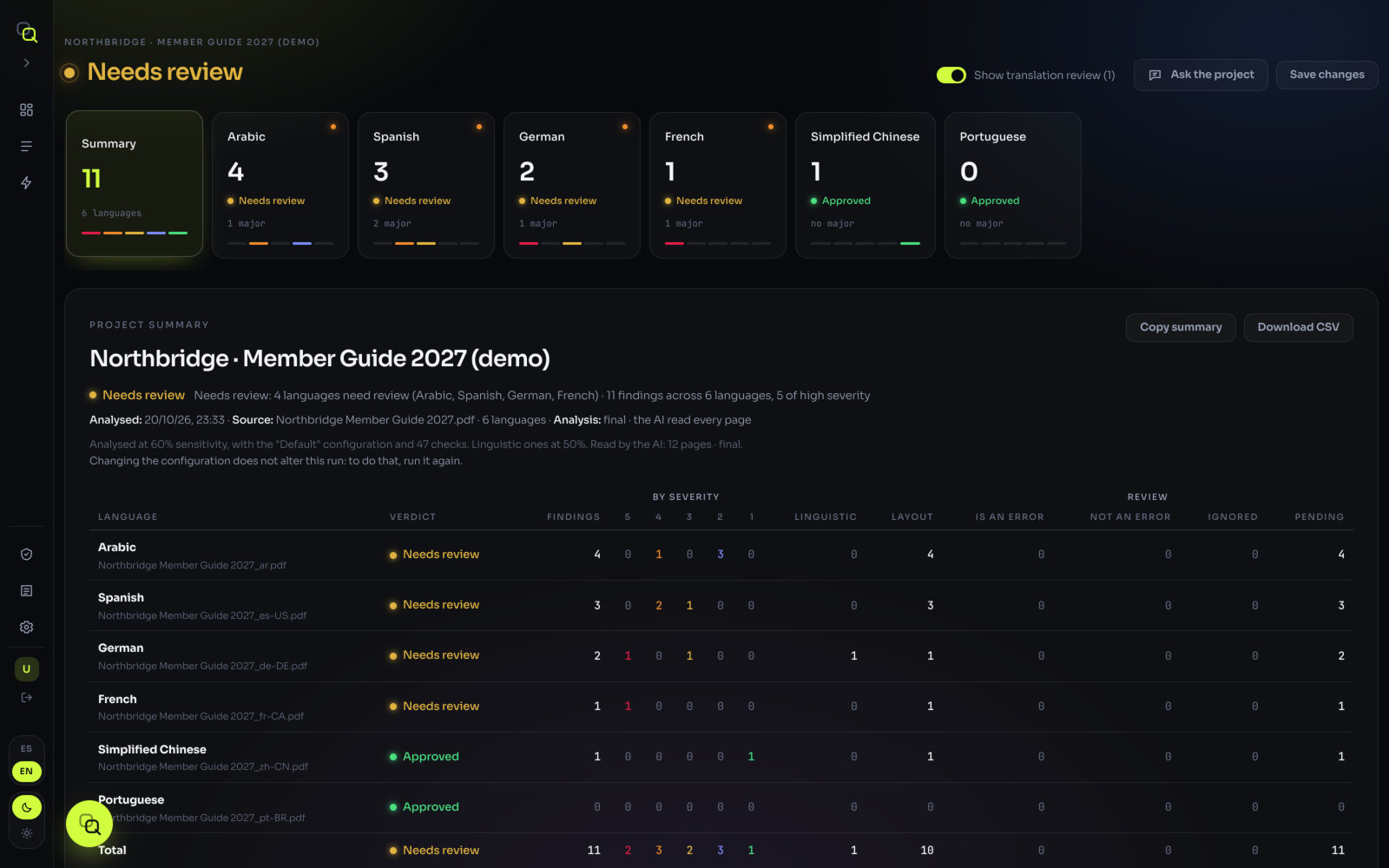
Above the header, a line names the project the analysis belongs to. Under it, the header holds the project’s verdict: Approved, Needs review or Rejected, with a coloured light.
Next to the verdict there is always a reason, followed by the totals. For example: “Needs review: 2 languages need review (French, Korean) · 37 findings across 6 languages, 5 of high severity”. The reason names the languages that decide the verdict, so you know where to start. How the verdict is worked out is on The traffic light.
On the right, three controls:
| Control | What it does |
|---|---|
| Show translation review (N) | A switch that shows or hides the findings of the AI review of the translation. N is how many of them would count. It only appears when the run has such findings. See below. |
| Ask the project | Opens the chat about this project. See Ask the project. |
| Save changes | Saves your review right away. It confirms with Changes saved. Your decisions are also saved as you go. |
The translation review switch
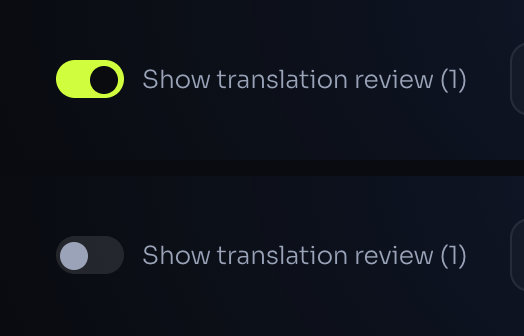
The AI review of the translation reads every paragraph against its original. Its findings are linguistic: an omission, a changed figure, a typo. If today you only need layout QA, switch it off.
- Click Show translation review (N) to turn it off.
- Watch the cards. Those findings leave the cards, the traffic light, the summary and the list. A language may change verdict and move to another place in the row.
- Click it again to bring them back.
What you’ll see: the counts change at once, with no new analysis. The choice is saved with the project, so whoever opens it next sees the same thing.
The language cards

Under the header there is a row of cards. The first is Summary; then one card per language. Click a card to open it.
| On the card | What it means |
|---|---|
| The language name | The language read from the file name, or the one you picked. |
| The number | How many findings count in that language: the same number as its list, without ignored or doubtful findings. |
| The verdict | Approved (green), Needs review (amber) or Rejected (red) for that language alone. |
| “N major” or “no major” | How many findings of severity 4 or 5 it has. |
| A dot in the corner | The language has major findings. |
| Five small bars | Severities 5 to 1, left to right. A bar is coloured when there is at least one finding of that severity. Hover over a bar to see the count. |
The Summary card shows the total for the project, how many languages it has, and the same five bars for all languages together.
Why the cards are in that order
Cards are sorted by traffic light: rejected languages first, then the ones that need review, approved ones last. Within each group, the language with more findings goes first.
The order updates itself. When you ignore a finding or mark it Not an error, a language can move from Rejected to Needs review, and its card moves with it. The card you have open stays open.
Cards marked “separate run”
If a language of the same project was analysed on its own, in another run, it appears at the end of the row, dimmed and marked “separate run”. Opening it loads that run. It is not merged with the one on screen, because each run was compared against its own source.
The Summary tab
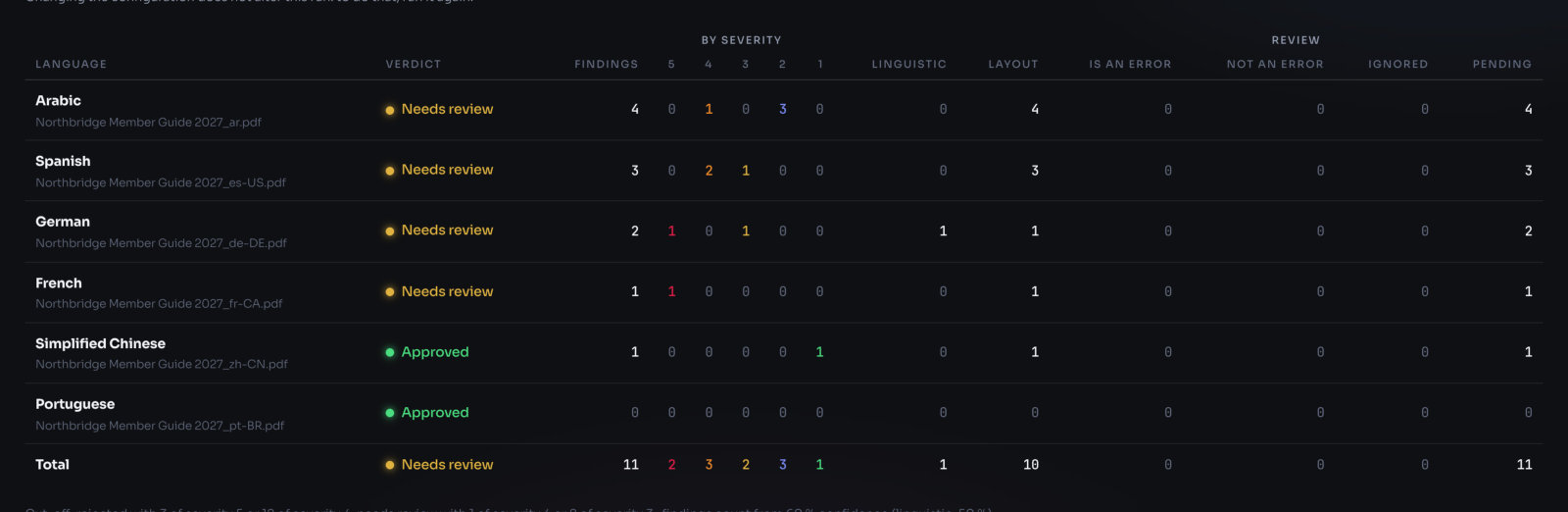
Click Summary to see the whole project on one screen. It is the best place to start, and the one to show your client.
At the top: the project name, its verdict and reason, and a line with Analysed (date), Source (the original file and the number of languages) and Analysis (for example “final · the AI read every page”). If any file was left out, or a language could not be analysed, it is said here too.
A short line also records how the run was set up: “Analysed at 60% sensitivity, with the “…” configuration and N checks.” Changing your settings later doesn’t alter this run.
The columns
| Column | What it counts |
|---|---|
| Language | The language, with its file name under it. |
| Verdict | That language’s traffic light. Hover to read its reason. |
| Findings | The findings that count. |
| By severity 5 · 4 · 3 · 2 · 1 | The same findings split by severity. |
| Linguistic | Findings about the words: translation review, spelling, forbidden terms. |
| Layout | Everything else: format, layout, numbers, images. |
| Is an error | Findings someone confirmed with Real error. |
| Not an error | Findings someone dismissed. |
| Ignored | Findings someone ignored without marking them Not an error. |
| Pending | Findings that count and that nobody has marked yet. |
The last four columns sit under the heading Review: they tell you how far the review has gone. Under the table, a line states the cut-off: the thresholds of the traffic light and the confidence from which findings count.
Click any row to open that language. On the right, Copy summary and Download CSV take the table out (see Reports and exports). Further down, Project analysis holds the written analysis by the AI (see Project analysis).
Opening a language
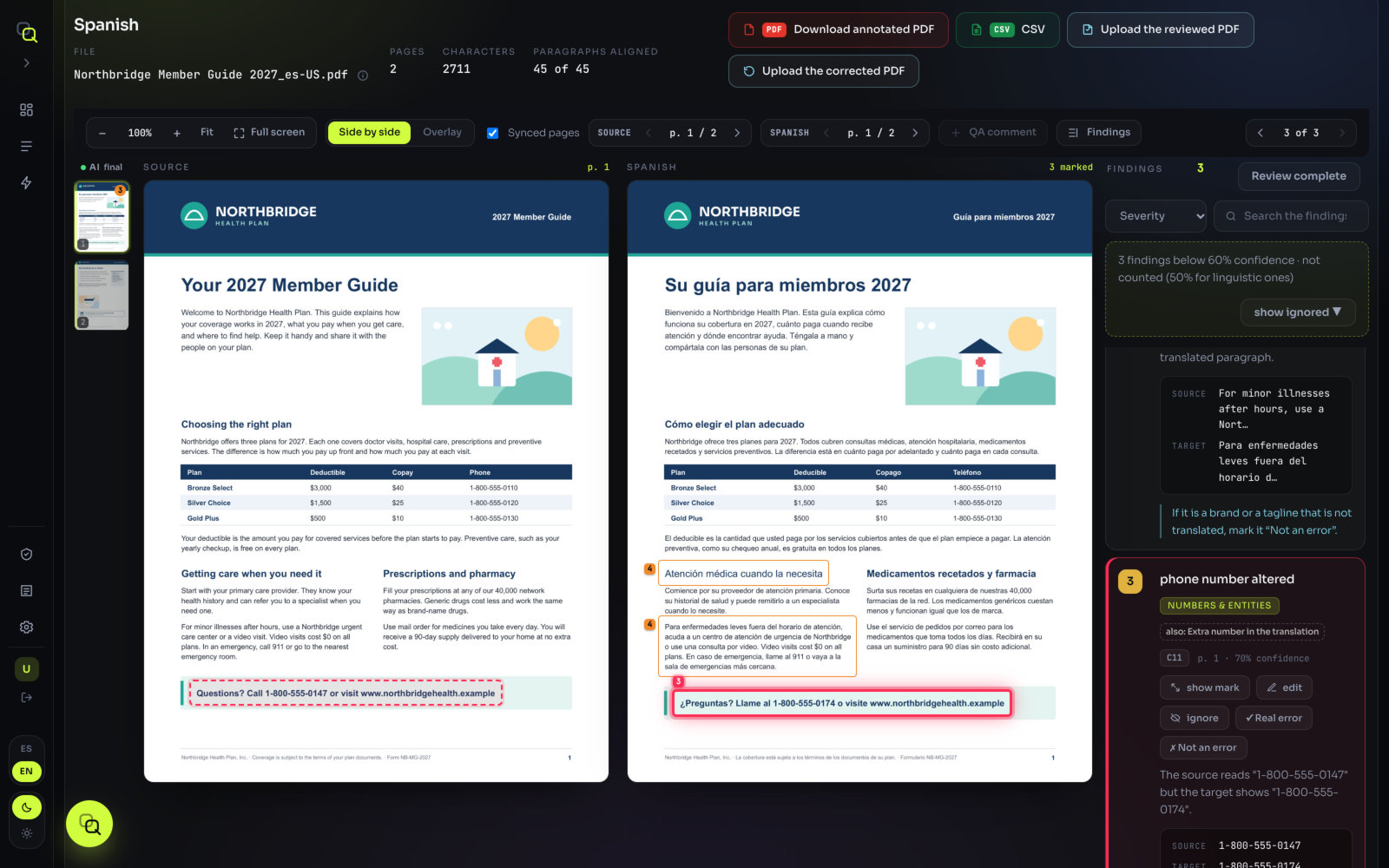
Click a language card, or a row of the Summary table. The screen shows three things: the file header, the viewer and the findings.
The file header
| Figure | What it tells you |
|---|---|
| File | The translated file. The ⓘ next to it explains that pages are shown at reduced quality so the viewer stays fluid. |
| Pages | Pages in the translation. |
| Characters | Characters processed in the translation. |
| Paragraphs aligned | “N of M”: how many paragraphs of the original were paired with a paragraph of the translation. A low number means parts of the original have no counterpart. |
On the right of the header are the export buttons: Download annotated PDF, CSV, Upload the reviewed PDF and Upload the corrected PDF. They are explained on Reports and exports and Second round and human review.
The viewer toolbar
Between the header and the pages there is a bar with every viewer control. From left to right:
| Control | What it does |
|---|---|
| Zoom out − · % · Zoom in + | Zooms both pages. The keys + and − do the same; 0 goes back to 100 %. |
| Fit | Fits the page to the space available. |
| Full screen | The pages and the findings across the whole screen. Exit or Esc to leave. |
| Side by side / Overlay | Original and translation next to each other, or one on top of the other. |
| Synced pages | In side by side: both pages change and scroll together. Untick it to move each one on its own. |
| Page arrows | Previous and next page. In side by side there is one pair for the Source and one for the translation. |
| QA comment | Draw a box on the page to add your own comment. See Your own comments. |
| Findings | Shows or hides the findings column, to give the pages more room. |
| “N of M” with arrows | Moves to the previous or next finding. The keys ↑ and ↓ do the same. |
Under the toolbar, when the file has several pages, a strip of thumbnails shows every page. A thumbnail with findings carries a small badge with how many, in the colour of its most severe finding. Click one to go to that page.
While the AI is still reading pages, a small “AI” label in the toolbar says how far it has gone, for example “AI: 3 of 8 pages”. Each page updates itself when its reading comes back.
The findings column
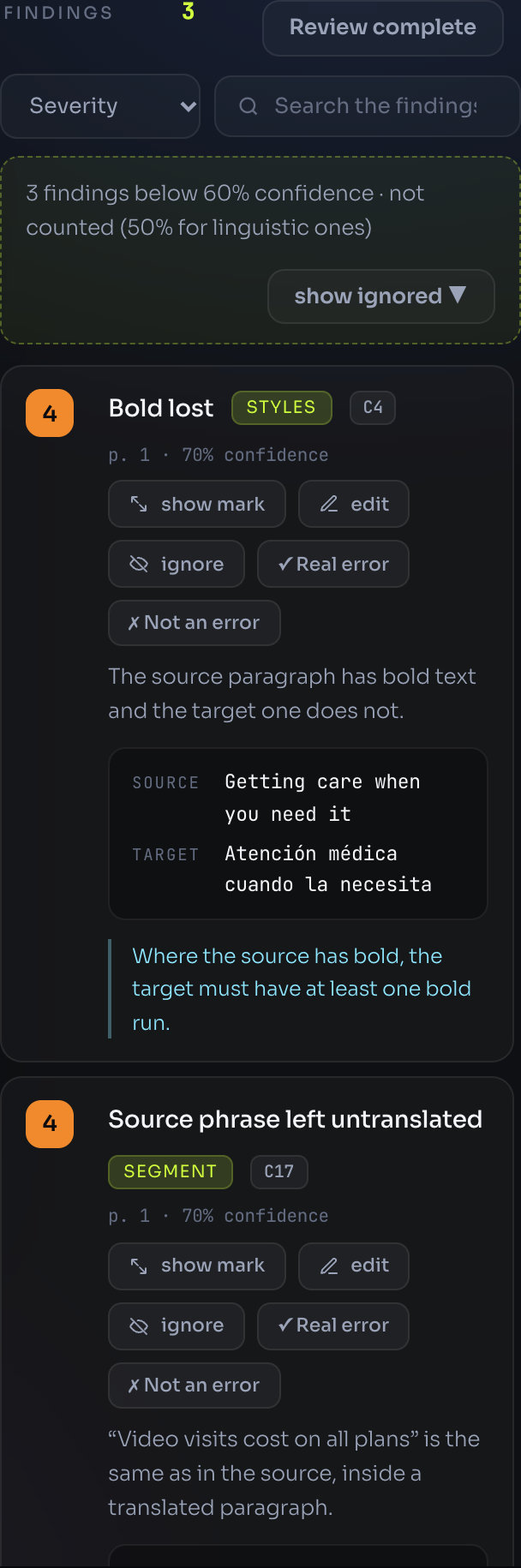
The column on the right is headed Findings, with the number that counts next to it and the Review complete button. Under the heading:
- The sort menu: Severity, Category or Page. By severity, findings of the same severity follow reading order: page, then top to bottom.
- The search box, Search the findings…: it looks in the title, the message, the check code, the category, the source and target text, the hint and the notes.
- “N ignored · excluded from the PDF”, when you have ignored findings, with show ignored.
- “N doubtful findings · not counted”, when some findings fell below the confidence cut-off, with show ignored to see them too. If some of them are severe, the line says how many.
Above the pages, two rows of filters: Severity (one button per severity, with its count) and Category (one per category, when there are two or more). Click a button to hide that severity or category; show all brings every category back.
Each finding is a card: its severity, its title, its category, its check code and its page, then the buttons. Every button on the card is explained on Reviewing the findings.
The viewer
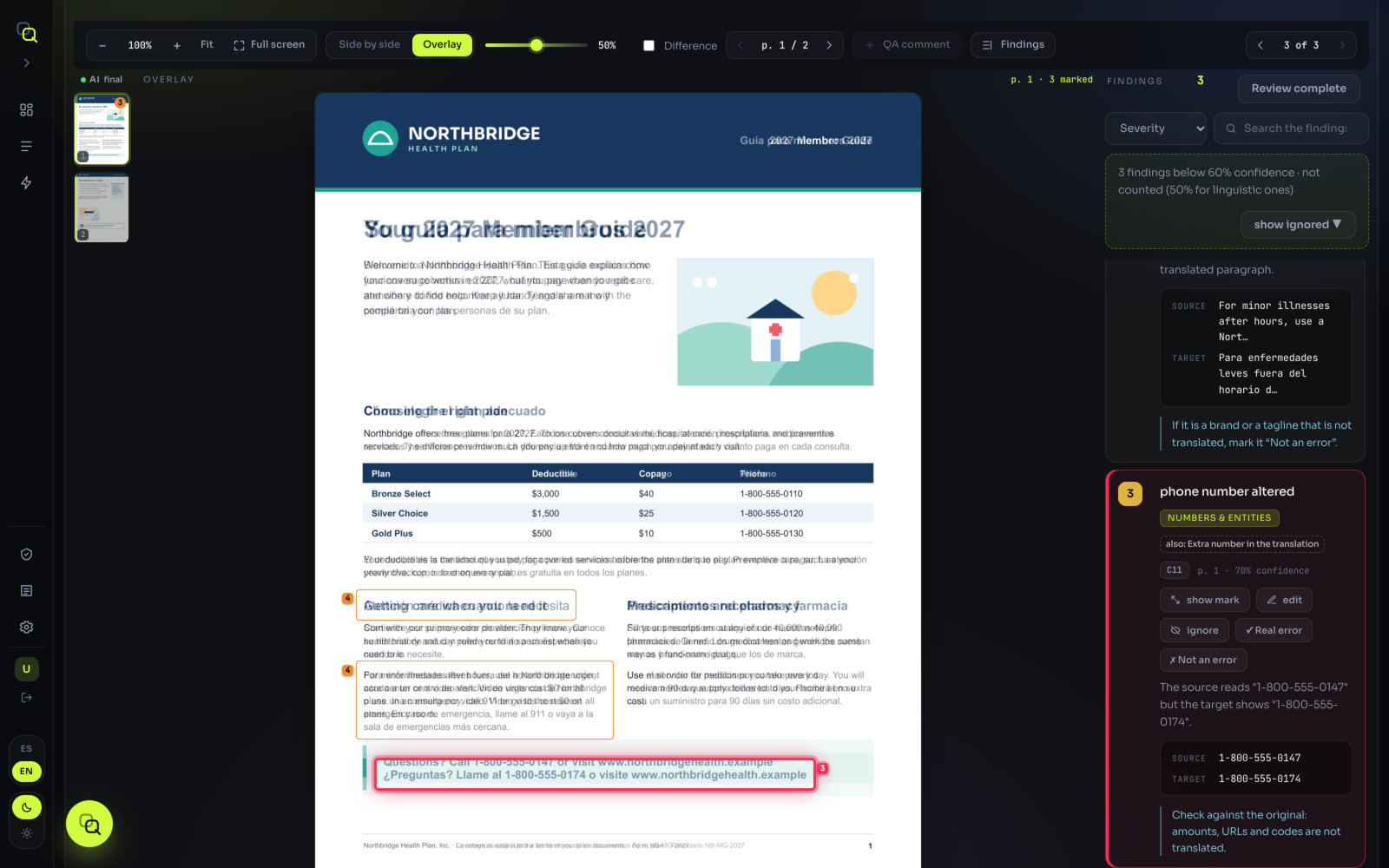
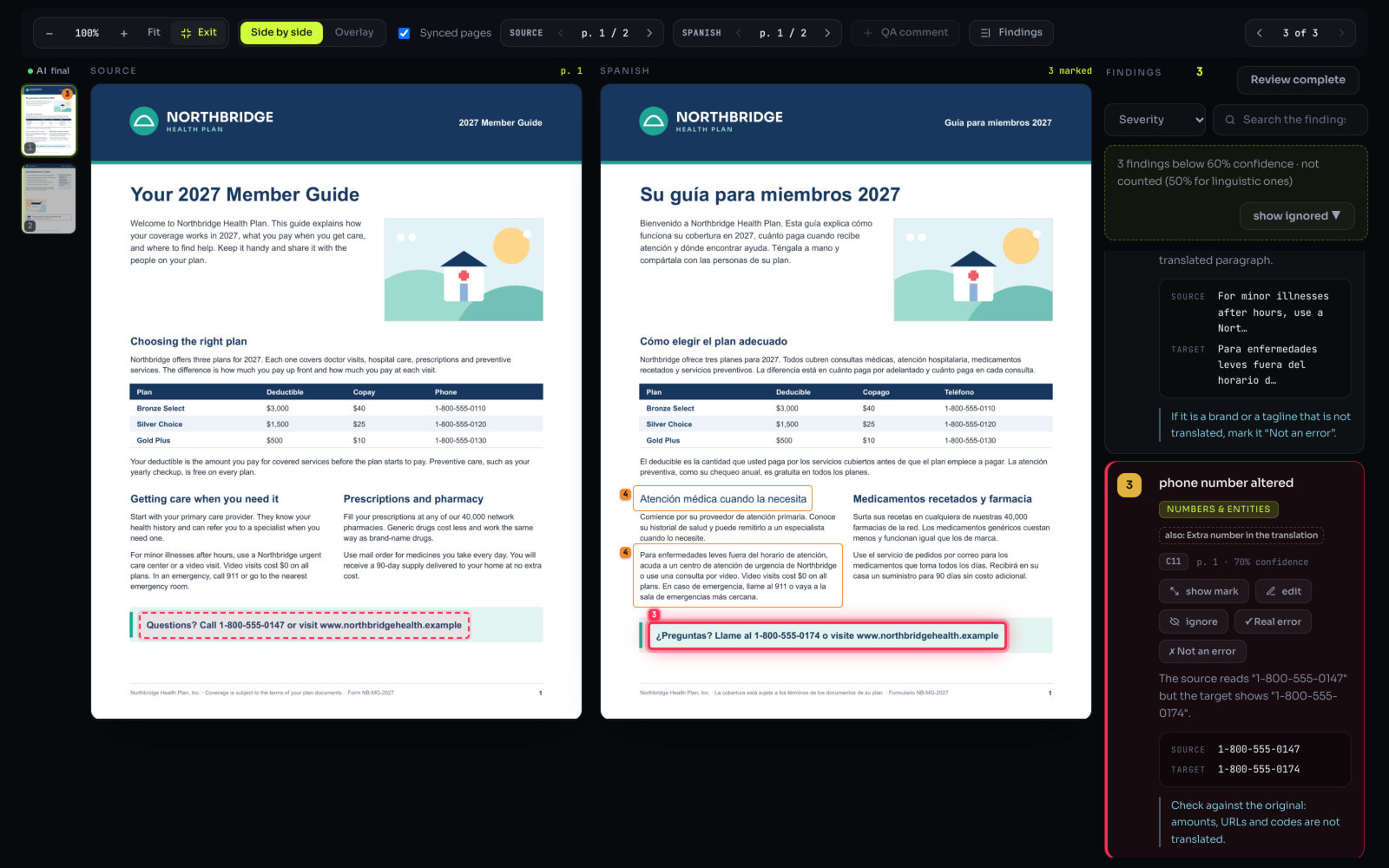
In Side by side, the original is on the left and the translation on the right. The problem is marked with a box on both. When EasyQLab can’t place the paragraph in the original, the card says so and only the translation is marked.
Sometimes the paragraph sits on another page of the original. The viewer then says “the paragraph moved to p. N”, or “not the page beside it (p. N) · match”; click that note to put both pages on the same paragraph.
In Overlay, the translation lies over the original. Two controls appear:
- Translation opacity: a slider from 0 to 100 %. Slide it to fade between the two pages.
- Difference: tick it to see only where the two pages differ. Useful for logos, rules and images that moved.
Ask the project
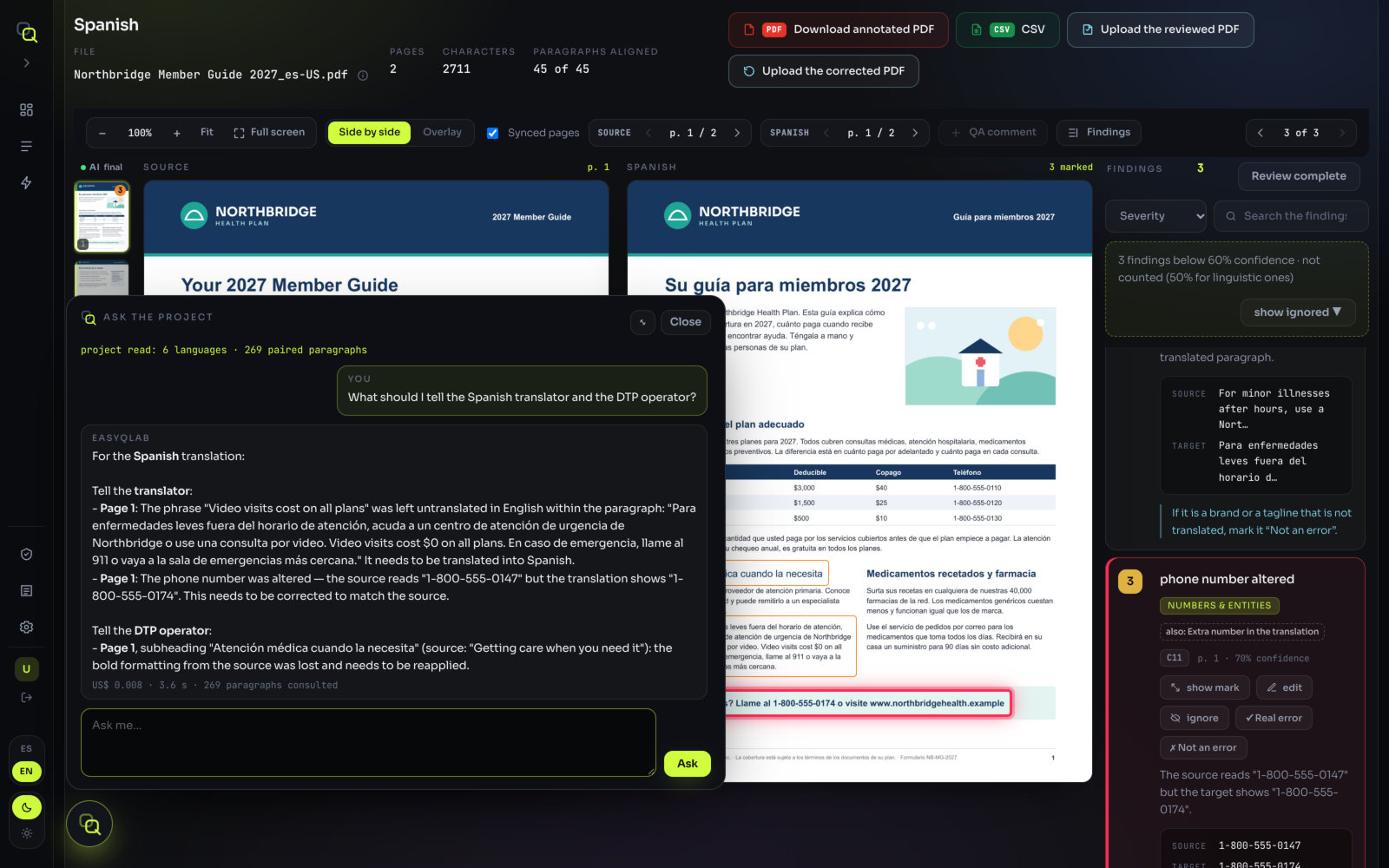
A round floating button sits over the results whenever a project is open. It opens the same chat as the Ask the project button in the header. You can drag it anywhere on the screen; your browser remembers where you left it.
The chat has read the original, every translation and the findings. Ask things like “Which languages are ready to ship?” or “Is the logo the same in every language?”. Examples and limits are on Ask the project.
Where to go next
- Open Summary. Read the project verdict and which languages decide it.
- Open the first card. It is the language that most needs work.
- Go through its findings with ↓. Decide each one: Real error, Not an error or ignore. See Reviewing the findings.
- Click Review complete when you have finished that language, and move to the next card.
- Hand over the result with Download annotated PDF or Copy summary. See Reports and exports.