
READING THE RESULTS
Ask the project
A chat that has read your whole project. Ask in plain words — which languages are ready, what the footer says in French, whether the logo changed — and get an answer from the documents and the findings, language by language.
What it is
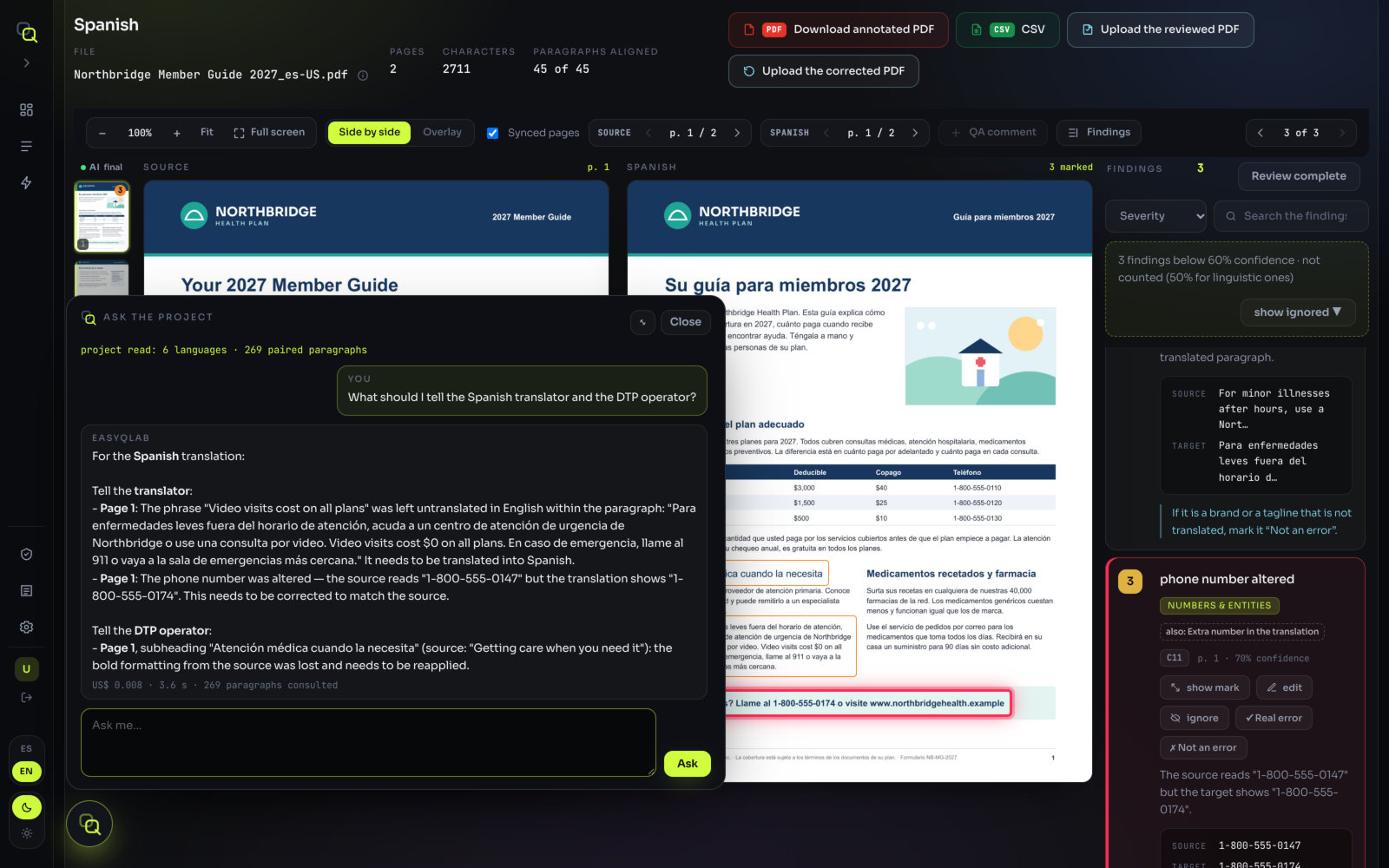
Ask the project knows four things about the project on screen:
| It knows | In detail |
|---|---|
| The text | Every paragraph of the original paired with its translation, in every language, with its page. It knows when a paragraph is a title, a subtitle or small print, and whether it sits at the top or the bottom of the page. |
| The findings | The findings the screen shows and counts, with their severity, page, check and state: confirmed, not an error, ignored or pending. |
| The images | For each language, which images are the same as the original, modified, new, missing or moved. It recognises the ones that are probably logos. |
| The summary | The verdicts and the counts per language. |
It answers only from that. If what you ask is not in the project, it says so instead of guessing.
It is the fastest way to answer a question that would otherwise mean opening twenty files: “Was the word META left untranslated anywhere?” is one question, not twenty searches.
How to open it
- Open the results of a project. The Ask the project button is in the results header. A round floating button does the same; drag it out of the way if it covers something, and your browser remembers where you left it.
- Click Ask the project. The first time, it reads the project: “reading the project… 3 of 8 languages”. If the files are still coming from storage, it says “waiting for the files from storage…”.
- Wait for “project read”. It says how many languages and paired paragraphs it has, for example “project read: 8 languages · 792 paired paragraphs”.
- Type your question in Ask me… and click Ask. While it works, it says “thinking…”.
- Read the answer. Enlarge gives you a bigger window, Shrink makes it small again, and Close hides it.
What you’ll see: your question under “You”, the answer under “EasyQLab”, and under the answer its cost, its time in seconds and how many paragraphs it consulted. When the answer came only from the findings and the summary, it says so instead.
What to ask
Anything about the content, the findings or the layout of this project. Fifteen examples, grouped by what you want to know:
| Purpose | Ask |
|---|---|
| Readiness | Which languages are ready to ship? |
| What is still pending in Korean before I can approve it? | |
| Severity counts | How many severity 5 findings are there, and in which languages? |
| Which language has the most findings nobody has reviewed yet? | |
| Layout | Is the Arabic layout mirrored? |
| Does any language have text running out of a box? | |
| Images and logos | Did the logo change in any language? |
| Is any image missing in the Portuguese file? | |
| Numbers | Is the phone number on the back page the same in every language? |
| Did any amount or date change in the Spanish translation? | |
| A specific page | What does the footer of page 2 say in French? |
| What is the title of page 3 in Japanese? | |
| Comparing languages | Was the word “META” left untranslated in every language? |
| How is “Member Services” translated in each language? | |
| Which languages kept the legal text at the bottom of page 4 in English? |
How to read the answer
Questions that span languages are answered language by language, each on its own line with its page, so you don’t have to open each one.
The answer quotes the text as it is in the file. Use the page it gives to find the spot in the viewer, then decide on the finding there: the chat doesn’t mark anything for you.
When the answer mentions findings, it uses their severity out of 5 and their state. Findings you ignored or marked Not an error are known to be closed: it doesn’t count them as open, unless you ask about them.
Each question can build on the previous ones: “And in Spanish?” works after a question about French.
What it won’t do
- It doesn’t change anything. Findings, verdicts and files stay as they are.
- It doesn’t re-run the checks. It answers from the analysis already on screen.
- It only sees what the screen counts. Findings hidden by the Show translation review (N) switch, or below the confidence cut-off, are not part of its answers.
- It doesn’t see the page as an image. It knows the text, where it sits and the inventory of images; for a visual question, look at the page in the viewer.
- It doesn’t judge style. It can tell you how a term was translated, not whether a sentence reads well.
What it costs
Each answer uses AI, so each one has a cost, shown under the answer as an amount and a time.
The first question on a project after a while costs the most, because the project is read again. The questions that follow cost much less — usually cents. Projects with more languages cost more per question.
Opening the panel and reading the project is free: it is the questions that cost.
Project analysis
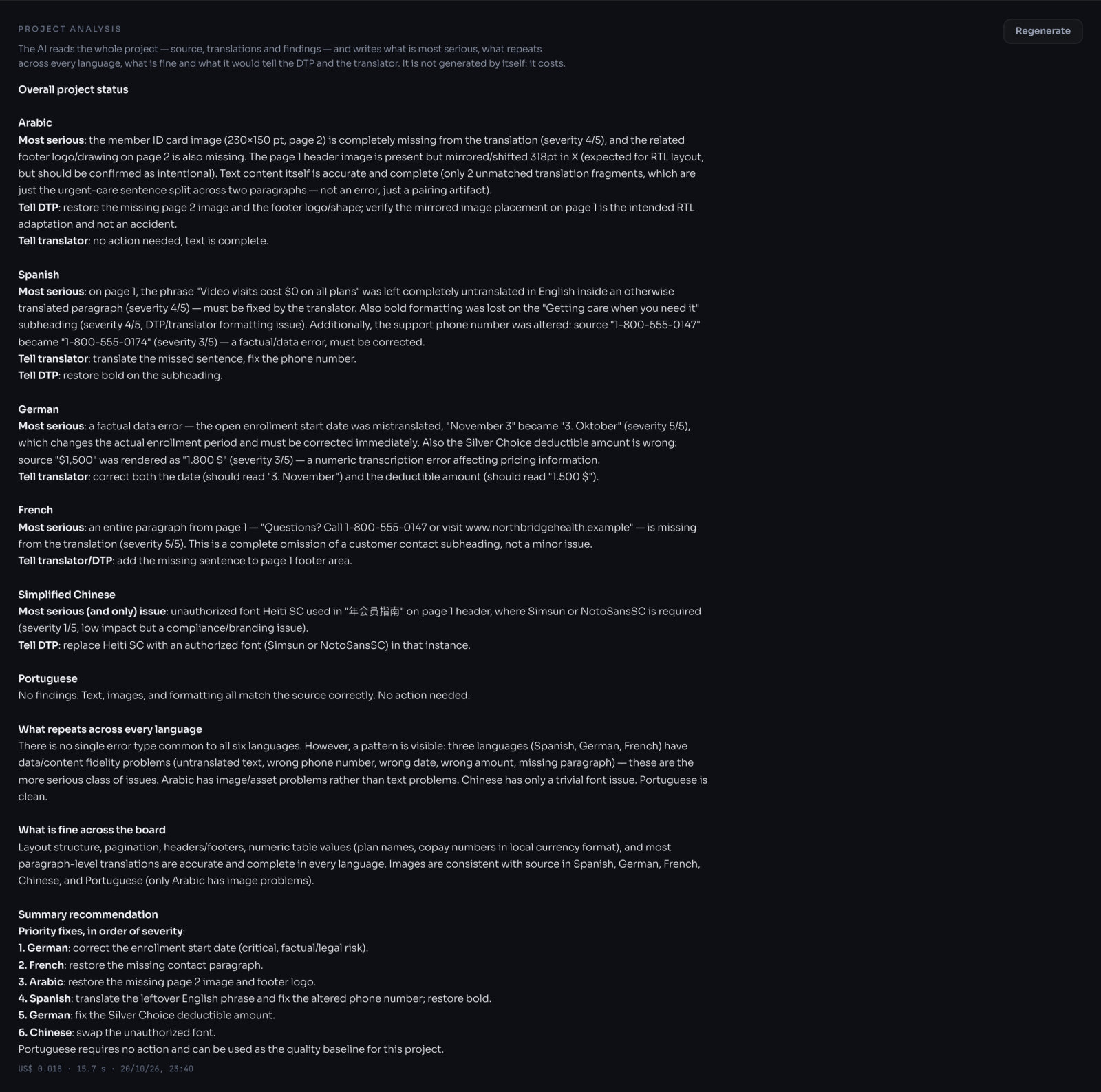
For a written overview of the whole project, use the Summary tab instead of the chat.
- Click the Summary tab on the results screen.
- Go to Project analysis, under the table. Until you generate it, it says “Not generated yet.”
- Click Generate AI analysis. If the chat hasn’t read the project yet, it reads it first.
- Read the result. By language, what is most serious; what repeats across every language; what is fine; and what to tell the DTP operator and the translator.
What you’ll see: the analysis under the heading, with its cost, time and date. It is saved with the project, so whoever opens the project later sees it without paying again.
The analysis is not generated on its own: it costs, and the cost is shown next to it. It is written in the interface language. If you switch the interface language later, a note says which language it was written in; Regenerate writes it again, in the current language and with the current state of the review.